
How to rename a photo while you are looking at it
Press F2 in Image Viewer by Zaweba to rename the picture on screen, so you can give photos proper names as you step through a folder.
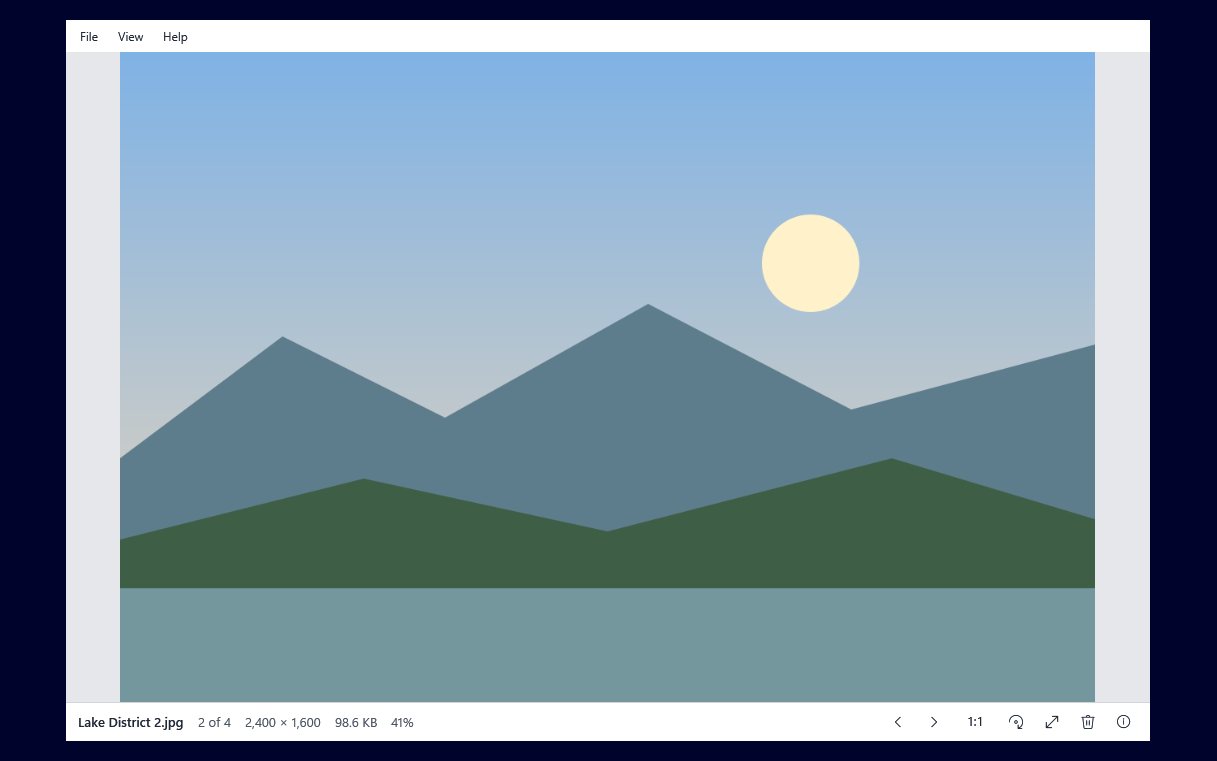
Press F2 in Image Viewer by Zaweba and you can rename the picture that is on screen, without going back to Explorer. The photo stays in front of you while you type, so you can name it after what you can actually see. Then step on to the next picture and do the same.
Camera and phone files arrive with names like IMG_4821.jpg, which tell you nothing a year later. Renaming as you look is the quickest way to fix that, because the moment you see the picture is the moment you know what it is.
What you need
Only the picture and Image Viewer. Open the photo by double-clicking it (if Image Viewer is your default for pictures), by dragging it onto the window, or with File > Open (Ctrl+O). The bottom bar shows the current file name and a position such as 12 of 87, so you always know which file you are about to rename and how far through the folder you are.
Step by step
Open the first photo in the folder you want to tidy. Look at it, then press F2. Type the new name and confirm it. The picture stays where it is on screen, now under its new name, and the bottom bar shows the change.
Press the Right arrow, Space or the mouse's forward button to move to the next picture. Image Viewer steps through every picture in the folder in Explorer's name order, so you work through them in the order you would see them in the folder window. Keep going: look, F2, type, next.
Because Image Viewer watches the folder, it picks up renamed files as you go. Bear in mind that the order is by name, so a renamed picture may now sort somewhere else in the folder. That is normal and nothing is lost; it is simply sitting in its new alphabetical place.
Naming photos so you can find them again
A good name says what, where or who. "Beach at Tenby with Gran" will turn up in a Windows search years from now, while IMG_4821 never will. If the order matters, such as the stages of a building job or a child's school photos, start names with the year and month written as numbers (2026-08 for August 2026, say) so that name order is also date order.
If you are not sure when a photo was taken, press I to open the information panel. When the photo has them, it shows the date taken, the camera and the lens, along with the dimensions, format, file size and folder. That is often enough to work out which day or which trip it belongs to before you type a name.
Keep names fairly short. Long names get cut off in Explorer's columns and in the bottom bar, and they are tiresome to read. A handful of words is plenty.
Tidying a folder in one sitting
Renaming sits naturally alongside the other small file jobs Image Viewer does without leaving the picture. While you are working through a folder you can press Del to send a blurred or duplicate shot to the Recycle Bin (after a confirmation you can turn off in Settings), and the next picture appears. Ctrl+Shift+C copies the file's path if you need to paste it somewhere, and Show in Explorer opens the folder with the file selected, which is handy when you want to move a renamed photo into a different folder.
If a photo is sideways, press R to turn it right or Shift+R (or L) to turn it left. When you leave the picture, Image Viewer asks once whether to save the rotation. Getting the orientation and the name right in the same pass means each picture is finished before you move on.
When renaming isn't the right job
Renaming one photo at a time is best when each picture deserves its own description. If you want to rename hundreds of files to a pattern, or sort them into folders, a file tool is a better fit, and Image Viewer will happily sit alongside it as the viewer you open each file in. Image Viewer is deliberately a plain viewer, so it keeps to the jobs you do while looking at one picture.
For a holiday folder, a family archive or a set of product photos, though, a few minutes with F2 and the arrow keys turns a list of meaningless numbers into names you will recognise.

