
How to view multi-page TIFF files on Windows
Image Viewer by Zaweba opens multi-page TIFF files and lets you move between the pages with Page Up and Page Down, without a document program.
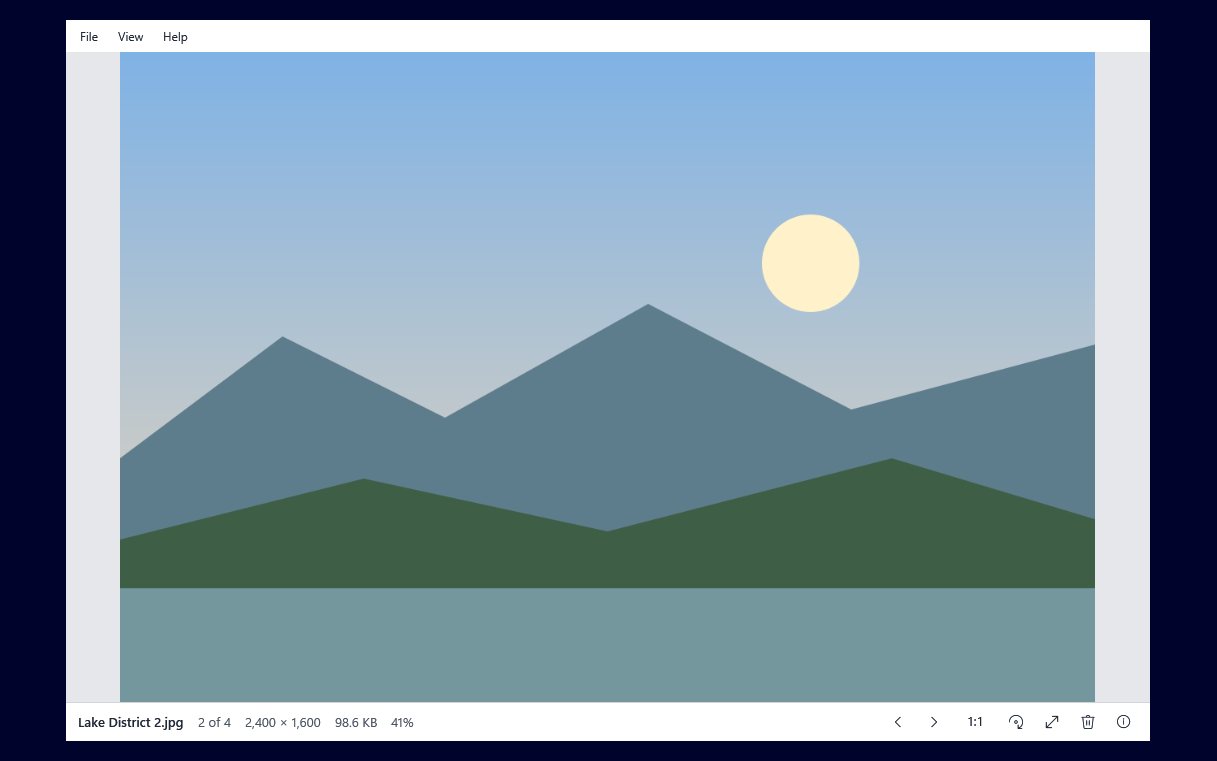
Multi-page TIFFs open in Image Viewer by Zaweba like any other picture, and Page Down and Page Up move between the pages. The first page shows straight away, and each key press brings up the next or previous one. You don't need a fax program, a scanner's own software or a document editor to read them.
Multi-page TIFFs are common in offices. Scanners often save a whole letter or form as one TIFF with a page for each sheet, and some older fax and archive systems used them as standard. They are easy to get and oddly awkward to read, because many viewers only ever show the first page.
Opening the file
Double-click the TIFF if Image Viewer is your default for pictures (the .tif and .tiff types are among those it registers when you ask in Settings), drag it onto the window, or use File > Open (Ctrl+O). Image Viewer reads the whole file into memory, so the TIFF is never locked while you look at it. Someone else on a shared folder can still open it, and you can move or rename it without closing the viewer.
Moving through the pages
Press Page Down for the next page and Page Up for the previous one. Keep these separate in your head from the arrow keys: Left and Right, Space and Backspace step to other picture files in the same folder, while Page Up and Page Down move within the TIFF you have open.
That split is useful when you have a folder of scanned documents. Read through one file's pages with Page Down, then press Right to go to the next file and start again at its first page.
Reading the small print
Scans are often large, and text can look small when the page is fitted to the window. Zoom in with + or Ctrl+wheel, or press 1 or A to see actual pixels, then drag to pan across the page. Press F to fit the whole page again, or double-click to swap between fit and 100%.
If a scan came out sideways, press R to turn it right or Shift+R (or L) to turn it left. On leaving the picture, Image Viewer asks once whether to save the rotation, and TIFFs are re-encoded losslessly when it does, so nothing is lost.
For a closer look at the page with nothing else on screen, press F11 or Enter for full screen on black, and Esc to return.
Checking what you have
Press I to open the information panel: name, folder, dimensions, format, file size and dates. The dimensions tell you roughly how detailed the scan is, which helps when you are deciding whether a page is clear enough to send on or should be scanned again.
Other jobs while you read
Image Viewer's file actions work on the TIFF too. Press Ctrl+P to print the picture fitted to the page, F2 to give the file a name that says what the document is, or Ctrl+Shift+C to copy its path for an email. Show in Explorer opens the folder with the file selected.
When to use something else
Image Viewer shows the pages so you can read them. It does not combine TIFFs, split them, or turn them into searchable text. If you need to keep a scanned document as a PDF or pull words out of it, use a PDF or document program for that part. For simply finding out what a TIFF contains and reading every page, a quick viewer with Page Up and Page Down is the fastest route.

