
Finding every key and mouse action in Image Viewer
Help, then Keyboard and mouse in Image Viewer by Zaweba lists every key and mouse action in one small window, so nothing is hidden.
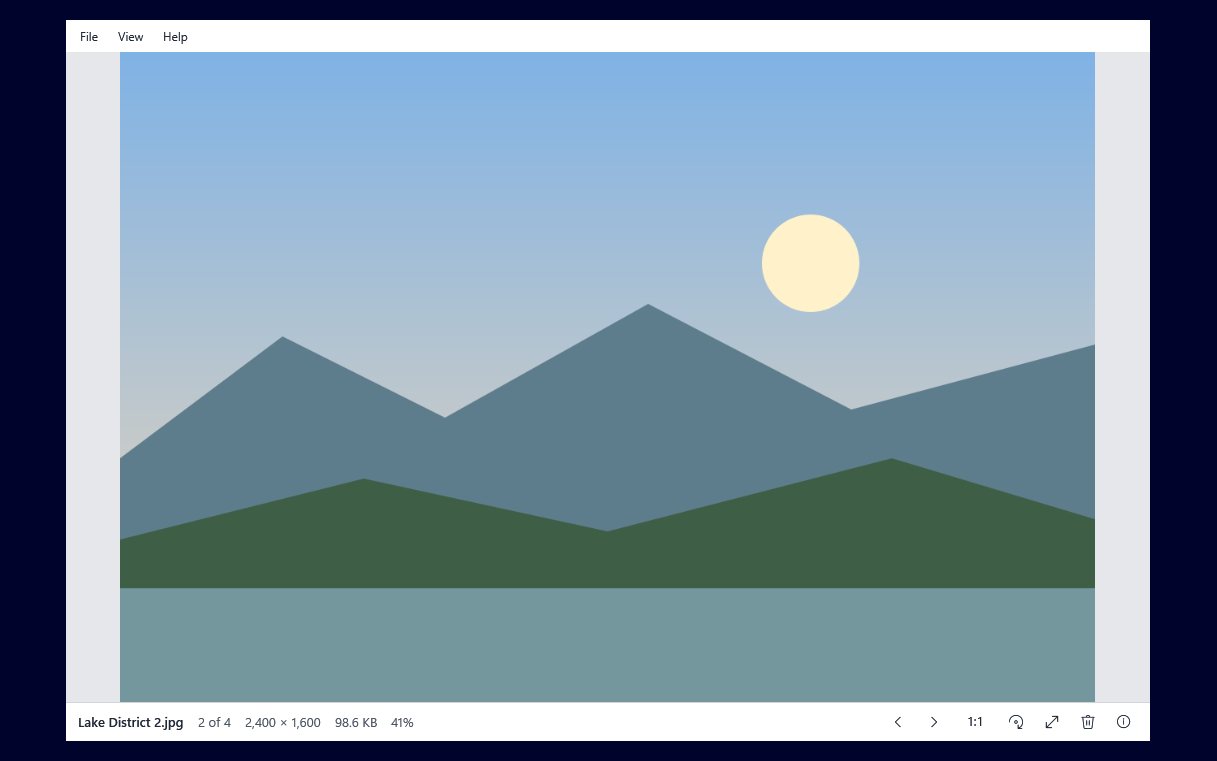
A plain picture viewer gets most of its speed from the keyboard and mouse. Image Viewer by Zaweba has very few buttons, so the quickest way to learn it is to know where the full list of keys lives: Help, then Keyboard and mouse. It opens one small window listing every key and mouse action. Nothing is hidden in a long manual.
Why a single small window helps
Shortcuts are only useful if you can find them when you need them. A small window you can open, read and close in a few seconds is easier than searching a help site. Leave it open to one side for your first session and glance at it as you go, and within an hour the common keys stick.
The keys most people learn first
Stepping comes first. Left and Right, Up and Down, Space and Backspace all step through the pictures in the folder, in Explorer's name order. Home and End jump to the first and last picture. When you go past the end, the viewer wraps round and shows Back at start of dir for about a second and a half.
Zoom comes next. F fits the picture to the window, 1 or A shows actual pixels, and the plus and minus keys zoom in and out. Double-click swaps between fit and 100 percent.
Then the view. F11 or Enter goes full screen on black, F5 starts a slideshow, Space pauses it, and Esc leaves. I opens the information panel with the photo's details.
Finally the file jobs. R rotates right and Shift+R or L rotates left. Del sends the picture to the Recycle Bin. F2 renames, Ctrl+C copies the picture, Ctrl+Shift+C copies its path, Ctrl+P prints and Ctrl+O opens a file. In a multi-page TIFF, Page Up and Page Down move between pages.
The mouse
The mouse does more than it first appears. The back and forward buttons on the side of many mice step through the folder. The wheel steps while the picture is fitted, and once you are zoomed in it zooms at the pointer instead. Ctrl+wheel always zooms. Dragging pans a zoomed picture. Arrows appear near the edges of the window to step with a click.
That wheel behaviour is worth understanding, because it is the one that surprises people. Fitted, the wheel moves between pictures. Zoomed in, it zooms. If you want to zoom from a fitted view, use Ctrl+wheel or press 1 first.
Using the list well
Don't try to learn everything at once. Pick the keys for the job you do most. If you mostly sort photos, learn the arrows, Del and R. If you check focus, learn 1, F and the drag to pan. If you show pictures to family, F5, Space and Esc are enough.
The bottom bar's buttons do the same things as many of these keys, so you can always fall back to clicking. The help window is there for the moment you think there must be a quicker way.
Same habits on a Mac or Linux PC
The Mac and Linux version of Image Viewer has the same stepping, zoom, slideshow and rotation, so the habits carry across even though the keyboard itself differs.
The Keyboard and mouse window is a small feature, but it reflects how the app is meant to be used: quick, plain and mostly from the keyboard, with everything you need written down in one place.

