
Showing photos the right way up in Image Viewer by Zaweba
Image Viewer by Zaweba reads the EXIF orientation tag, so portrait photos from phones and cameras open upright without you turning anything.
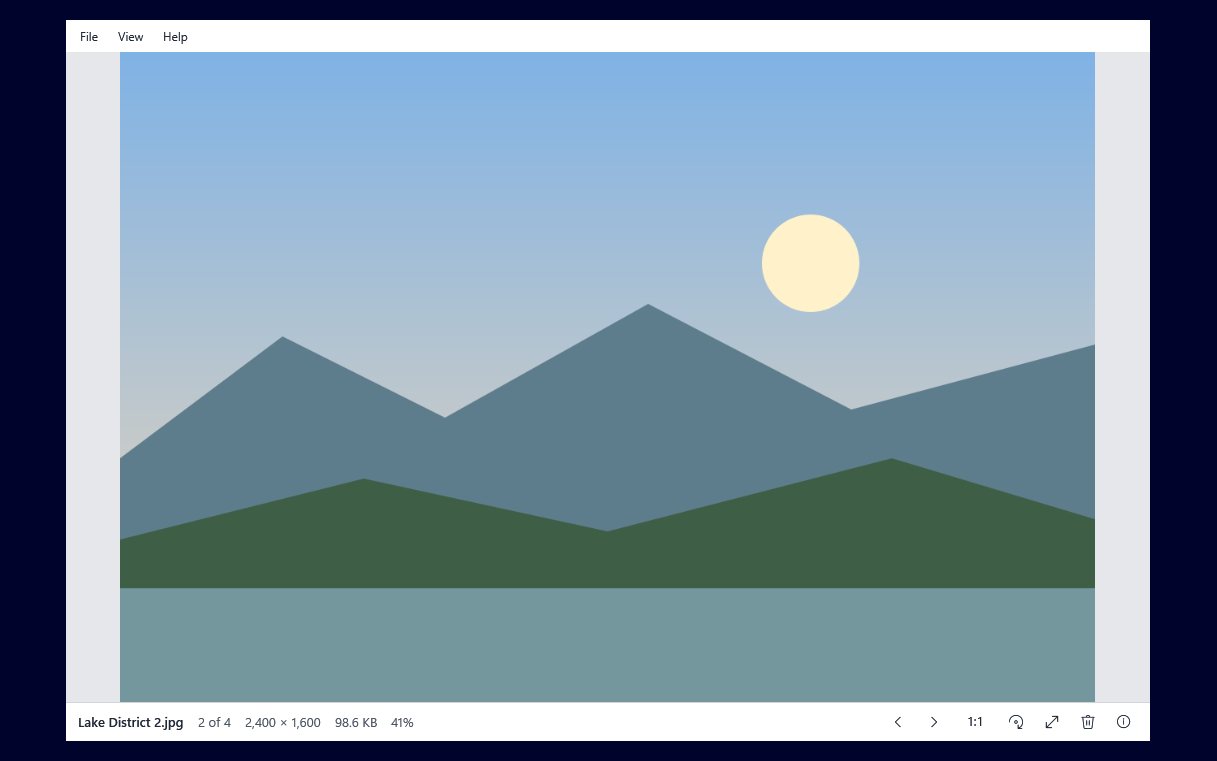
Phones and cameras rarely turn the pixels of a photo when you hold them on their side. They save the picture the way the sensor saw it and write a small note in the file, the EXIF orientation tag, saying which way up it should be shown. A viewer that ignores that note shows your portrait shots lying on their side. Image Viewer by Zaweba honours the tag, so a photo taken upright opens upright.
It happens without a setting or a button. You double-click a photo, it fills the window, and it is the right way round. That is the whole of the feature from the outside, and it is the reason a folder of mixed portrait and landscape shots looks normal as you step through it.
Why some viewers get it wrong
The orientation tag is part of the photo's metadata rather than the picture itself. Programs that only read the pixels see the raw sensor layout, which is why the same file can look correct on your phone and sideways somewhere else. If you have ever turned a picture in one program only to find it upside down in another, the tag and the pixels were disagreeing.
Image Viewer reads the tag as it opens each picture, before drawing anything, so you never see a sideways flash followed by a correction. The info panel (press I) shows the camera details that sit alongside the tag, such as camera, lens and date taken, when the photo has them.
When a photo is still the wrong way round
Sometimes the tag itself is wrong. A camera may guess badly when it is pointed straight down at a document, or a photo may have passed through software that dropped the tag. In that case the viewer shows exactly what the file says, which is the wrong way round.
That is what rotation is for. R turns the picture right, and Shift+R or L turns it left. When you move on to the next picture, Image Viewer asks once whether to save the rotation, and in Settings you can change that to Always or Never. For JPEGs whose size is a whole number of compression blocks the turn is lossless; other JPEGs are re-encoded at quality 95, while PNG, BMP, TIFF and still GIFs are re-encoded losslessly. EXIF is kept either way.
A good habit is to step through a whole shoot first and only rotate the handful that are genuinely wrong. Most of the time the tag is right and there is nothing to do.
Upright everywhere, not just on screen
The same care carries into other jobs. When you choose File, then Set as desktop background, a picture that is turned by EXIF goes to Windows by way of an upright JPEG copy kept in the settings folder, because the wallpaper setting would otherwise show the raw sensor layout. You get the picture you saw in the viewer, not a sideways version of it.
The Mac and Linux version handles rotation the same thoughtful way. There, a saved rotation is stored losslessly through the EXIF orientation itself, so the pixels are left alone and only the note changes.
When another program disagrees
If you open a photo in another program and it appears sideways while Image Viewer shows it upright, the photo is fine and the other program is ignoring the tag. Rotating it again in Image Viewer to suit the other program would make it wrong here, so check the other program's own options first.
Screenshots, scans and pictures made in an editor usually have no orientation tag at all. They are shown exactly as saved, which is normally what you want.
And if you hand a picture to Paint by Zaweba with the Edit button, it is the same file going across, tag and all. The viewer never quietly rewrites a photo just because it showed it upright.
It is a small thing, but a picture viewer that gets orientation right is one you stop thinking about, and that is the point of a plain viewer that opens in about half a second and gets out of the way.

