
How to play an animated GIF on Windows
Open an animated GIF in Image Viewer by Zaweba and it simply plays, with each frame's position, delay and disposal respected so it moves as intended.
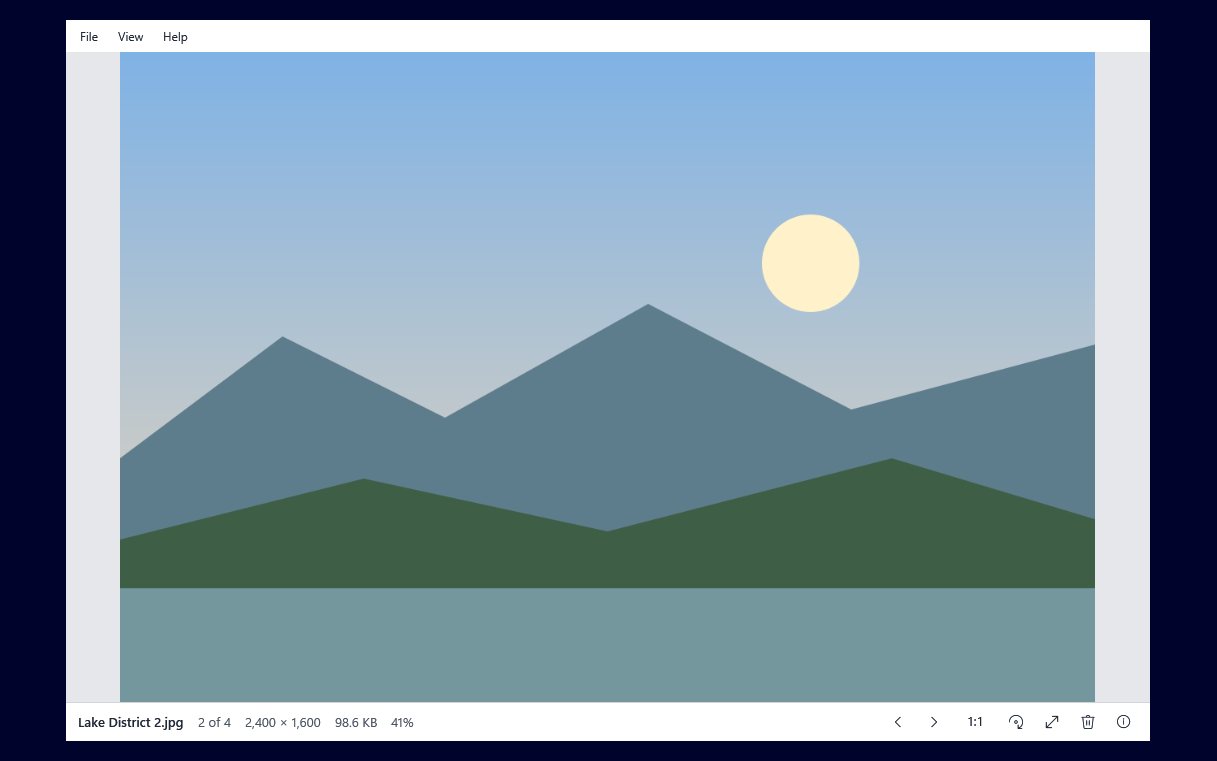
An animated GIF plays as soon as you open it in Image Viewer by Zaweba. There is no play button to find and no separate player to install. The animation runs in the window just as a still photo would sit there, and the arrow keys still step on to the next picture in the folder when you have seen enough.
Animated GIFs turn up everywhere: reaction images saved from chats, small product demonstrations, old web graphics and short screen recordings. On some setups they open as a single frozen frame or in a program that was never meant for pictures. A picture viewer that plays them properly saves that confusion.
Opening the GIF
Double-click the file if Image Viewer is your default for pictures, drag it onto the Image Viewer window, or use File > Open (Ctrl+O). Image Viewer starts in about half a second, so it is quicker than waiting for a browser or editor to load just to see a few seconds of animation.
To make it open GIFs every time, use Settings > Make Image Viewer the default for pictures. That registers the app for your account only, including the .gif type, and opens Windows' Default apps page where you make the choice. Nothing changes until you choose it there.
Why some GIFs play badly elsewhere
An animated GIF is a stack of frames with instructions for each one: where it sits, how long it stays on screen, and what happens to it before the next frame is drawn (its disposal). Many GIFs only update the part of the picture that changes, to save space. If a viewer ignores the positions or disposal, you get smeared trails, flicker or frames in the wrong place.
Image Viewer respects the frame positions, delays and disposal, so the animation plays at the speed and in the way its maker intended.
Looking at a GIF properly
The usual viewing tools work on animations too. Press F11 or Enter for a black full screen with nothing else showing, then Esc to come back. Zoom with + and -, Ctrl+wheel, or press 1 (or A) to see actual pixels, which is handy for small pixel art GIFs that would otherwise be tiny on a modern screen. F fits it to the window again.
Press I for the information panel to see the dimensions, format, file size and dates. The bottom bar also shows the name and size at a glance, which helps when you are deciding whether a GIF is too large to send.
Working through a folder of GIFs
If you keep a folder of saved animations, open any one and step through with Right and Left, Space and Backspace, or the mouse's back and forward buttons. Each one starts playing as you arrive. Rename a file with F2 so you can find it again, copy the file path with Ctrl+Shift+C to attach it to a message, or press Del to send one you no longer want to the Recycle Bin.
When you pass the last file, Image Viewer goes back to the first and shows Back at start of dir for a moment, so you never hit a dead end.
A note on copying and editing
When you need to share an animation, attach the file rather than copying and pasting the picture, because many programs treat a pasted image as a single still frame. Image Viewer is a viewer: it plays GIFs and shows every frame as intended, but it does not edit animations. Keep it as the quick way to see what a GIF actually looks like.

