
How to print a photo from Image Viewer by Zaweba
Press Ctrl+P in Image Viewer by Zaweba to print the picture on screen fitted to the page, with no layout tools to get in the way.
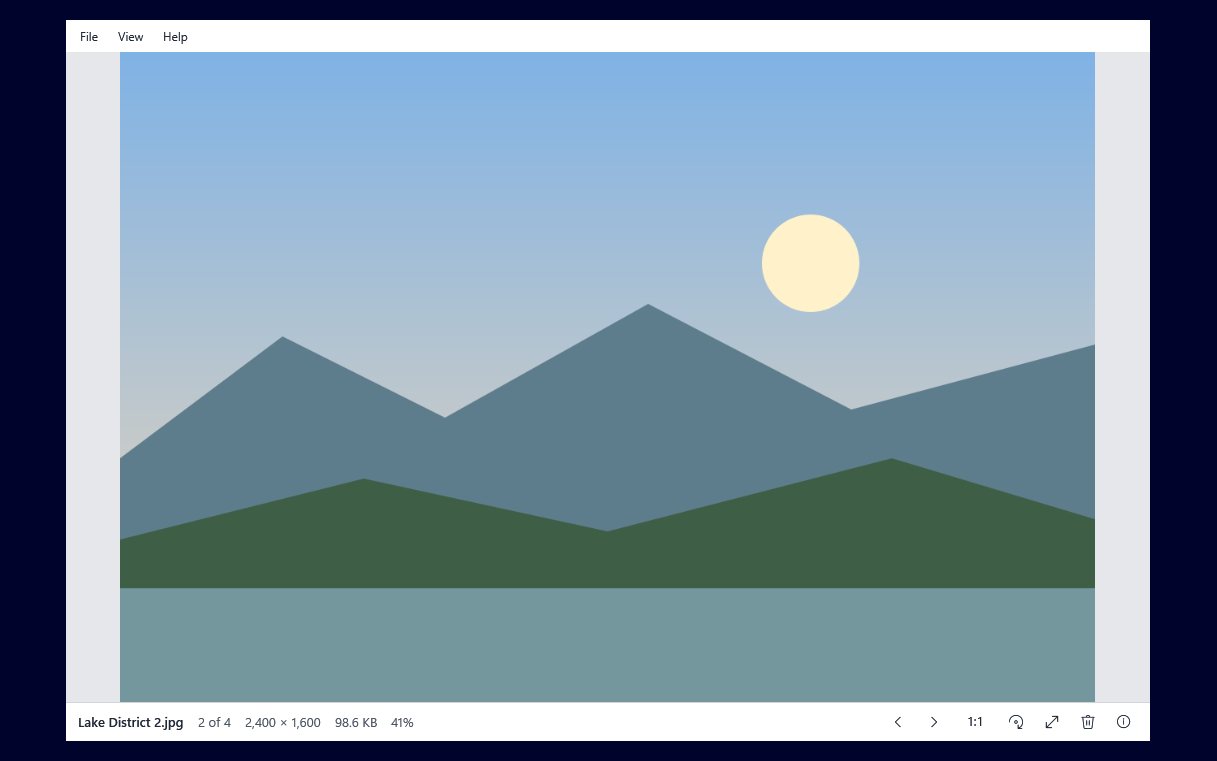
Sometimes you just want a picture on paper: a ticket, a map, a photo for the fridge or a screenshot someone asked for. Image Viewer by Zaweba prints the picture you are looking at with one shortcut. Press Ctrl+P and it prints the picture fitted to the page.
That is deliberately simple. There are no templates, collages or contact sheets, because the app is a viewer first. For the everyday job of putting one picture on one page, simple is usually what you want.
Printing in a few seconds
Open the picture, or step to it in its folder with the arrow keys. Press Ctrl+P, or use the Print command in the File menu. Pick your printer and its options the way you normally do on Windows, and the picture prints fitted to the page.
Fitted to the page means the whole picture is scaled to fit the printable area without being cropped. A tall picture fills the height and a wide one fills the width.
Getting a good result
Check the picture is the right way up first. Image Viewer shows photos upright by honouring the EXIF orientation tag, and if one is still wrong, R turns it right and Shift+R or L turns it left. Sort that out before printing so you don't waste paper.
Match the paper orientation to the picture. A landscape photo printed on portrait paper is fitted to the width and leaves a large white space below. If your printer offers an orientation choice, pick landscape for wide pictures.
Look at the dimensions on the bottom bar. A small picture, such as a thumbnail saved from a message, will be enlarged to fill the page and can look soft or blocky on paper. If you have a larger original, print that instead. The info panel (press I) shows the dimensions and format too.
For photo paper, use the printer's own options for paper type and quality. Those settings belong to the printer, and they make a bigger difference to colour and sharpness than anything a viewer can do.
When you need more than this
If you want a picture at an exact size, with a border, cropped, or with text added, that is an editing job rather than a viewing one. The Edit button on the bottom bar opens the picture in Paint by Zaweba when Paint is installed and opens that type, and you can prepare it there.
If what you really need is to capture part of the screen and print it straight away, that is a different task from printing a saved picture. Image Viewer prints files you have opened.
Small things worth knowing
Ctrl+P prints the current picture, whichever one is on screen, so step to the right one before pressing it. In a multi-page TIFF, Page Up and Page Down move between pages; make sure the page you want is showing.
Printing does not change the file. Nothing is saved, rotated or re-encoded by printing, and you can carry on stepping through the folder as soon as the job is sent.
Everything happens on your own PC. Image Viewer decodes the picture with Windows' own codecs, nothing is uploaded, and the print goes straight to the printer you chose.
It is a small feature in a small app, which is rather the point. Open, look, press Ctrl+P, and get on with your day.

