
Renaming, copying and finding photos from Image Viewer
Rename a photo with F2, copy the picture or its path, or jump to it in Explorer, all without leaving Image Viewer by Zaweba.
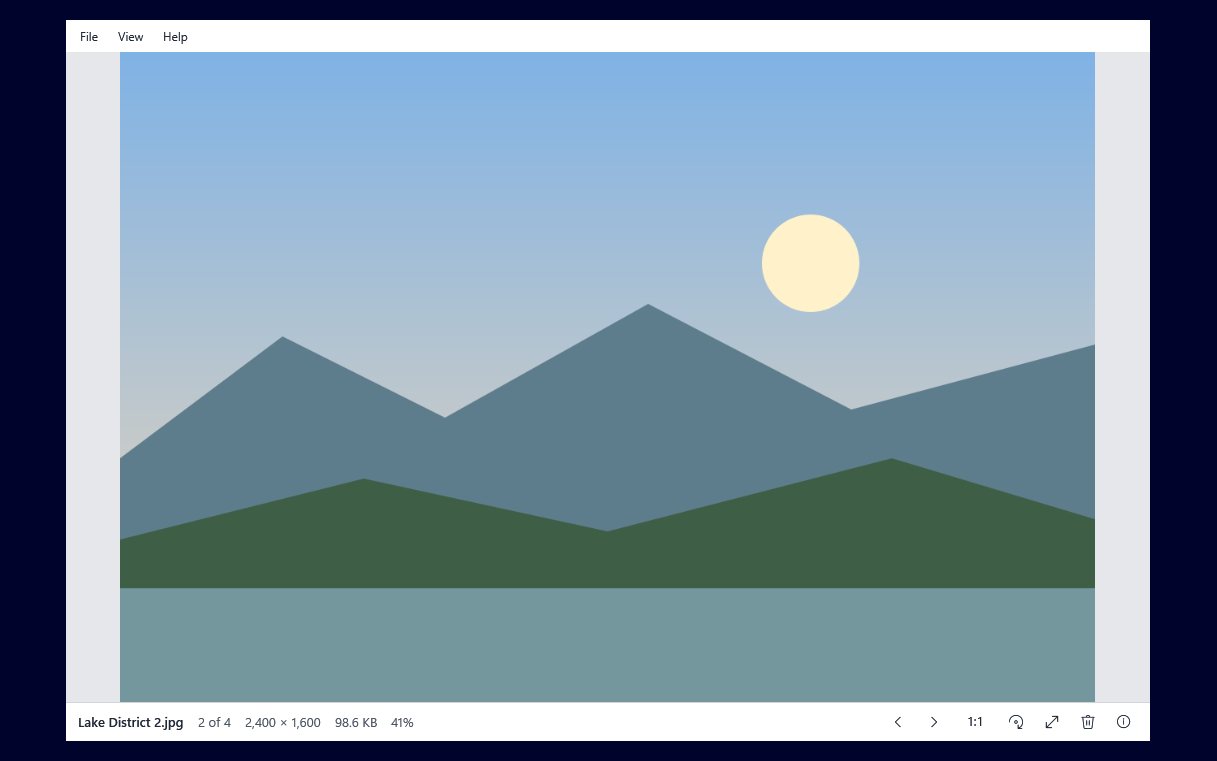
A picture viewer is often where you first notice that a file needs something: a better name, a copy for an email, or a trip to its folder so you can move it. Image Viewer by Zaweba keeps four small file actions close at hand for exactly those moments, so you don't have to close the picture and go hunting.
Renaming with F2
Press F2 and you can rename the picture you are looking at. It is the same key Explorer uses, which makes it easy to remember. Camera names such as a long string of letters and numbers are fine for a camera and useless for a person, so renaming the few shots you will look for later is time well spent.
Because the viewer steps through the folder in Explorer's name order, a new name can move the picture to a different place in the sequence. That is expected. The folder watcher picks up renamed files, so the list stays correct and you can carry on stepping.
A tip for whole events: give names that sort sensibly. Starting each name with the date or a number keeps them in a useful order, and the viewer's natural ordering puts 2 before 10, so you don't have to pad numbers with zeros to get the order right.
Copying the picture, or its path
Ctrl+C copies the picture itself. You can then paste it straight into an email, a chat, a document or an editor that accepts pictures from the clipboard. Nothing is saved to disk along the way; it is the image going across.
Ctrl+Shift+C copies the file's path instead. That is the right choice when a program asks for a file location, when you are writing instructions for someone, or when you want to paste the path into an Open dialog. It also helps when you need to tell someone exactly which of many similar photos you mean.
It is easy to mix the two up. If you paste and get a line of text, you copied the path. If you paste into a text box and nothing appears, the box probably does not accept pictures, and the path may be what you wanted.
Show in Explorer
Show in Explorer opens the picture's folder with the file already selected. From there you can drag it to another folder, attach it, zip it or do anything else Explorer allows. It saves scrolling through a long folder looking for the same file you were just viewing.
This is the natural partner to a sorting pass. Step through the folder, and when you find a picture that belongs somewhere else, show it in Explorer, move it, and come back. The viewer notices it has gone and shows the next one.
How these fit with the rest of the app
These actions sit alongside Del, which sends a picture to the Recycle Bin, and Ctrl+P, which prints it fitted to the page. Between them they cover most of what people do to a photo without editing it. When a picture does need editing, the Edit button hands it to Paint by Zaweba if Paint is installed and opens that type.
None of these actions changes the picture itself. Renaming changes the name, copying leaves the file alone and Show in Explorer just opens a window. The only things in Image Viewer that touch the pixels are deliberate ones, such as saving a rotation, and those ask first unless you have told them not to.
Small mistakes to avoid
Don't rename while another program has the same file open for editing; finish there first. If what you want is a second copy of the file in another folder, Show in Explorer gets you to it in one step. And if you are unsure of a key, Help, then Keyboard and mouse lists them all in one small window.

