
Setting a photo as your desktop background from Image Viewer
Image Viewer by Zaweba sets the picture on screen as your wallpaper, asking first and making an upright copy when Windows needs one.
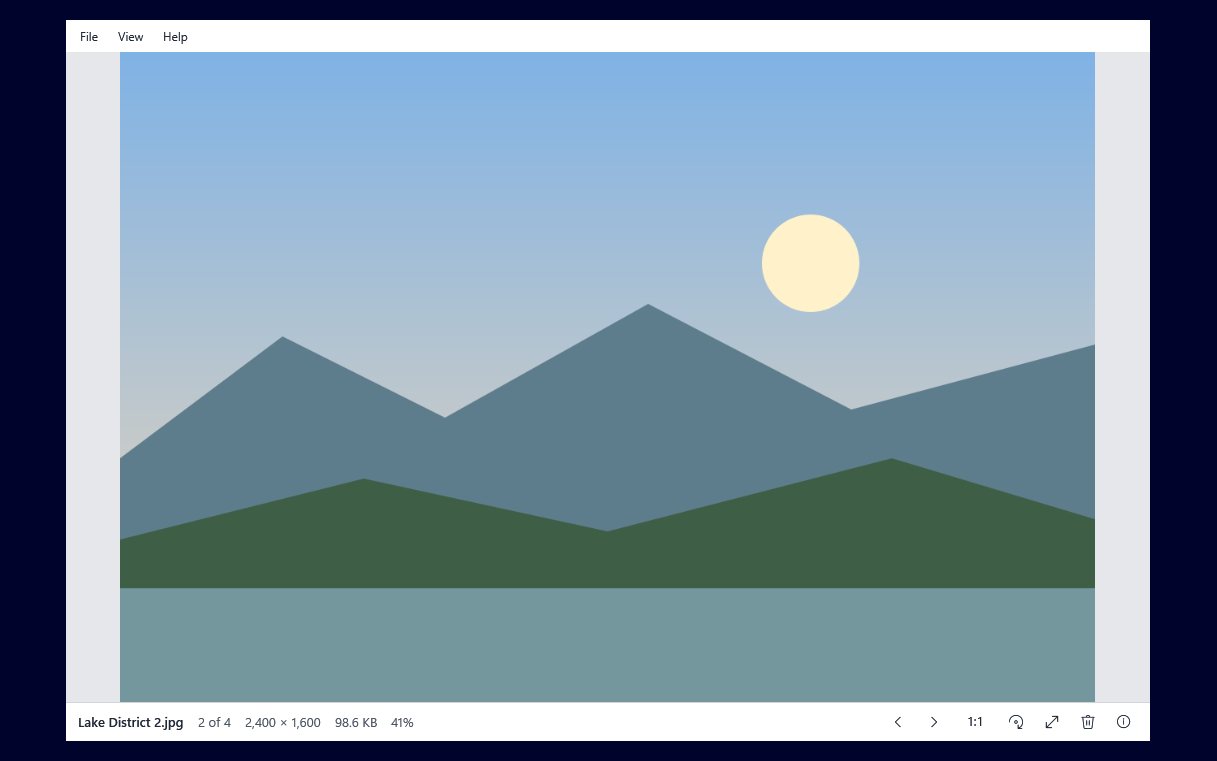
Finding a photo you like and making it your wallpaper should take seconds. In Image Viewer by Zaweba it does: open the picture, choose File, then Set as desktop background, confirm, and Windows shows it on the desktop.
The app asks first, because changing your wallpaper is a change to Windows rather than to the picture, and it is easy to click the wrong command. One question is enough to make sure you meant it.
From viewer to wallpaper
Open the picture you want, or step to it through its folder with the arrow keys. Choose Set as desktop background in the File menu. Image Viewer asks whether to set it. Say yes, and the picture becomes your wallpaper.
How the picture is placed on the desktop, filled, fitted or centred, is decided by Windows' own personalisation settings. If the result is cropped in a way you don't like, change the fit there.
Why some pictures go via a copy
Windows' wallpaper setting is happiest with JPEG, PNG and BMP. Image Viewer opens many more kinds than that, including WebP, HEIC, AVIF, TIFF and others that Windows' imaging codecs read. When you set one of those as the background, Image Viewer makes an upright JPEG copy and gives Windows that instead. The copy is kept in the app's settings folder.
The same happens with photos that are turned by EXIF. Phones often save portrait shots sideways and add a tag saying which way up to show them. Image Viewer honours the tag, so you see the photo upright, but the wallpaper setting might not. Handing Windows an upright copy means the desktop shows what you saw in the viewer, not a picture lying on its side.
Your original file is left exactly as it was. The copy exists only so the wallpaper looks right.
Choosing a good picture for the desktop
Landscape pictures suit most screens. A portrait photo on a wide monitor either leaves wide bands at the sides or gets cropped top and bottom, depending on Windows' fit setting.
Check the size. The bottom bar shows each picture's dimensions; one smaller than your screen will be stretched and can look soft. A photo straight from a camera or phone is usually plenty big enough.
Think about your icons. A busy picture behind a desktop full of shortcuts is hard to read. Quieter areas of sky, water or wall make icons easier to see.
Look at it full screen first. F11 or Enter shows the picture on black with no menu, much as it will look on the desktop. Esc comes back.
If it doesn't look right
If the wallpaper appears with the wrong framing, it is Windows' fit option, not the picture. If the photo is genuinely the wrong way up in the viewer as well, rotate it first: R turns right and Shift+R or L turns left. Then set it as the background again.
Keeping the pictures you use as wallpaper in a folder you don't tidy away is a sensible habit, so you can always find the original again.
Part of a plain viewer
Setting the wallpaper is one of a handful of file actions in Image Viewer, alongside renaming with F2, copying with Ctrl+C, printing with Ctrl+P and deleting to the Recycle Bin. None of them needs an editor, an account or a connection. It all happens on your PC, which is how a small, quick viewer should behave.

