
How to set a photo as your desktop wallpaper
Open the photo in Image Viewer by Zaweba and choose File > Set as desktop background. It asks first, then makes that picture your wallpaper.
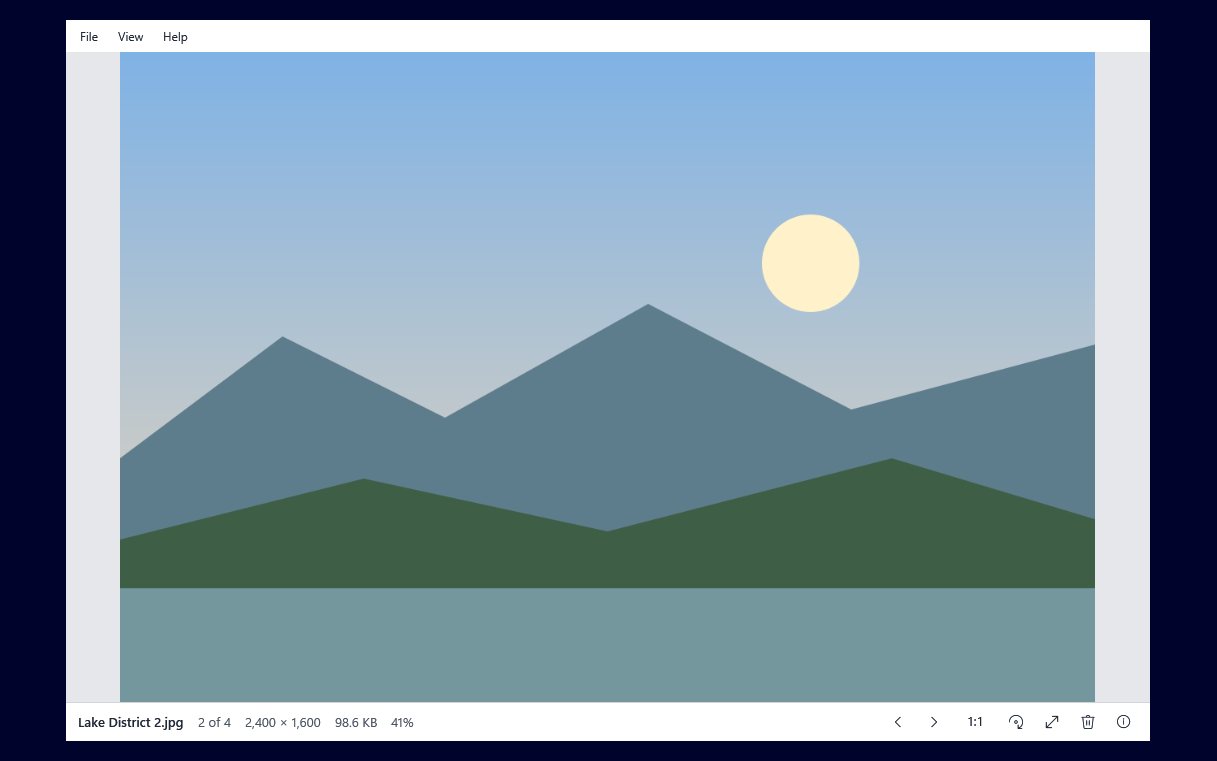
In Image Viewer by Zaweba, open the photo and choose File > Set as desktop background. The app asks you to confirm, then sets that picture as your Windows wallpaper. You can pick the photo while seeing it full size, which is a better way to choose than squinting at thumbnails in the Settings app.
It suits the moment when you are looking through holiday pictures and one of them stops you. Rather than noting the name and hunting for it later in Windows' personalisation pages, you set it there and then.
Choosing the right picture
Step through your folder with the arrow keys, Space or the mouse wheel while the picture is fitted. When a photo looks right, check two things on the bottom bar: the dimensions and the zoom. A wallpaper looks best when the picture is at least as big as your screen. A small picture will be stretched and can look soft.
Shape matters too. Most screens are wide, so landscape photos usually make better wallpapers than tall ones. A tall portrait shot may be cropped heavily or shown with bands either side, depending on your Windows background settings.
It also helps to think about where your desktop icons sit. A photo with a quiet area down one side, such as sky, sea or a plain wall, leaves room for icons without hiding the interesting part.
Setting it
With the photo on screen, open the File menu and choose Set as desktop background. Image Viewer asks first, so a stray click never changes your desktop. Confirm, and the wallpaper changes.
Photos that are sideways or in unusual formats
Windows' wallpaper setting is fussier than a viewer about which pictures it accepts. Image Viewer deals with that for you. Pictures that are not JPEG, PNG or BMP, or that are turned by EXIF orientation, go via an upright JPEG copy kept in Image Viewer's settings folder. That means a HEIC photo from a phone, or a JPEG that only looks upright because of its orientation tag, still ends up the right way up on your desktop.
Because the copy lives in the settings folder, you can rename, move or even delete the original photo without the wallpaper vanishing. If you later want to tidy up, setting a different picture as the background is the simplest way to replace it.
If a photo looks sideways in Image Viewer itself, turn it first with R or Shift+R (L also turns left). When you leave the picture you are asked once whether to save the rotation, and the version you set as wallpaper will match what you see.
Making a change of scene a habit
Some people like a new wallpaper every week or season. Keep a folder of favourites, open it in Image Viewer, and step to the next one whenever you fancy a change. The bottom bar's position, such as 12 of 87, tells you how far through the collection you are. Because Image Viewer steps in Explorer's name order and wraps back to the start at the end (showing Back at start of dir for a moment), you can work round the folder indefinitely.
You could also run a slideshow with F5 to see the candidates one after another in full screen, then press Esc on the one you want and set it from the File menu.
What it does not do
Image Viewer sets one picture as the background. Choosing how the picture fits the screen, or making Windows rotate through a folder by itself, are options in Windows' own personalisation settings. Image Viewer's part is picking the picture and making sure it arrives upright and in a format Windows will take, which is the fiddly bit.

