
What the bottom bar in Image Viewer by Zaweba tells you
The slim bar under every picture in Image Viewer by Zaweba shows name, position, size and zoom, with buttons for the jobs you do most often.
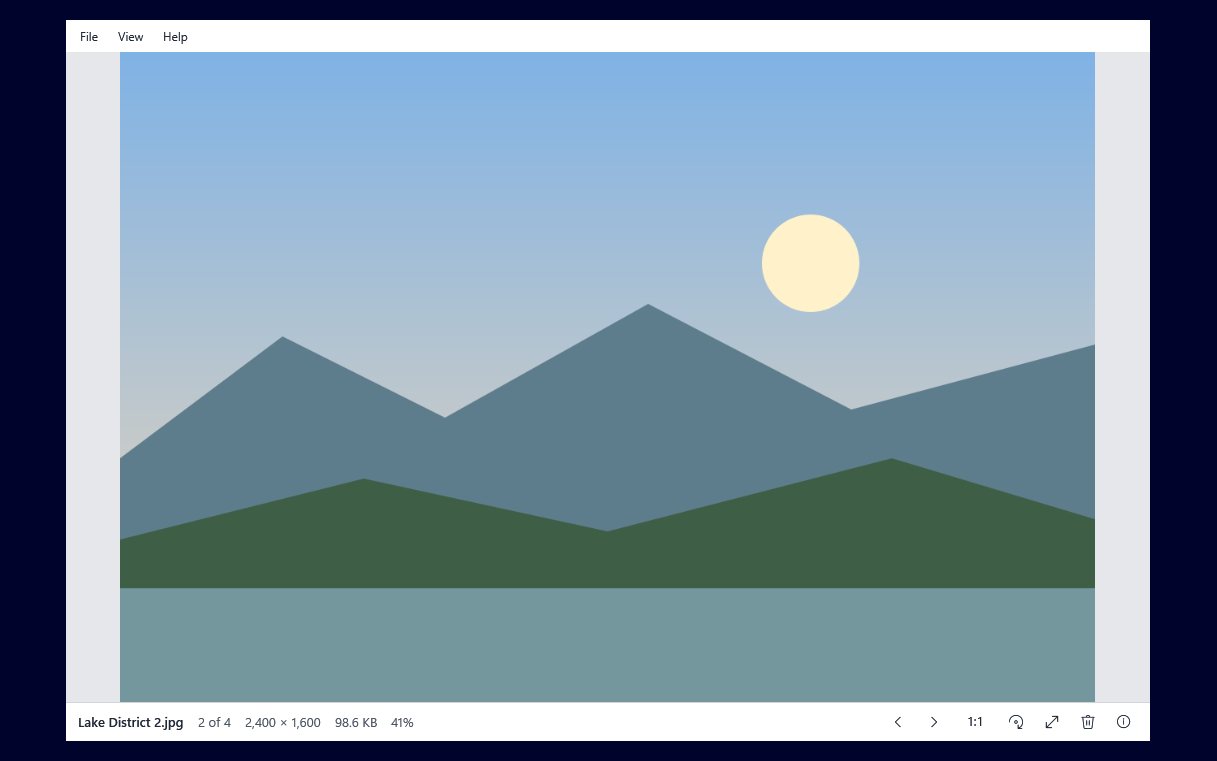
Most of Image Viewer by Zaweba is the picture. Underneath it sits one slim bar, and that bar is where the app keeps everything you might want to glance at or click. It is worth a minute to learn what is on it, because it answers the questions you have while looking through photos without opening a single menu.
What the bar shows
Reading from the information side, the bar gives the file name, your position in the folder, the picture's dimensions, the file size and the current zoom.
The position is the part people use most. It reads something like 12 of 87, which tells you how far through a folder you are and how much is left. Because the viewer steps through every picture in the folder in Explorer's name order, the number matches what you would expect from the folder window, with 2 coming before 10.
Dimensions and file size help with practical choices. If you are deciding which of two near identical shots to send to someone, the larger dimensions usually mean the original and the smaller file is often a copy that has been shrunk for email. The zoom figure tells you whether you are seeing the picture fitted to the window or at actual pixels, which matters when you are judging sharpness.
The buttons
Alongside the readout are buttons for previous, next, fit or 1:1, rotate, full screen, delete and info. Each one does the same as its keyboard equivalent, so you can mix them freely. Left and Right step, F fits and 1 or A shows actual pixels, R rotates, F11 or Enter goes full screen, Del deletes to the Recycle Bin and I opens the information panel.
Two more buttons appear only when they can do something. Edit shows when Paint by Zaweba is installed and opens that kind of picture; it hands the file to Paint. Open in shows when other installed Zaweba apps can open the type, taken from the Zaweba suite registry. If you have neither, the bar simply stays shorter, rather than showing buttons that do nothing.
Using it well
For a quick look through a folder, the bar's previous and next buttons are fine, but the keyboard is quicker once your hands are on it. Many people use the bar for the less frequent jobs, such as delete and info, and the arrow keys for stepping.
Keep half an eye on the position as you go. When you reach the end, stepping on takes you back to the first picture with a short Back at start of dir message in the middle of the picture, so the position resetting to 1 is not a mistake.
When you are checking focus, look at the zoom figure before you judge. A picture fitted to a small window can look sharp when it is not. Click fit or 1:1 to swap to actual pixels and look again.
In full screen and on other systems
In full screen the picture goes on black with no menu, and the bar tucks itself away. Move the pointer near the bottom of the screen and it comes back, so the same buttons are still there when you need them. Esc leaves full screen.
The bar is part of the plain approach the whole app takes. There is no ribbon and no panel of effects; the picture gets the space, and the few things you need sit in one line below it. If you ever forget what a button or key does, Help, then Keyboard and mouse lists every key and mouse action in one small window.
A small checklist
Glance at the position to know where you are. Glance at size and dimensions when choosing between copies. Check the zoom before judging detail. Reach for Edit or Open in when a picture needs more than viewing. That covers almost everything the bar is for, and once it is habit you will rarely open a menu at all.

