
How to print the same label on a whole sheet
In Labels by Zaweba, design the label once and choose one label across a whole sheet. Set the number of sheets and where on the first sheet to start.
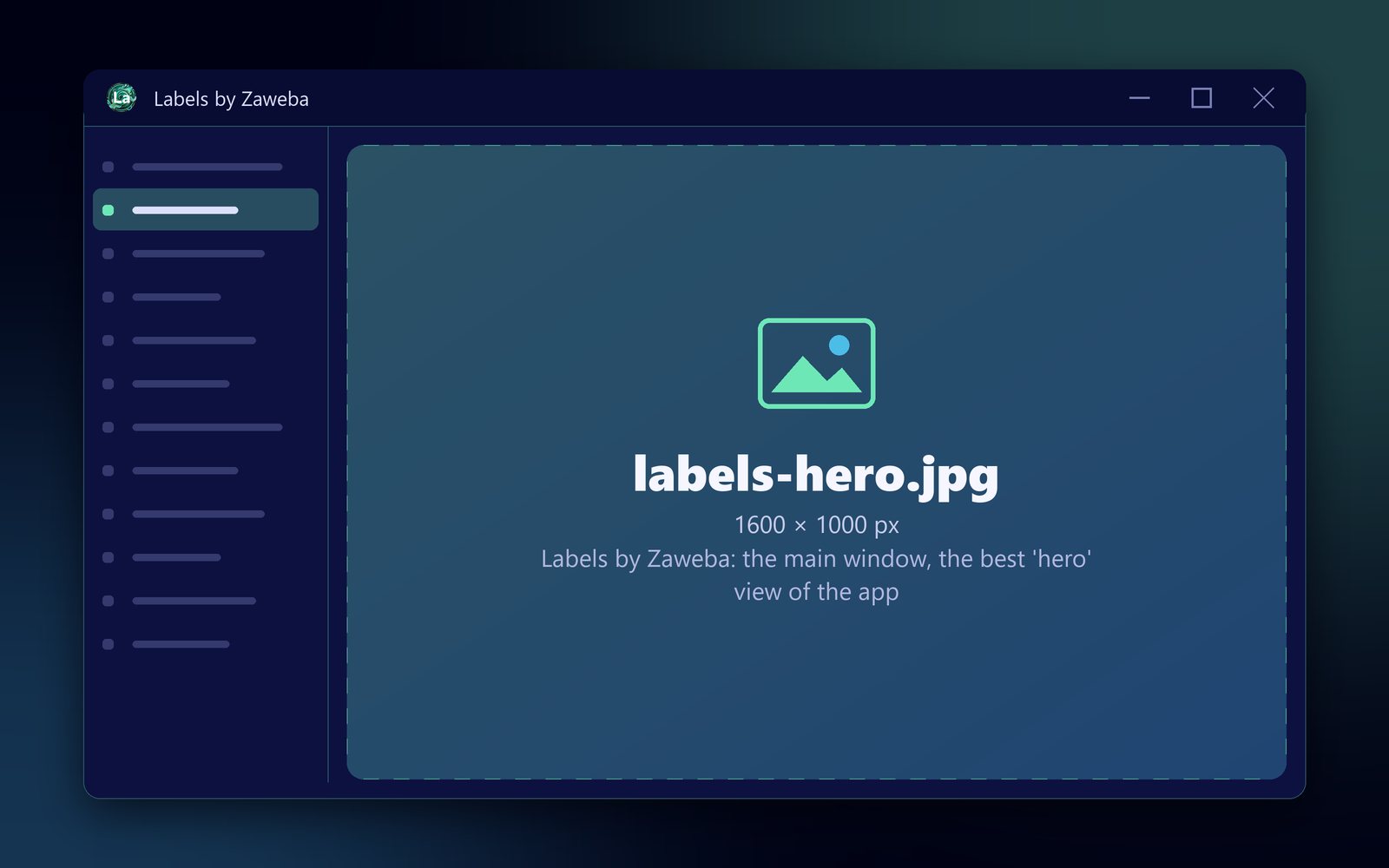
Repeating one design on every position of a sheet is built into Labels by Zaweba as the one label across a whole sheet option. Design the label once, choose that option, set how many sheets you want and where on the first sheet to start, and every label comes out identical. It works on any of the stocks, from 8 labels a sheet to 65.
This is the job for return address labels, jar and product labels, name stickers and anything else where every label says the same thing.
Choosing the stock
Pick the sheet you have in the drawer. The built-in Avery UK stocks are L7160 (21 per sheet), L7163 (14), L7161 (18), L7173 (10), L7165 (8), L7651 (65) and L7159 (24), using the published template measurements. If yours isn't there, enter it once as a custom sheet with its page size, labels across and down, label size, margins and pitches, and it sits alongside the built-in ones from then on.
Small labels suit return addresses and name stickers. Larger ones suit product labels with a logo and barcode.
Designing the one label
On the designer tab, add text for the words that never change. Add your logo as a picture, shapes for a border or band of colour, and a barcode or QR code if the label needs one. Drag items into place, resize with the handles and nudge with the arrow keys; everything snaps to 0.5 mm.
Keep a little space between the content and the edges of the label, so a slight printer drift doesn't push anything off.
Save the design as a .ozl file. Next time you need another sheet, open it from the recent designs list and print.
Printing the sheet
Choose one label across a whole sheet and set the number of sheets. If the first sheet has been partly used, set the start position by typing the number of the first free label or clicking it in the preview. Labels are numbered across then down, and the used ones are shown greyed out.
Check the live preview, which shows every sheet exactly as it will print, then print through the Windows print dialog. Labels prints at actual size from the corner of the paper. Make sure the printer's own scaling is off.
Getting it to line up first time
For a new sheet type or a new printer, do a plain-paper test. Export a PDF with label outlines, print it at actual size, and hold it against a label sheet up to the light. If everything sits a little to one side, use Print > Calibrate a printer to save a correction for that printer.
Mixing with a merge
Leftover space on a sheet after a mail merge is a good place for a full-sheet job. If your Christmas card labels finished halfway down, set the start position to the next free label and fill the rest with return address labels. Nothing goes to waste, and the sheet is used up rather than lingering in the drawer.

