
Light or dark theme and the shortcut list in Loop by Zaweba
Ctrl+T switches Loop by Zaweba between a dark navy and a light theme, and F1 lists every keyboard shortcut. Two small settings that help daily use.
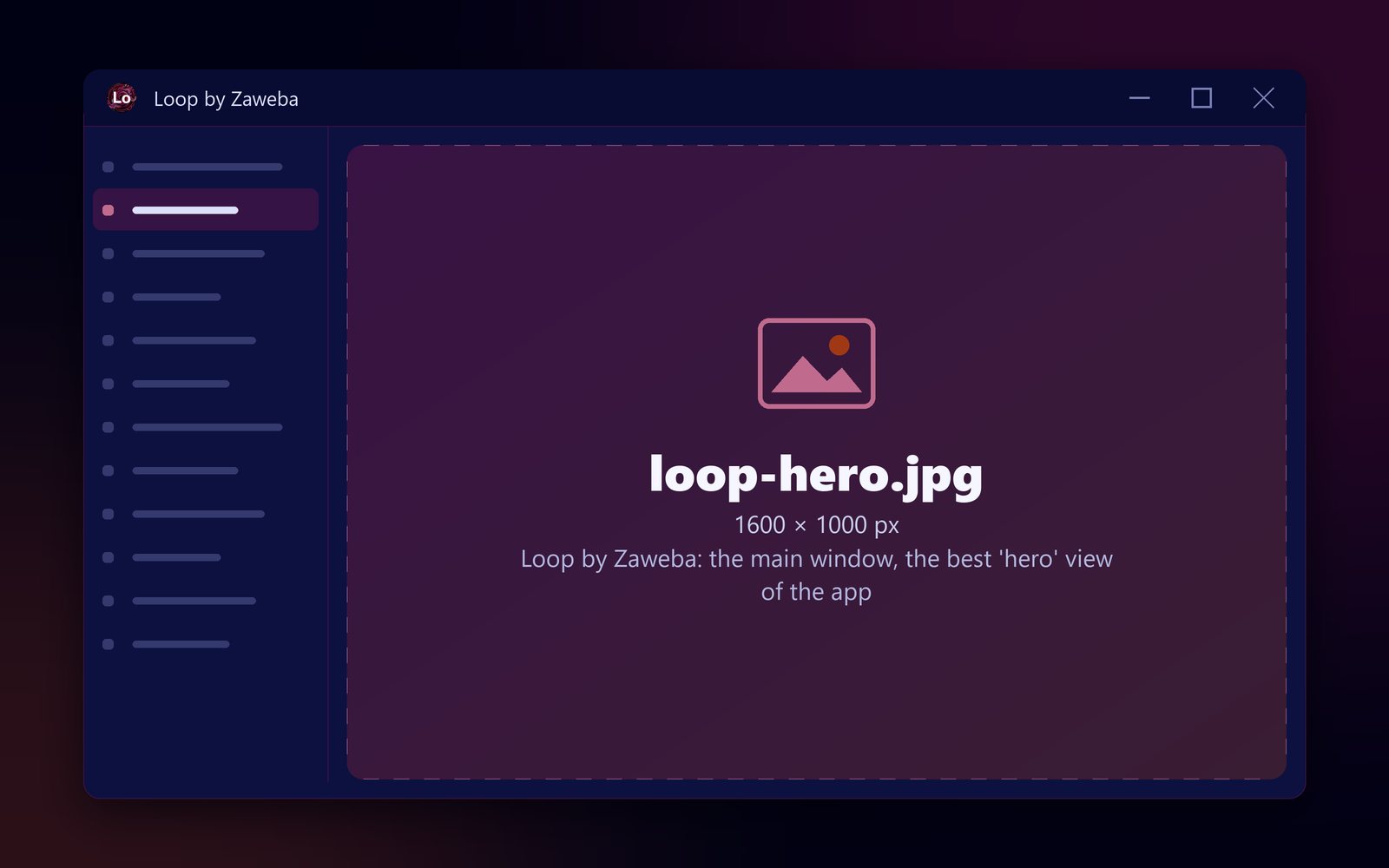
Small comforts matter in an app you might spend whole evenings in. Loop by Zaweba has two that are easy to miss: Ctrl+T switches between a dark navy theme and a light one, and F1 (Help > Keyboard shortcuts) lists every keyboard shortcut in the app.
Dark or light
The dark navy theme suits long sessions in a dim room, which is when a lot of music gets made. Clips and notes stand out against the dark background, and a bright white screen isn't glaring at you at midnight.
The light theme suits daylight, a bright office or a classroom, and screens that are hard to read with dark backgrounds in strong light. It can also be easier on some people's eyes at any time of day.
Ctrl+T flips between them instantly, so there is nothing to lose by trying both. The theme only changes how Loop looks; the song and its sound are untouched.
The shortcuts list
Loop leans on the keyboard. Press F1 and you get the full list of shortcuts, which is the quickest way to learn them. A handful are worth knowing from the first day.
For playback: Space plays and pauses, Home goes back to the start, M toggles the metronome, L toggles a loop region, R records and Esc stops all sound.
For views: F2 is Loop mode and F3 is Studio mode.
For editing: Ctrl+Z undoes and Ctrl+Y redoes, with 100 steps. Ctrl+D duplicates a clip and Delete removes it. Ctrl and the mouse wheel zoom the grid, Shift and the wheel scroll along, and Ctrl+0 fits the whole song.
For files: Ctrl+N starts a new song, Ctrl+S saves, Ctrl+Shift+S saves as, and Ctrl+E exports a WAV. Ctrl+, opens Preferences.
For playing: the computer keys A W S E D F T G Y H U J K play the selected track like a piano, with Z and X moving the octave down and up.
Learning them gradually
Nobody needs every shortcut at once. Learn Space, Home and Ctrl+Z first, since you will use them hundreds of times a session. Add L when you start working on sections, F3 when you move into Studio mode, and Ctrl+D when you start arranging in earnest. Open the F1 list now and then to pick up another. The list is always the complete, current set, so it is a better guide than memory or an old note stuck to the monitor. If a key ever seems to do nothing, check the list to see whether you are thinking of the right one, and check which part of the window has focus.
Good for teaching
In a classroom or a music lesson, the light theme often shows up better on a projector, and Ctrl+T makes the switch quick. The F1 list is a handy reference to leave on screen for pupils while they find their way round.
Neither feature changes your music. The theme is a matter of comfort and the shortcut list is a matter of speed. Still, together they make Loop by Zaweba a little more comfortable to live in, which is half the battle when you are learning to make songs.

