
From Loop to Play and Video by Zaweba in one click
After an export, Loop by Zaweba can open the file in Play by Zaweba or send it to Video by Zaweba, so a new track goes straight to listening or editing.
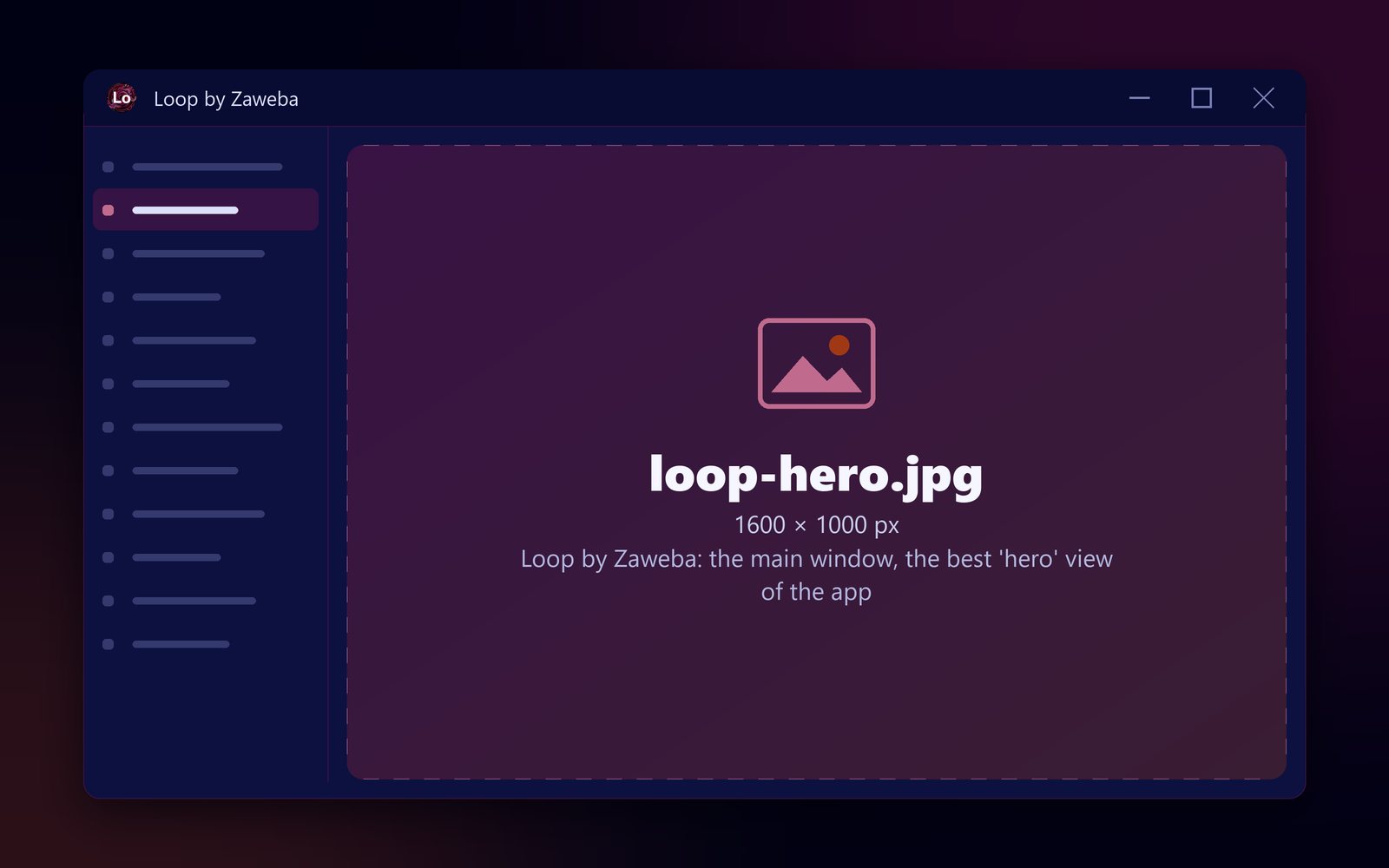
A finished track usually has somewhere to go next. You want to hear it in a proper music player, the way a listener would, or put it under a video you are editing. Loop by Zaweba has two commands for exactly that, both in the File menu: Open the last export in Play by Zaweba, and Send the last export to Video by Zaweba.
They work on the file you most recently exported, handing it straight to the other app, with no hunting through folders for the file you just made.
First, export
Both commands follow an export. File > Export offers WAV (16 or 24 bit, Ctrl+E), MP3 at 320 kbit/s and OGG Vorbis, for the whole song or just the loop region, with a 2 second tail so reverb and delay ring out. It renders in the background, many times faster than real time. Once that's done, the commands have a file to hand on.
Listening in Play
Play by Zaweba is a music player for the music you own, with gapless playback, a 10-band equaliser and instant library search. Opening your export there is a good test. Music sounds different outside the program you made it in: you stop looking at the grid and start listening like an audience. Problems with the balance, a part that is too loud or a mix that feels thin, are often easier to hear this way.
Play also has hundreds of visualisations that react to the music, which is a pleasant way to hear a new track for the first time.
Scoring a video
Video by Zaweba is a multi-track video editor with titles, transitions and music that dips under speech automatically. Sending your export there drops your music into the editing workflow. That suits anyone making videos who wants original music rather than a stock track: make the beat in Loop, send it to Video, and cut the pictures to it.
Since every loop shipped with Loop may be used royalty-free in your own music, a track built from them can go under your videos without licensing worries.
A smooth routine
For video work, it helps to know the length you need first. Arrange the song to roughly that length, use the loop region if you want a short clip, export, and send. If the edit needs a different length later, change the song in Loop, export again and send the new version.
For listening, export at the quality you would share. MP3 at 320 kbit/s is a sensible choice for a test listen in Play.
Things to watch
The commands act on the last export. If you exported stems or MIDI most recently, that is what the command will find, so export the mixed audio again if you want to listen to the full song.
Play and Video need to be installed for the commands to have somewhere to send the file. All three apps are free, offline and need no account, and together they let Loop by Zaweba sit in a small home studio: make the music, hear it, and put it to pictures.

