
Using the overview waveform and platter in Mix by Zaweba
The overview waveform and spinning platter on each deck in Mix by Zaweba show where you are in a track, warn you near the end and let you scrub.
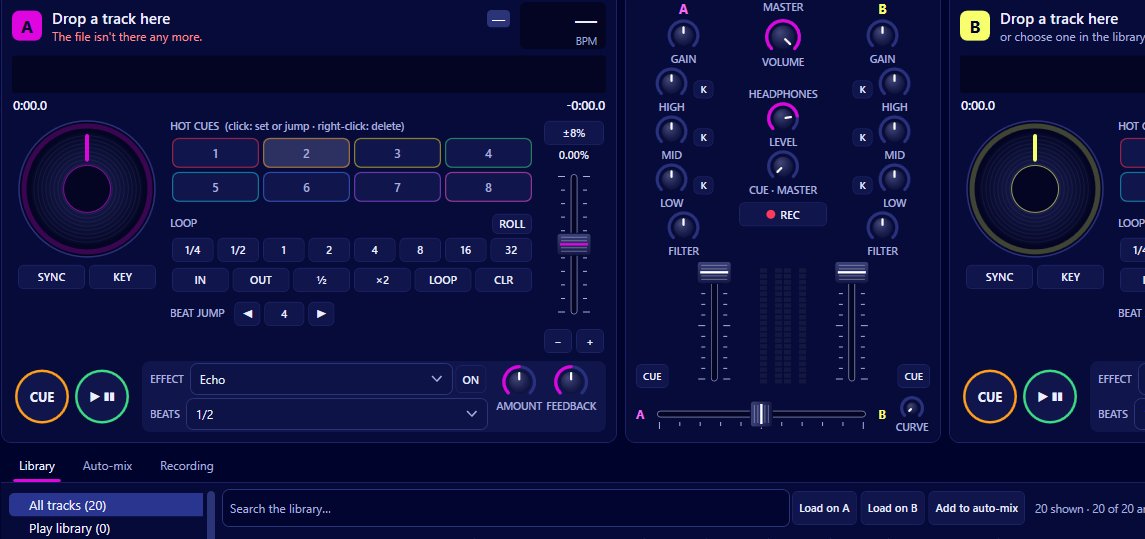
Each deck in Mix by Zaweba carries a small overview waveform and a spinning platter, and between them they answer the question you ask most often while mixing: where am I in this track, and how long have I got? They're also hands-on controls. Click the waveform to jump, and drag the platter to nudge or scrub.
The big scrolling waveforms above the decks are for lining up beats. The overview is for the shape of the whole track.
The overview waveform
The overview shows the entire track from start to finish in a strip. You can see where the intro is, where the breakdown drops out, and where the big sections build back up, just from the shape. The part already played is dimmed, so your position is clear even out of the corner of your eye.
Markers on the overview show the cue point, your hot cues and any loop. That makes it a map: you can see that hot cue 3 is just before the last chorus, or that the loop you set is a few bars into the outro.
Click anywhere on it to jump there. That's the quickest way to skip a long intro on a track you're previewing in the headphones, or to find the breakdown you want to mix out of.
Times to the tenth
Next to it are elapsed and remaining time, shown to tenths of a second. Remaining time is the one to watch. It tells you exactly how long the outgoing track has left, so you know when you need to start the next one.
The platter and its warning ring
The platter spins while the deck plays, like a record, and gives you a feel for the track moving even when you're looking elsewhere. Around it is a progress ring. In the last 30 seconds of the track the ring turns red.
That red ring is your safety net. It's hard to miss, even when you're busy browsing the library for the next song, and it gives you half a minute to get something going before the track ends in silence.
Nudging and scrubbing with the platter
Drag the platter to nudge or scrub. While a track is playing, a small drag speeds it up or slows it down for a moment, which is how you pull two tracks back into line if their beats drift apart when you're mixing by ear. When the deck is paused, dragging moves through the track, so you can find the exact start of a beat to set a cue.
The nudge buttons do the same job in steps (hold one for about a 4 percent change), and a jog does it by feel. Use whichever you find easiest.
Using it in a set
While previewing the next track in the headphones, click through its overview to hear the intro, the first drop and the outro. You'll know straight away where to set a cue and where a blend could start.
During the blend, watch the outgoing deck's overview and remaining time. If you can see the track's last section is shorter than you thought, start your blend sooner.
After the blend, the new track's overview tells you how long you have to choose the next one. The red ring will come round again, but it's better to be ready well before it does.
Fitting with the other views
The overview is coarse on purpose; for precise timing, use the scrolling waveforms above the decks, which show beat lines and a pill telling you whether the beats are together. Between the overview for the big picture and the scrolling waveforms for the beat, you always know where both tracks are.

