
Keyboard shortcuts for DJing in Mix by Zaweba
DJ with the keyboard in Mix by Zaweba: Q and W for deck A, O and P for deck B, S and L for sync, 1 to 8 for hot cues, and F1 for the full list.
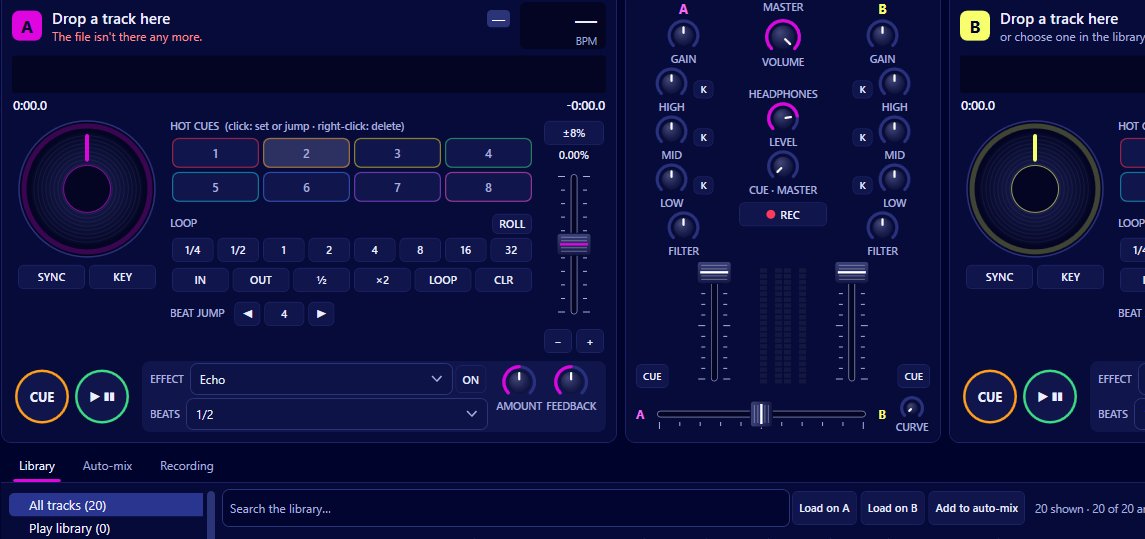
Mixing without a controller is perfectly possible in Mix by Zaweba, and the keyboard is what makes it quick. The keys are laid out so each hand looks after one deck: Q and W play and cue deck A on the left, O and P do the same for deck B on the right. S and L sync, 1 to 8 trigger hot cues, and Ctrl+Left and Ctrl+Right move the crossfader. Help > Keyboard shortcuts (F1) shows the full list at any time.
Deck controls under your hands
The left hand sits on Q and W: Q plays or pauses deck A, W is its cue. The right hand sits on O and P for deck B. That mirrors a DJ setup, with deck A on the left and deck B on the right, so you don't have to think about which key is which.
Sync is on S for one deck and L for the other, again one per hand. Press it on the deck you want to follow the other, and its tempo matches and its beats lock in phase.
Hot cues from the number row
Keys 1 to 8, and Shift+1 to 8, work the eight hot cues from the keyboard, just like clicking the hot cue buttons: on an empty cue it sets one where the track is, and on a cue that's already set it jumps there. With quantize on, which is the default, cues snap to the beat, so pressing a number roughly on time still lands correctly.
The crossfader and mixing
Ctrl+Left and Ctrl+Right move the crossfader towards deck A or deck B. Tap them a few times for a gradual blend, or hold for a quicker move. Mix > Centre the crossfader puts it back in the middle.
The channel faders, EQ and filter are mouse controls. A comfortable way to work is the left hand on the deck keys and the right hand on the mouse for the mixer, switching to O and P when deck B needs attention.
Ctrl+R starts recording the mix. Ctrl+Shift+A starts auto-mix. Ctrl+F jumps to the library search. Ctrl+1 and Ctrl+2 load the selected track onto deck A or B. Ctrl+M opens MIDI controller mappings, Ctrl+, opens Preferences and Ctrl+T switches between dark and light themes.
Practising with the keys
Start with Q, W, O and P. Load a track on each deck, cue them up with W and P, and practise starting each one on the beat with Q and O. Then add S and L, and try a blend with the crossfader keys while the two decks are synced.
Hot cues come next. Set a few on a track you know well, then jump between them with the number keys while it plays. With quantize on, you can tap through a track's sections in time.
Keys and a controller together
If you use a MIDI controller, the keyboard still works alongside it. Many DJs keep shortcuts like Ctrl+R for recording, Ctrl+F for search and Ctrl+1 and Ctrl+2 for loading, even with a controller plugged in, because they're quicker than finding a mapped button.
You can map almost any action to a controller through MIDI > Controllers and mappings and its learn mode, but the keyboard needs no setup at all, which makes it the dependable fallback if a controller isn't recognised.
Keeping the list handy
F1 brings up the shortcuts list. Leave it open on a second screen while you learn, or glance at it between tracks. After an evening or two, the common ones become habit and the list is only for the odd key you rarely use.

