
Using a Hercules DJControl Inpulse 200 with free DJ software
Mix by Zaweba ships a mapping for the Hercules DJControl Inpulse 200, written from its published MIDI list. Here is how to set it up and adjust it.
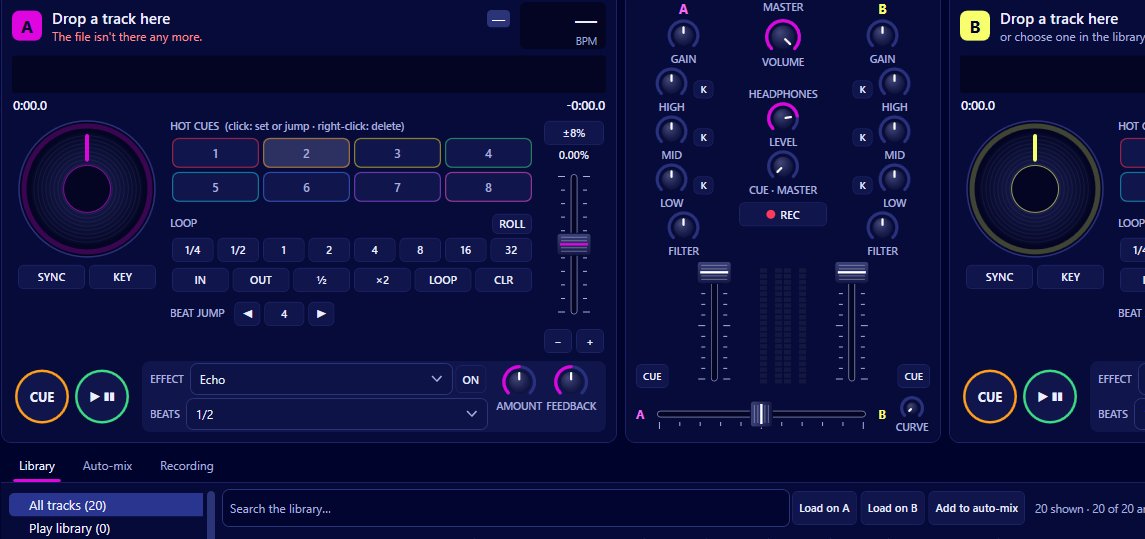
Yes: Mix by Zaweba includes a ready made mapping for the Hercules DJControl Inpulse 200. It was written from Hercules' published MIDI documentation and has not been tested on the hardware itself, so treat it as a strong starting point and expect you may want to adjust a control or two. Mix connects to controllers through Windows MIDI and has a mapping editor with a learn mode for exactly that.
In short, it should work, and if something is off you can fix it yourself in a minute without editing any files by hand.
What you need
You need the controller plugged in by USB, Mix by Zaweba installed on a Windows 10 or 11 PC, and your own music files. Mix plays music you own, read from folders you add or from Play by Zaweba's library if Play is installed. It does not play streaming services.
Sound comes out through the outputs you pick in Preferences > Sound. If Windows lists the controller's own audio as a sound device, you can choose it there as the main output and the headphone output.
Setting it up
Open MIDI > Controllers and mappings, or press Ctrl+M. Choose the controller from the list. Mix picks a mapping whose name matches the controller automatically, so the Inpulse 200 mapping should already be selected. If it isn't, choose it from the mapping list.
Now try each section in turn. Load a track on each deck with the keyboard or mouse, press play on the controller, move the tempo fader, the channel faders and the crossfader, turn the EQ knobs, and try the pads. Watch the matching control on screen move as you go.
Anything that doesn't respond, or does the wrong thing, can be changed in the mapping editor. Press Learn, move the control on the controller, and choose the action you want it to perform. The editor covers actions for every deck and mixer control, pads, and loop and jump values.
If a fader works but runs the wrong way round, there is a turn round option for upside down faders, so you don't need to remap it from scratch.
Saving your changes
Your mappings are saved as JSON files. Once you have the Inpulse 200 working the way you like, it stays that way the next time you plug it in. If you share a controller with someone who wants a different layout, you can keep two mappings and switch between them in the same window.
Before your first session
Set up the headphone cue so you can preview the next track. Mix can send the cue to a second output, or split one stereo output with the mix in the left ear and the cue in the right. Headphones have their own level and a cue and master blend.
Leave quantize on (it is by default) so that cues and loops you trigger from the pads snap to the beat grid. And let Mix finish analysing your library, because sync, the beat grid and the What next suggestions all rely on that analysis.
If you have a different controller
Mix also ships a mapping for the Numark Party Mix, written the same way. For anything else that speaks MIDI, start a new mapping and build it with learn mode. And you don't need a controller at all: everything in Mix works with a mouse and keyboard, with shortcuts such as Q and W for deck A and O and P for deck B.
Whichever route you take, the controller only changes how you reach the controls. The decks, the mixer and the suggestions behave the same, so anything you learn with the Inpulse 200 carries over.

