
How to map your own MIDI controller to DJ software
Mapping a MIDI controller in Mix by Zaweba takes a few minutes with learn mode: press Learn, move a control and choose what it should do.
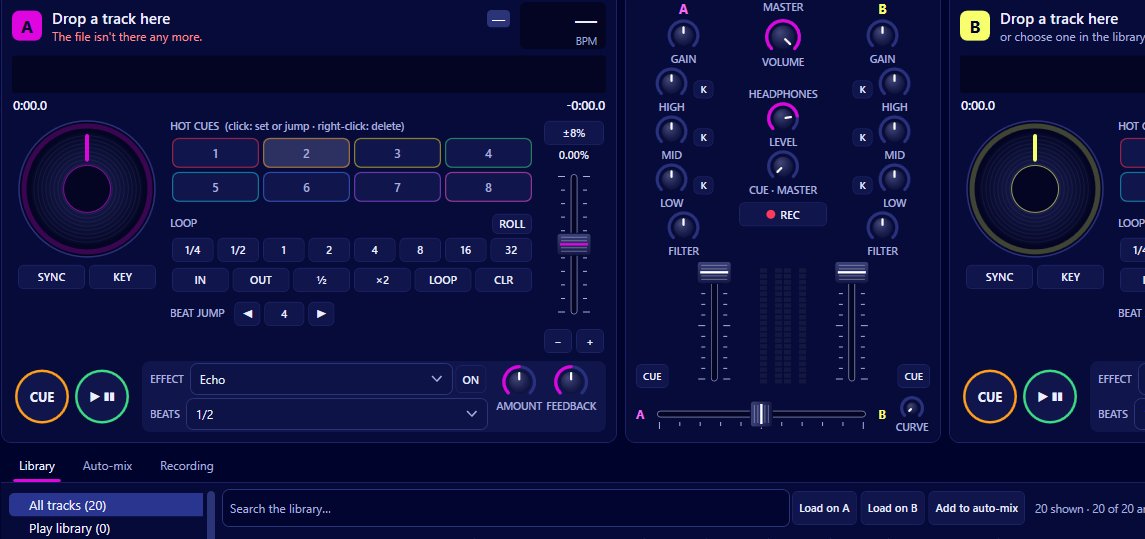
Open MIDI > Controllers and mappings in Mix by Zaweba, start or pick a mapping, press Learn, move a control on your controller and choose the action it should perform. Repeat for each knob, fader, button and pad, and Mix saves the result as a mapping you can use every time you plug the controller in. Mix talks to controllers through Windows MIDI, so almost anything that sends MIDI can be mapped.
You don't need to know what MIDI messages your controller sends, or edit a file by hand. Learn mode listens for whatever the control sends and ties it to the action you choose.
Before you map anything
A MIDI controller connected to the PC and recognised by Windows, and Mix by Zaweba installed. Mix ships two mappings already, for the Hercules DJControl Inpulse 200 and the Numark Party Mix, both written from published documentation and not tested on the hardware. If you own one of those, start from its mapping and change only what you need. For anything else, you'll build your own.
Learning each control
Press Ctrl+M, or choose MIDI > Controllers and mappings. Pick your controller from the list. When a mapping's name matches the controller, Mix selects it automatically; otherwise start a new one.
Work through the controller a section at a time. Begin with the things you'll use every second of a set: play and cue on each deck, the channel faders, the crossfader and the tempo faders. Press Learn, move the control, choose the action, and test it before moving on. Then do the EQ knobs, gain, filter and headphone controls.
Pads come next. The mapping editor covers pads along with loop and jump values, so you can decide which pad sets which hot cue, which loop size or which beat jump length. A sensible start is eight hot cues on one bank of pads and a row of loop sizes on another, if your controller has pad modes to switch between.
Some controllers have faders that send their values the opposite way to what you'd expect. Rather than learning them again, use the turn round option for upside down faders.
Testing and saving
Load two tracks and play through a short mix using only the controller. Anything that feels wrong, such as a button doing two things or a knob controlling the wrong deck, can be learned again over the top. Your mappings are saved as JSON, so they're there next time, and you can keep more than one for different ways of working.
Getting the mapping right
Map deck controls in matching places on both sides. If play on the left is deck A, play on the right should be deck B, and the same for cue, sync and the pads. Muscle memory does the rest.
Keep a few things on the keyboard. Mix's shortcuts stay active alongside a controller: Ctrl+F for search, Ctrl+R to record and Ctrl+Shift+A for auto-mix. Help > Keyboard shortcuts (F1) lists them all, so you don't need to spend controller buttons on jobs you'll rarely do mid set.
Remember that quantize affects mapped controls too. With it on (the default), cues and loops triggered from a pad snap to the beat grid, which hides small timing slips.
Without a controller
A controller is a pleasure to use, but it isn't required. Everything in Mix works with a mouse and keyboard, from loading with Ctrl+1 and Ctrl+2 to moving the crossfader with Ctrl+Left and Ctrl+Right. Many people learn the app that way first and map a controller later, by which time they know exactly which controls they want under their fingers.

