
Building your library in Mix by Zaweba
How Mix by Zaweba builds its library from Play by Zaweba and your own watched folders, with instant search and columns for BPM, key and energy.
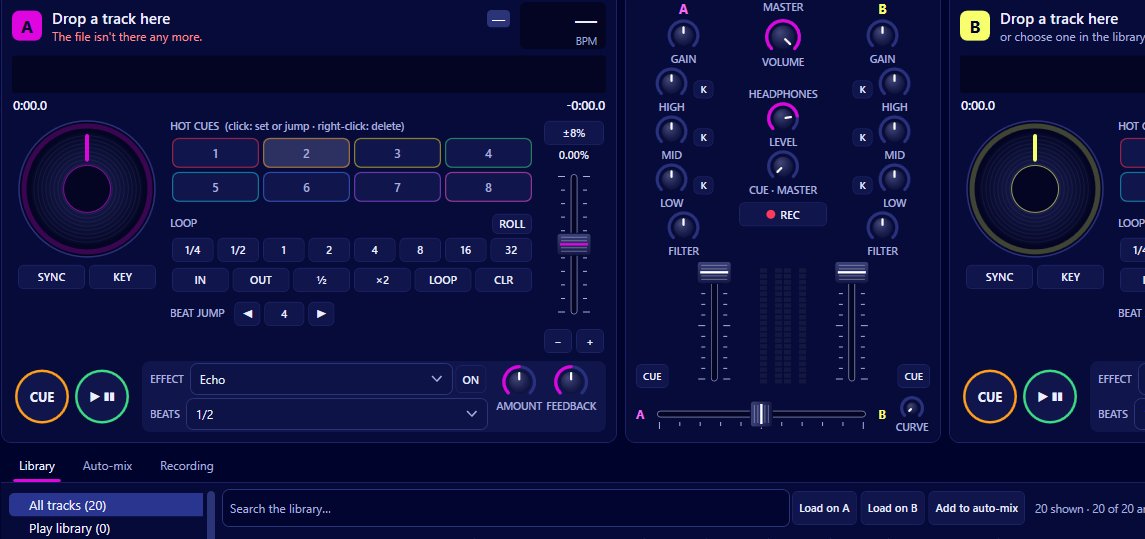
Your library is where every set starts, and Mix by Zaweba fills it from two places. If Play by Zaweba is installed, Mix reads Play's library, read only, so your music is there from the first launch. On top of that, Mix watches folders of its own: add them with File > Add a music folder or Add music files, and new, changed and deleted files are followed live as you work.
Only local files are used. Streaming services are not supported, so the library is the music you own on your computer.
Adding your music
Use File > Add a music folder to point Mix at a folder of tracks. Everything in it is added, and from then on Mix keeps an eye on it. Copy new tracks into that folder and they appear; edit a file's tags and the change shows up; delete a file and it leaves the library.
File > Add music files is for single tracks or a small batch that live somewhere else.
Tags are read with TagLibSharp, so title, artist, album and genre come from the files themselves. Tidy tags make a tidier library, and it's worth fixing obvious mistakes before a big set.
The watched folders are listed on the Library page of Preferences, alongside the option to use Play's library.
Using Play's library
If you use Play by Zaweba as your everyday music player, Mix reads its library without changing it. That means the collection you've built up for listening is ready for DJing straight away. Anything you organise in Play stays as it is; Mix only reads.
Searching and sorting
Ctrl+F jumps to the search box. Search is instant, filtering as you type, which matters mid-set when you've thought of a track and need it on the free deck in seconds.
The columns include BPM, key, energy, time, genre and album. Sort by BPM to find tracks near the one playing, by key to find harmonic matches, or by energy when you want to lift or calm the room. BPM, key and energy come from Mix's background analysis.
Keeping it up to date
Rescan is F5. Use it if you've made a lot of changes outside Mix and want to be certain everything is current, or after reconnecting a drive that holds a watched folder.
New tracks are analysed in the background for tempo and beat grid, key, energy, loudness and a waveform overview. The 'Not analysed yet' view shows what's still waiting, and Library > Analyse everything now does the lot at once, which is a good idea before a gig.
Organising for sets
The library is everything; crates are for sets. Make your own crates by hand for a particular night, or set up smart crates that fill themselves from rules such as a tempo range, Camelot keys, energy, genre or words. The History view shows what you've played.
What next draws on the whole library to suggest tracks that mix well with the one playing, so a large, well-tagged, fully analysed library gives better suggestions.
From the library, double-click to load onto the free deck, use Load on A or B, press Ctrl+1 or Ctrl+2, or drag a track onto either deck. Tracks dragged from Explorer can go straight onto a deck too, even if they aren't in a watched folder.
A tidy setup that lasts
Keep DJ music in one or two folders rather than scattered across the computer, and add those as watched folders. Fix tags as you add tracks, not the night before a gig. Run Analyse everything now after a big import. Then the library looks after itself: it follows your files, keeps its analysis cached, and is ready whenever you open Mix.

