
Preferences and the dark and light theme in Mix by Zaweba
The three Preferences pages in Mix by Zaweba cover sound, mixing defaults and the library, and Ctrl+T switches between dark and light themes.
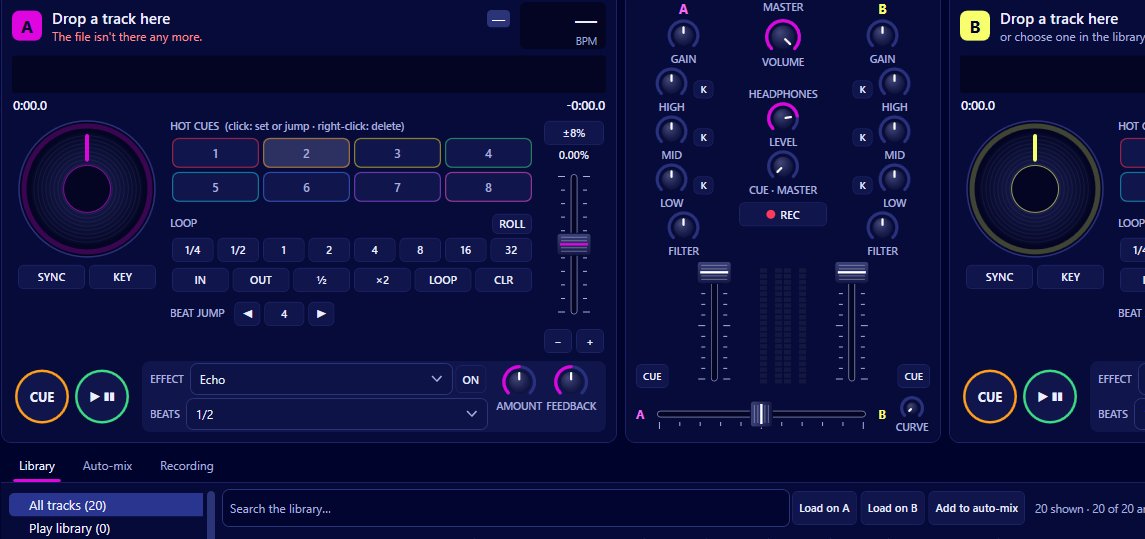
Most of the defaults in Mix by Zaweba are sensible from the start, but a few minutes in Preferences makes the app fit the way you mix. Ctrl+, opens it from anywhere. There are three pages: Sound, Mixing and Library. Separately, Ctrl+T switches between a dark and a light theme.
Here's what each page holds and which settings are worth looking at first.
The Sound page
Sound is where you choose the main output for your speakers and the headphone output for cueing, and set the buffer. If you have only one stereo output, the headphone cue can split it, mix left and cue right. There's also an optional exclusive mode for the lowest latency, though while it's on other programs can't use the main output.
Check this page whenever you plug in new audio equipment, since that's when outputs most often change.
The Mixing page
This is the page that changes how Mix behaves during a set.
Auto-gain brings every track to the same loudness. You can turn it off or set its target loudness here; the default is -12 LUFS, adjustable by up to 12 dB either way.
Quantize snaps cues and loops to the beat. It's on by default and also has a quick toggle in the Decks menu.
Key lock on every load turns key lock on for each track you load, so tempo changes never change pitch. If you always use key lock, set it here rather than switching it on deck by deck.
The tempo fader range is plus or minus 8, 16 or 50 percent. A narrow range is more precise; a wide one reaches further.
What next tempo range sets how far from the playing tempo suggestions can be, plus or minus 6 percent by default, with half and double time counted. Widen it if you often push tempos further with the fader.
The Library page
Use Play's library tells Mix to read Play by Zaweba's library, read only, when Play is installed.
Analyse the whole library makes Mix analyse every track in the background, not just as tracks come up. Worth turning on if you have time before sets for it to work.
Camelot notation chooses how keys are shown: as Camelot chips like 8A or by name like A minor. There's also a View menu entry for it.
Watched folders lists the folders Mix keeps an eye on, the ones added with File > Add a music folder.
Dark and light themes
Ctrl+T switches between dark and light. Dark is easier on the eyes in a dim room, which is where most DJing happens, and it keeps the screen from lighting up your face at a party. Light can be easier to read in daylight or on a screen with a lot of glare.
A good first setup
On the first run, open Sound and pick your outputs. On Mixing, decide whether you want key lock on every load, and choose a tempo fader range; plus or minus 8 percent with key lock on is a comfortable place to start. On Library, check your watched folders and turn on whole-library analysis.
Then leave Preferences alone and mix. Come back when something feels off: if What next keeps missing tracks you'd like, widen its tempo range; if cues land oddly on a particular style of music, try quantize off.
Where settings aren't
Some controls live on the decks and the mixer rather than in Preferences: per-deck key lock and sync, channel gain and EQ, the crossfader curve. Controller mappings have their own window under MIDI > Controllers and mappings (Ctrl+M). Preferences holds the defaults; the main window holds what you change during a set.

