
Setting the sound output and buffer in Mix by Zaweba
Preferences > Sound in Mix by Zaweba picks the speaker and headphone outputs, the buffer, and an optional exclusive mode for the lowest latency.
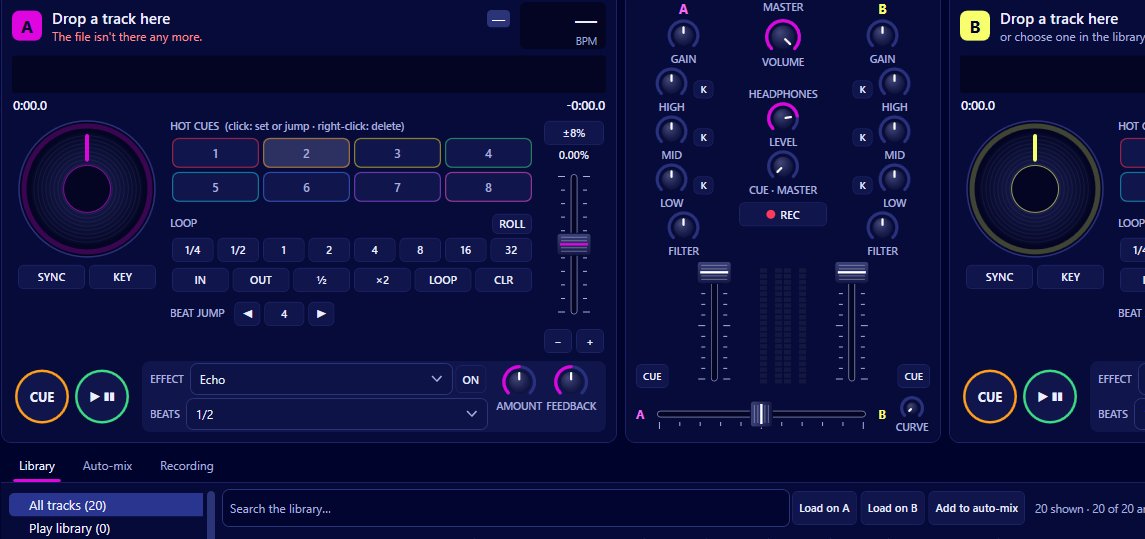
Before the first track plays, Mix by Zaweba needs to know where to send the sound. Preferences > Sound is where you choose the main output for your speakers, the headphone output for cueing, and the buffer, and where you can turn on exclusive mode for the lowest latency. Exclusive mode comes with a catch: while Mix is playing, other programs can't use the main output.
Getting these right once makes everything else feel better, from how quickly the decks respond to whether the sound ever drops out.
Choosing outputs
The main output is what your audience hears: laptop speakers, powered speakers or an amplifier plugged into the computer. Choose it from the list in Preferences > Sound.
The headphone output is for cueing, listening to the next track before anyone else hears it. It can be a second output such as a USB headset or the laptop's headphone socket while the speakers use another device. If you only have one stereo output, Mix can split it, with the mix in the left ear and the cue in the right.
If you don't need to cue, leave the headphone output alone and just set the main one.
Small buffer or large buffer
Mix prepares sound a little ahead of time and hands it to Windows in chunks. The buffer is how much it prepares. A small buffer means the decks react almost instantly when you press play, cue or a hot cue. A large buffer gives the computer more slack, so a moment of heavy work elsewhere doesn't cause a gap.
If you hear clicks, pops or gaps, raise the buffer. If buttons feel slightly behind the music, especially on a MIDI controller, lower it. The aim is the smallest buffer that never drops out on your computer.
Exclusive mode
Normally, Windows mixes the sound from every program together before it reaches the output. Exclusive mode lets Mix talk to the main output directly, skipping that step, which gives the lowest latency.
The trade-off is that nothing else can play through the main output while Mix plays. No system sounds, no notifications, no browser audio. For a gig that's arguably a bonus, since nothing can interrupt your set with a ping. At home, where you might want a video playing in another window, leave it off.
Setting up for a session
At home, choose your speakers as the main output, leave exclusive mode off and use a moderate buffer. Cue on the laptop socket or a USB headset if you want to practise with headphones.
Before a gig, connect everything you'll use, then open Preferences > Sound and check that the right devices are chosen, because Windows sometimes renames or reorders them when you plug in something new. Play a busy blend for a few minutes with effects on. If it's clean, consider trying exclusive mode and the same test again.
When something sounds wrong
No sound at all usually means the wrong main output is selected, or another program has the device. If exclusive mode is on in Mix and another program grabbed the device first, close that program.
Crackles while mixing point to the buffer being too small for what the computer is doing. Raise it a step.
Sound in the wrong place, such as the cue coming out of the speakers, means the outputs are swapped. Check the headphone output setting.
Where the rest of the settings live
Preferences has three pages. Sound covers outputs and the buffer. Mixing covers auto-gain, quantize, key lock on every load, the tempo fader range and What next's tempo range. Library covers using Play's library, analysing the whole library, Camelot notation and watched folders. Ctrl+, opens Preferences from anywhere.

