
The tempo fader in Mix by Zaweba and choosing its range
How the tempo fader in Mix by Zaweba works, why it has ranges of 8, 16 or 50 percent with a centre detent, and when to pick each range.
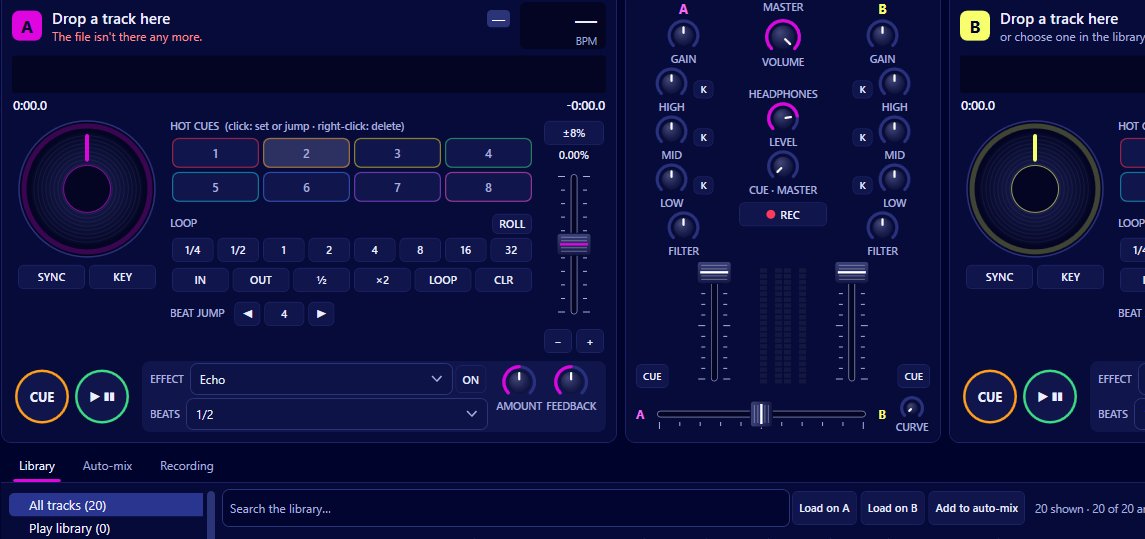
A tempo fader is the oldest tool in DJing: slide it and the track plays faster or slower. The one on each deck of Mix by Zaweba can cover plus or minus 8, 16 or 50 percent, and it has a centre detent so you can always find the track's original tempo by feel. Which range you choose changes how precise the fader is, so it's worth setting it to suit the way you mix.
What the fader does
Move the fader and the deck's tempo changes. The deck shows the result: a large effective BPM (the tempo it's playing at now), the pitch percentage you've moved it by, and the track's own BPM from the analysis. If a 124 BPM track needs to match a 126 BPM one, you're looking for about 1.6 percent.
On its own, changing tempo changes pitch, the way a record speeds up and goes higher. Turn on key lock and Mix changes the tempo without changing the pitch, using the SoundTouch time-stretcher. Key lock can be set per deck, or for every track you load in Preferences > Mixing.
The three ranges
The range is set in Preferences > Mixing.
Plus or minus 8 percent is the precise choice. The whole length of the fader covers a small span, so fine adjustments are easy. Most tracks within a genre are close enough in tempo for this to be plenty.
Plus or minus 16 percent gives you more reach when you're mixing across styles, say from a slower house track into something faster, at the cost of a little precision.
Plus or minus 50 percent is for big jumps and effects: dragging a track down to half speed or pushing it right up. It's hard to make small adjustments at this range, so most people only use it on purpose.
At the centre the fader clicks into place at zero percent, the track's own tempo. When you've finished a blend and want the new track back at its natural speed, slide it back until it settles in the middle.
Matching by ear
To beatmatch without sync, start the new track in the headphones, listen to the two kicks together, and move the new track's fader until they stop drifting. Then use the nudge buttons or the jog to line the beats up. The pill on the scrolling waveforms shows 'beats together' or how many milliseconds apart the decks are, which is a handy check while you learn.
Expect to keep correcting slightly. Two tracks at a tenth of a BPM apart will drift over a minute or two. The narrow range makes those last tiny moves easier.
Fader and sync together
Sync matches a deck's tempo to the other deck for you, choosing half or double time when that is closer, and keeps the beats phase-locked while it's on. You can still use the tempo fader on the deck that sets the tempo, and the synced deck follows.
After an auto-mix blend, the new track glides back to its own tempo over 16 beats. That's the same idea as sliding to the centre detent, done for you.
Other places the range matters
What next suggests tracks within a tempo range (plus or minus 6 percent by default, with half and double time counted), at the tempo the deck is actually playing. That range is set separately in Preferences > Mixing. If you often stretch tracks a long way with the fader, widen What next's range too, so its suggestions match how you play.
A sensible starting point
Start on 8 percent with key lock on. It covers most blends within a genre, it's precise enough to learn beatmatching on, and the pitch won't wander. Move to 16 when your sets start crossing genres.

