
Play, cue, nudge and jog: the transport in Mix by Zaweba
How the CDJ-style cue button, play, nudge and jog work in Mix by Zaweba, and how to use them to start tracks cleanly and keep beats together.
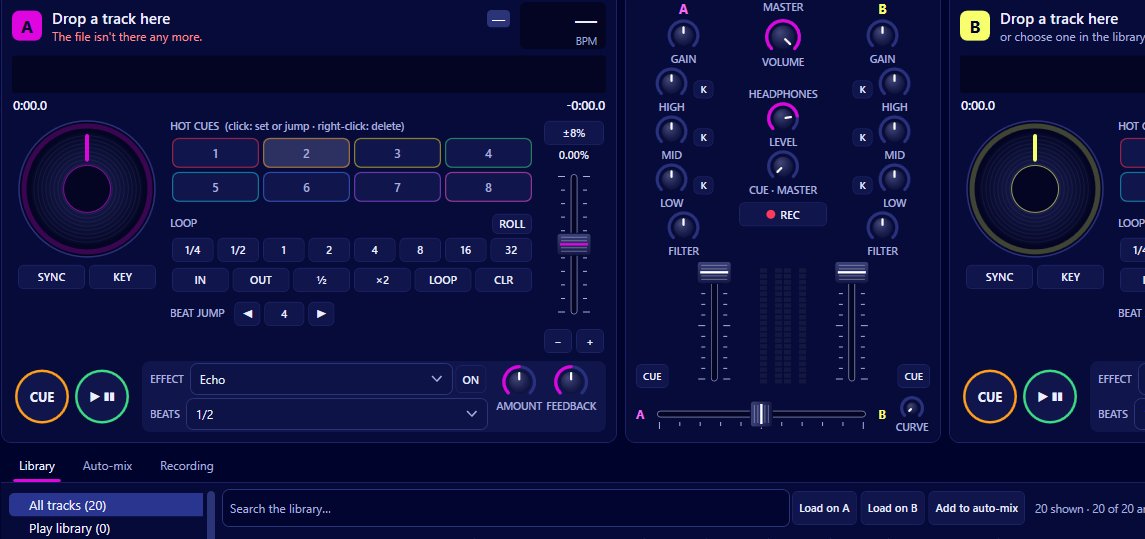
The transport controls on each deck of Mix by Zaweba look simple: play, cue, a pair of nudge buttons and a jog. The cue button in particular does more than it first appears, because it works the way the cue button on a CDJ does, changing what it does depending on whether the deck is playing and where it is. Learn its three behaviours and starting a track on the beat becomes second nature.
Play and pause
Play starts the deck; press again to pause. A track starts while it is still loading, so you don't need to wait after dropping it on a deck. From the keyboard, Q plays deck A and O plays deck B.
If Sync is on and the deck is stopped, Mix lines it up before it starts, so pressing play lands on the beat. Without sync, it's up to you to press play at the right moment, which is where the cue button comes in.
The cue button in three situations
When the deck is stopped somewhere other than the cue point, pressing cue sets the cue point right there. Find the first beat of the track, stop on it, press cue, and that spot is remembered.
When the deck is stopped on the cue point, holding cue plays the track from there for as long as you hold it. Let go and it jumps back to the cue and stops. It's the way to rehearse a start: tap it a few times in the headphones to make sure the cue is exactly on the beat.
When the deck is playing, pressing cue sends it back to the cue point and stops. Use this to abandon a start that went wrong and try again.
The keyboard keys for cue are W for deck A and P for deck B, right next to the play keys.
Starting a track cleanly
Load the next track and find its first strong beat, using the overview waveform to get close and the platter or jog to get precise. Press cue to set the point. Listen in the headphones and hold cue to check it.
When the moment comes, press play on the downbeat of the playing track. With quantize on, which it is by default, cues snap to the beat grid so your cue point is already on a beat.
Nudge and jog
The nudge buttons speed up or slow down a deck slightly while you hold them, by about 4 percent. They're for small corrections: if the beats of two tracks have drifted apart, a short hold pulls them back. The scrolling waveforms above the decks have a pill showing 'beats together' or how many milliseconds apart they are, so you can see which way to nudge.
The jog does the same by feel, and dragging the platter or the scrolling waveforms nudges or scrubs as well.
If sync is on and you nudge, Mix remembers the nudge as an offset rather than pulling the deck straight back. That's useful when a track's beat grid is slightly early or late against what you hear.
Mixing by ear with these controls
To beatmatch without sync, match the tempo with the tempo fader, start the new track on the beat with cue and play, then keep it in line with nudges. Your ears tell you which way to go: if the kicks sound like a gallop, one track is ahead, and a nudge on the new track fixes it. The pill on the waveforms confirms what you hear.
How the transport fits with the rest
Everything else builds on clean starts. Hot cues give you eight more starting points per track, loops hold a section while you line up the next one, and sync takes care of tempo when you'd rather focus on the blend. But the cue and play pair is the foundation, and it's worth practising until you press play without thinking.

