
Loading tracks onto the two decks in Mix by Zaweba
Every way to get a track onto deck A or B in Mix by Zaweba, from drag and drop to Ctrl+1, and what each deck tells you once it is there.
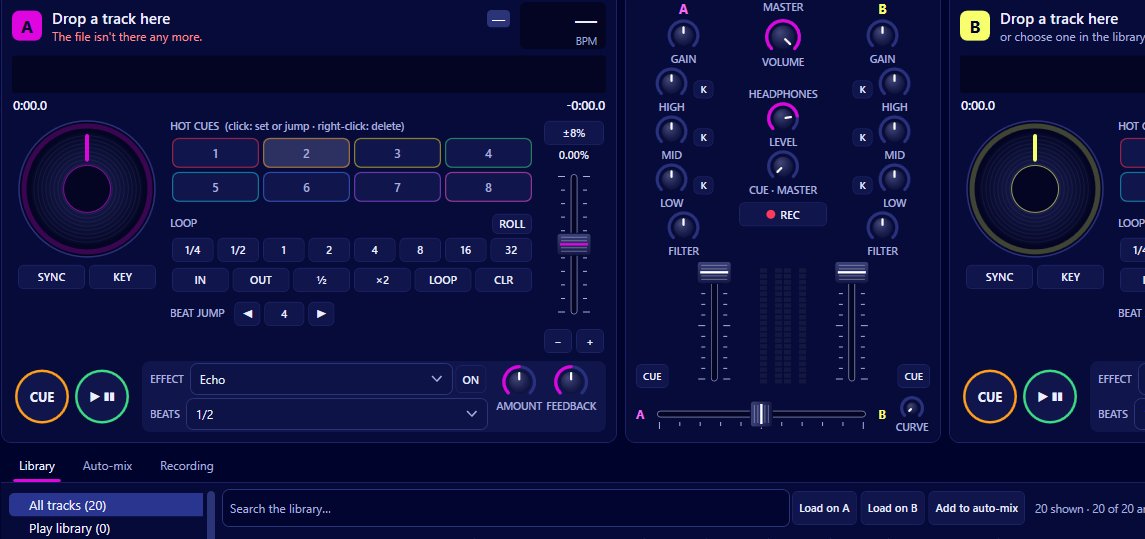
Two decks, A and B, sit at the heart of Mix by Zaweba, and getting a track onto one of them is the first thing you do in every session. There are several ways to do it, each suited to a slightly different moment in a set, and once a track is loaded the deck shows you most of what you need to know about it at a glance.
This is a guide to loading well and reading the deck, so the next track is ready long before you need it.
Ways to load a track
Drag and drop is the most direct. Drag a track from the library onto the deck you want. You can also drag from the What next panel, which suggests tracks that will mix well with the one playing, or straight from Windows Explorer if the file isn't in your library yet.
Double-click a track in the library and it loads onto the free deck, the one that isn't playing. That's the quickest way to work mid-set, because you never have to think about which side is which.
Load on A and Load on B do the same with a definite choice. The keyboard shortcuts are Ctrl+1 for deck A and Ctrl+2 for deck B, both in the Decks menu. With the library selection on the track you want, a single key press puts it where you need it.
If you have a MIDI controller mapped, its load buttons work too.
To clear a deck, use Eject in the Decks menu.
Reading the deck
Each deck shows the title and artist, so you can see at a glance what's loaded. Below that is a large effective BPM, the tempo the track is actually playing at right now, with the pitch percentage beside it and the track's own BPM as analysed. When you move the tempo fader or sync, the large number changes and the original stays put, which tells you how far you have moved it from home.
A key chip shows the track's key, coloured round the Camelot wheel, and there is an energy figure too, from the background analysis. Key and energy are what you look at before a blend: compatible keys sound smooth together, and energy tells you whether the next track lifts the room or lets it rest.
Starting while it loads
A track starts playing while it is still loading. Press play straight after dropping it on a deck and it begins without waiting for the whole file to be read. That matters when you're running late on a transition, or when a guest asks for something and you want it on now.
Loaded tracks are analysed from the audio that has already been decoded, so a song that wasn't analysed in advance still gets its tempo, key and beat grid as it loads.
A loading routine that works
Load early. As soon as a new track is playing well on one deck, load the next one on the other. That gives you time to find a cue point, check it in the headphones and decide on a blend.
Use What next for ideas. It ranks library tracks by key, tempo and energy against the playing deck and gives its reasons, and dragging from it to the free deck takes a second.
Glance at the numbers before you commit. If the two BPMs are far apart, sync will take the new track a long way from its own tempo. Key lock, which can be turned on per deck or for every track loaded, keeps the pitch steady when that happens.
How the decks fit with the rest of Mix
The decks feed the channel mixer, where gain, EQ, the filter and the channel fader shape each side, and the crossfader blends them. Above them, scrolling waveforms show both tracks' beats lined up. Below, the library and What next keep feeding the free deck.
Once a habit forms of playing on one side and preparing on the other, two decks are all a set needs, whether it's a party, a small gig or an evening of mixes at home.

