
What is exclusive mode, and should a DJ use it?
Exclusive mode gives one program sole use of a sound output for the lowest delay. Here is what that means in Mix by Zaweba, and the trade off involved.
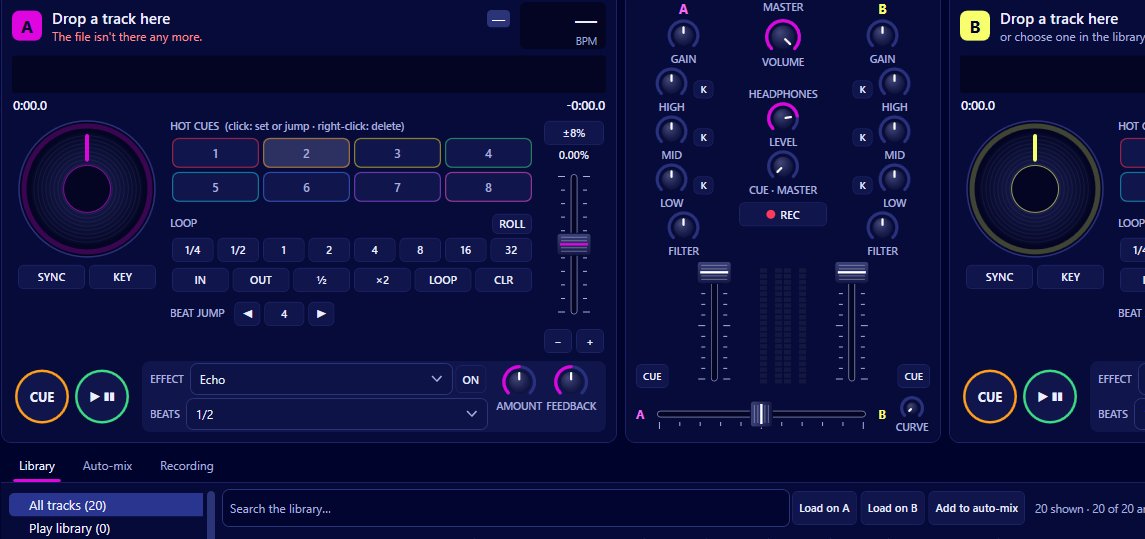
Exclusive mode is a way for one program to take sole control of a sound output in Windows, which cuts the delay (latency) between you pressing a button and hearing the result. Mix by Zaweba offers it as an option in Preferences > Sound for the lowest latency. The cost is that, while Mix is playing, other programs can't use that main output.
Normally Windows mixes sound from every program together before it reaches the speakers. That's why you can hear a notification over music. The mixing step takes a little time, and exclusive mode skips it.
What latency feels like when DJing
Latency is the gap between an action and its sound. In a web browser nobody notices it. When you're DJing, you're pressing cue, nudging a track or dropping a hot cue on the beat, and a delay makes the controls feel soft. Scratching and quick cue tricks suffer most; a slow blend between two synced tracks hardly cares.
The settings in Mix
Preferences > Sound has the main output (your speakers), the headphone output, the buffer, and the exclusive mode option.
The buffer is the amount of sound prepared ahead of playing it. A smaller buffer means less latency but gives the computer less time to keep up, and if it can't, you hear clicks or dropouts. A larger buffer is safer but slower to respond. Exclusive mode lowers the latency further on top of whatever buffer you choose.
Should you turn it on?
For a party or gig where Mix is the only thing making sound, exclusive mode is worth trying. Nothing else should be using the speakers anyway, and the controls will feel tighter.
At home, think about what else you use. If you want a video call, a browser tab or another music program to play through the same output while Mix is running, leave exclusive mode off.
The headphone cue is a separate question. Mix can send the cue to a second output, such as a USB headset or the laptop socket, or split one stereo output with the mix in the left ear and the cue in the right.
Finding the right buffer
Start with exclusive mode off and a moderate buffer, and play a busy section with both decks running and effects on. If it's clean, try a smaller buffer. Keep going until you hear a click, then step back up a notch for safety. Then try exclusive mode and see whether the response feels better.
Test on the machine you'll actually play on, with the programs you'll actually have open. A laptop on battery may behave differently from one plugged in, so test the way you'll gig.
How Mix keeps timing tight anyway
A lot of what makes a mix sound tight doesn't depend on latency at all. Sync keeps two tracks phase locked for as long as it's on, and a stopped synced deck is lined up before it starts, so pressing play lands on the beat. Quantize snaps cues and loops to the beat grid. These work on the beat grid itself, so they stay accurate whatever the buffer.
Mix by Zaweba is free DJ software for Windows. Exclusive mode is one switch among its sound settings, and the best way to judge it is to try it with your own speakers and ears.

