
Browsing your music by artist, album or genre in Play
How to find your way round a music library in Play by Zaweba by artist, album or genre, and how double-click and Play next turn browsing into listening.
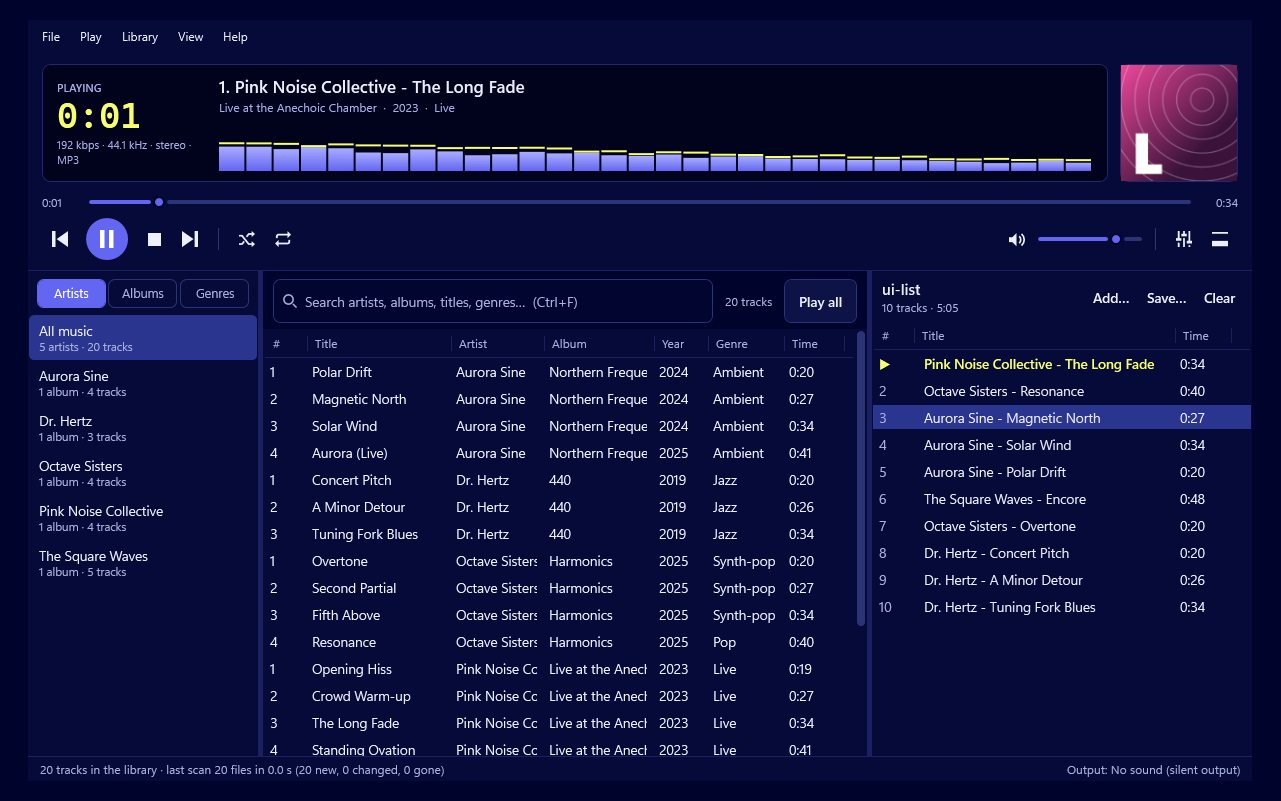
Searching is quick when you know what you want. Browsing is for the other times, when you sit down with no particular track in mind and want to see what's there. Play by Zaweba lets you look through your library by artist, by album or by genre, and the way it treats a double-click makes it easy to go from looking to listening in one move.
This article covers how browsing works, how it fits with the playlist and queue, and how to keep the library in a state where browsing is pleasant.
Three ways in
Artist view is the natural starting point for most people. Pick a name and you see everything you have by them. It's the view for "I fancy some of that band" evenings, and for checking whether you really own as much of someone's work as you thought.
Album view treats records as whole things. This suits people who listen in albums, and it's a good partner for Play's gapless playback, since an album played from start to finish runs on without a pause between tracks.
Genre view is the broadest. It's for moods rather than specifics: jazz for a quiet evening, something loud for the washing up. It works as well as the genre tags in your files do, which is worth bearing in mind.
Double-click to play
The quickest habit to learn is the double-click. Double-click a single track and Play adds it and plays it. Double-click an artist, an album or a genre and Play plays all of it.
That makes an album view into something close to a record shelf. Find the album, double-click, and it starts. The same with a genre: double-click and you have a whole evening of it without building anything by hand.
Play next and the queue
Sometimes you don't want to replace what's playing, just line something up. That's what Play next is for. Choose it on a track, album, artist or genre in the library and the items go into the queue, so they come after the current track instead of interrupting it.
Queued items are marked in the playlist with [1], [2] and so on, so you can see what order they'll come in. This is handy when you're browsing while music plays: you can keep looking and keep lining things up without stopping the song you're enjoying.
Browsing and searching together
Browsing and Play's instant search work as a pair. Search looks within whatever artist, album or genre you've chosen, so you can pick a genre and then type a word to narrow it further. It's a good way to find that one track you half remember from a big genre without scrolling through hundreds of entries.
Keep the tags tidy
Browsing is only as good as the information in your files. If one album shows up under two artist names because some tracks say "The Band" and others say "Band, The", or a genre list has both "Hip Hop" and "Hip-Hop", the views get cluttered.
Play's tag editor fixes this. Select the stray tracks, open the editor with Ctrl+I, and change just the field that's wrong. When you edit several tracks at once, only the fields you tick or type in are written, so you won't overwrite titles by accident. The library and playlist update straight away, and the next time you browse, the duplicates have gone.
A few small tips
If an album you know you own doesn't appear, check that its folder is one of your music folders. The library is built from those folders and keeps itself current as files come and go.
Use genre browsing for background listening and album browsing for proper listening. They suit different moods, and switching between them is a quick way to rediscover things you'd forgotten you had.
Browsing in Play by Zaweba stays simple on purpose. Three views, a double-click to play and Play next to line things up cover nearly everything you'll want to do with a library you know well, and a lot of what you'll want with one you've half forgotten.

