
Can I reorder a playlist by dragging the songs?
Yes. In Play by Zaweba you drag playlist entries, several at once, and a line shows exactly where they'll land. Alt+Up and Alt+Down do it from the keys.
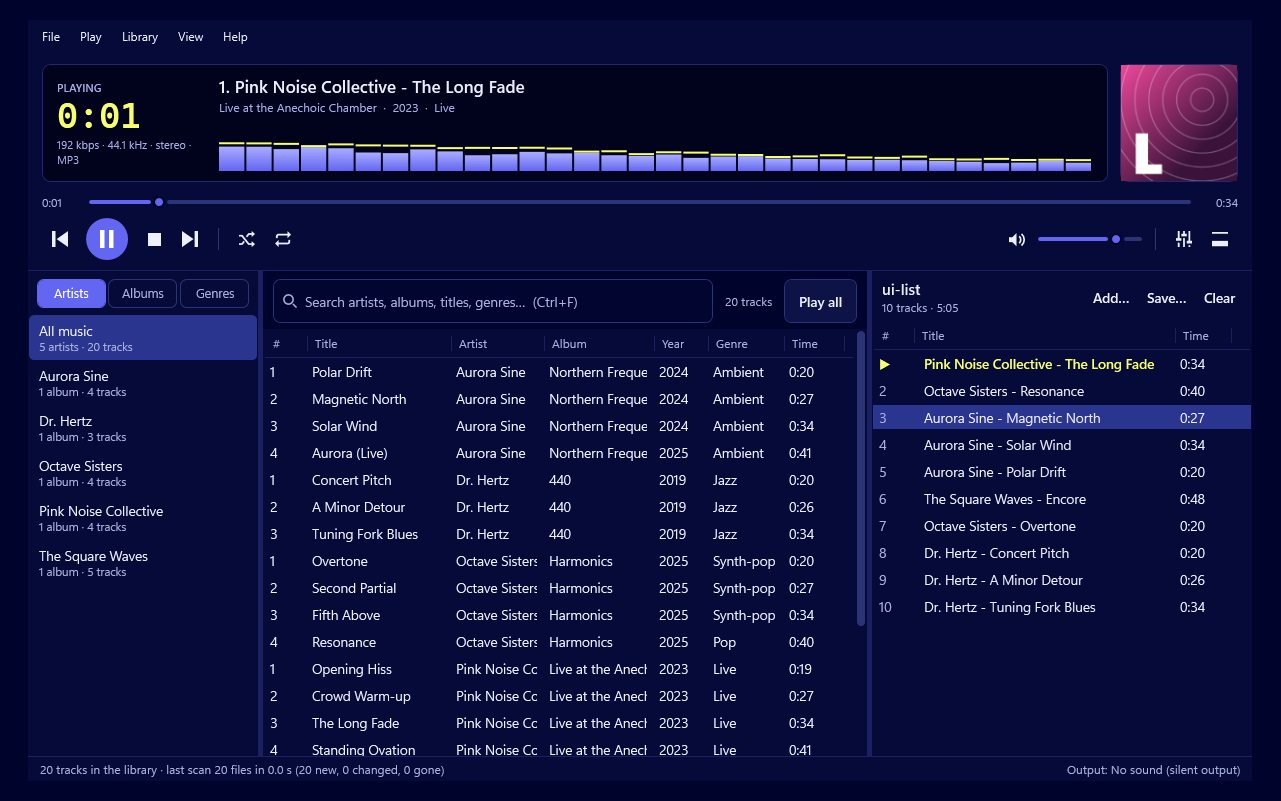
Yes. In Play by Zaweba you reorder the playlist by dragging entries to where you want them, and a line shows exactly where they'll land before you let go. You can drag several entries at once, and if you prefer the keyboard, Alt+Up and Alt+Down move the selected entries one place at a time.
That might sound like a small thing, but anyone who has tried to put a long playlist in a careful order knows how much it matters.
Why the landing line helps
When you drag something in a long list, the hard part is knowing where it will drop. Too often it lands one place off, and you drag it again. The line in Play's playlist removes the guesswork. Move the pointer until the line is where you want the songs to go, release, and they're there.
Several at once, or from the keys
Select a run of songs, or several songs from different places, and drag them together. They keep their order relative to each other and land together at the line. This is the quick way to move a whole album side to the end, or to gather three slow songs into a quiet spell in the middle of a party playlist. Building an order this way is a bit like sequencing a mixtape: put the songs in roughly, play it through, then pick up the few that feel wrong and drop them somewhere better.
For small adjustments, Alt+Up and Alt+Down are often easier than dragging. Select a song and tap Alt+Up a few times to lift it a few places. It's precise, and it avoids scrolling a long list with the mouse held down.
When sorting is better
If you want the playlist in a regular order, such as by artist or album, sort it instead of dragging. Sorting is quick for tidying a big playlist dragged in from Explorer. Then drag the few songs you want out of order.
Dragging versus the queue
Dragging changes the playlist for good. If you only want a song to come next this once, put it in the queue instead with Q, or Play next in the library. The playlist stays as it was, and the song is marked [1] to play next.
Making the order last
Play keeps the playlist between runs, so your order is still there next time. To keep it beyond that, save it with File > Save the playlist as an M3U or M3U8 file. The order you've set is the order saved.
Dragging in from outside
Dragging works from Windows too. Drop files or folders from Explorer onto the playlist to add them, then put them in order the same way. It's a natural way to build a playlist from music in more than one place.
Simple reordering is one of those things a player either gets right or makes tiresome. Play by Zaweba gets it right, which makes building a playlist with care feel quick rather than fiddly.

