
Endless gradients and colour choices in Play's visualiser
How Play by Zaweba colours its visualiser: 34 named gradients plus endless ones from colour harmony, five colour modes, and G for fresh colours at once.
Colour does more for a visualiser than most people realise. The same moving shapes can feel calm in soft blues or frantic in hot pinks and yellows. Play by Zaweba treats colour as a feature of its own, with gradients that change as the music plays and a handful of modes for when you want something steadier.
Gradients, not single colours
The visualiser's colours come from multi-colour gradients, smooth blends running through several colours. There are 34 named presets, and beyond those Play makes endless others using colour-harmony rules. Those are the rules painters and designers use to pick colours that sit well together, such as colours opposite each other on the colour wheel or a run of neighbours. Because the gradients follow those rules, even ones nobody chose by hand tend to look deliberate rather than random.
The gradient is laid over the screen by area, so different parts of the picture take different colours from the blend. A tunnel might shade from one colour at its mouth to another deep inside it.
The Colours options
In the Visualiser menu, Colours offers five choices.
Endless gradients is the default from version 1.1. Play moves from one gradient to another as the music goes on, so the colours never settle into a routine. It's the best choice for long sessions, when you want the screen to keep surprising you.
One gradient holds a single gradient. Use it when you've found one you love, or want the visuals to match a room or an occasion.
Tone follows the key's tone, so the colours shift with the character of the music.
Rainbow runs through the full spectrum of colours, bright and cheerful.
Zaweba indigo keeps everything in Play's own colour, a calmer choice and a smart one for a branded screen or a quiet evening.
G for new colours
At any time, press G and Play moves to new colours at once. If a scene comes up in a gradient that doesn't suit the moment, one key fixes it without changing anything else. It's also fun simply to tap through a few until something clicks.
How colour works with scenes and mixes
Play has 557 visualisations, from single scenes to ready-made mixes that layer one scene over another. In the Endless mix, each layer has its own gradient, and Play swaps one thing at a time. Sometimes that's a scene, sometimes a gradient. Colour is one of the things that changes, which is part of why the picture never quite repeats.
If you're using One gradient or Zaweba indigo, the colours stay fixed while the scenes still move and change. That gives a more unified look across a whole evening, good for a party with a theme.
The spectrum display has its own palettes
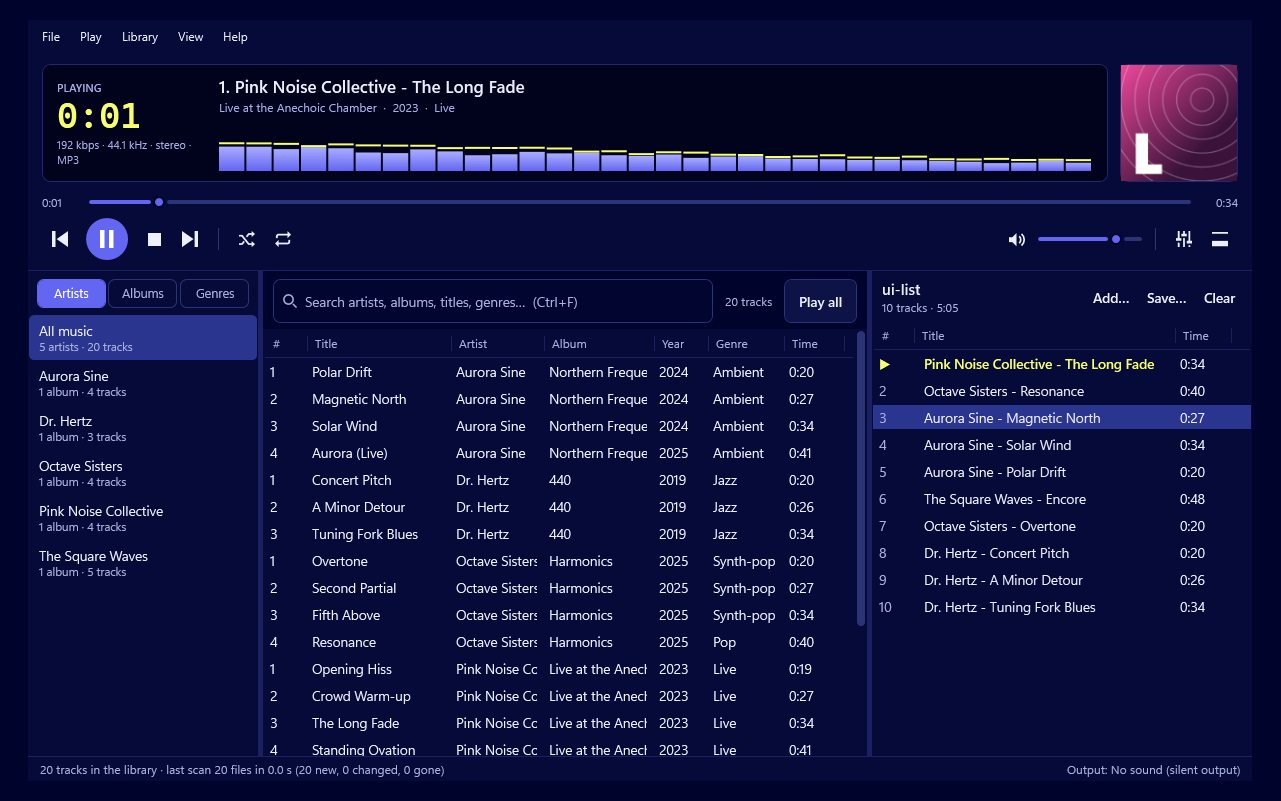
The small display in the main window is separate. Its spectrum bars and oscilloscope use Play's brand colours by default, with four other palettes in Preferences. The gradient options here are for the visualiser scenes.
Choosing well
For a background on a TV during a long evening, leave Endless gradients on. For a themed night, pick One gradient or Zaweba indigo and let the scenes provide the variety. If something on screen looks garish, press G rather than switching modes.
And if colour changes feel too lively for someone watching, it's worth knowing the other visualiser options, such as a calm intensity and Reduce flashing, which is on by default. Colour and motion work together, and in Play by Zaweba both can be set to suit the room.

