
How to change the colours of a music visualiser
In Play by Zaweba use the Visualiser menu's Colours option to pick endless gradients, one gradient, tone, rainbow or indigo, or press G for new colours.
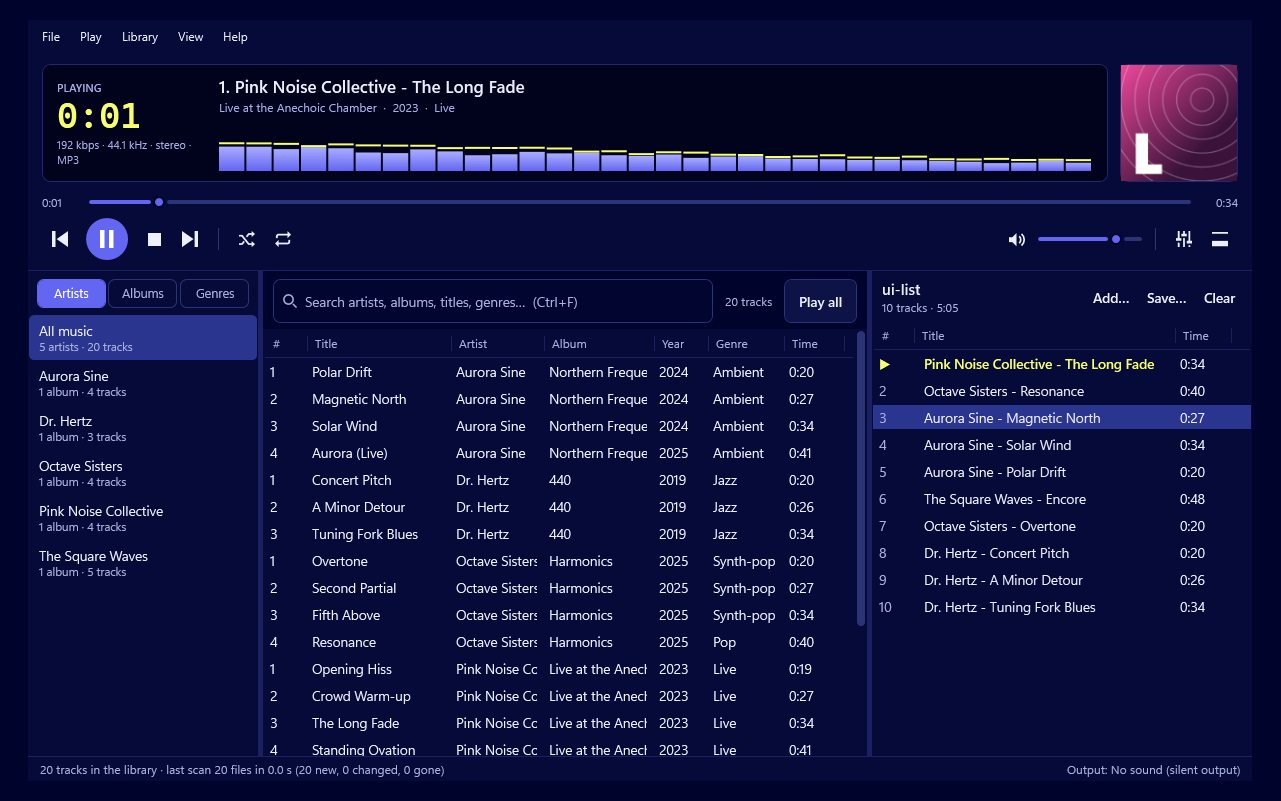
Open the Visualiser menu and choose Colours, or simply press G. In Play by Zaweba, Colours lets you pick Endless gradients, One gradient, Tone, Rainbow or Zaweba indigo, and G moves the visualiser to new colours straight away whatever mode you're in. The small spectrum display in the main window has its own palettes in Preferences.
The quickest way: press G
If the colours on screen don't suit the moment, press G. Play moves to new colours at once without changing the scene. Tap it a few times until you find something you like. This works in the big visualiser and in full screen.
Choosing a colour mode
Visualiser > Colours gives five modes, and each suits a different kind of evening.
Endless gradients is the default from version 1.1. Play keeps moving through new multi-colour gradients as the music goes on. There are 34 named presets and endless others made using colour-harmony rules, so the colours keep changing but still sit well together. Choose it for long sessions.
One gradient holds a single gradient. Use G until you find one you love, then choose One gradient to keep it.
Tone makes the colours follow the key's tone, so they shift with the character of the music.
Rainbow runs through the full range of colours, bright and lively.
Zaweba indigo keeps everything in Play's own indigo, for a calm, consistent look.
How the colours are laid out
Gradients are laid over the screen by area, so different parts of a scene take different colours from the blend. A gradient running from deep blue to orange can make a tunnel cool at one end and warm at the other. That's why the same gradient can look quite different from one scene to the next.
The spectrum display's colours
The display in Play's main window, with spectrum bars and an oscilloscope, uses Play's brand colours by default. In Preferences you can choose one of four other palettes and set 16 to 64 bars. These settings are separate from the visualiser's Colours.
Matching the occasion
For a party with a theme, hold One gradient in matching colours or choose Zaweba indigo, and let the scenes provide the movement. For a long evening of background visuals, leave Endless gradients on so the screen keeps surprising you. For something calm, choose a soft gradient, and set the intensity to Calm, which never strobes.
If colours change too often
In the Endless mix, colours are one of the things Play swaps over time, alongside scenes. If that's too lively, choose One gradient, or change the scene switching to a longer timer such as every 2 or 5 minutes.
If you're running the visualiser on a second monitor or a TV, try a few modes on that screen rather than on your laptop. Colours look different on different displays, and a gradient that seems gentle on one can look bright on another. A minute of pressing G with the music playing usually finds something that suits the room.
Colour is half of what makes a visualiser feel right, and Play by Zaweba puts it on one key and one menu.

