
How to make a visualiser match the speed of the music
Turn on Match the tempo in the Visualiser menu of Play by Zaweba and scenes move with the music's tempo and energy. Pair it with scene changes on phrases.
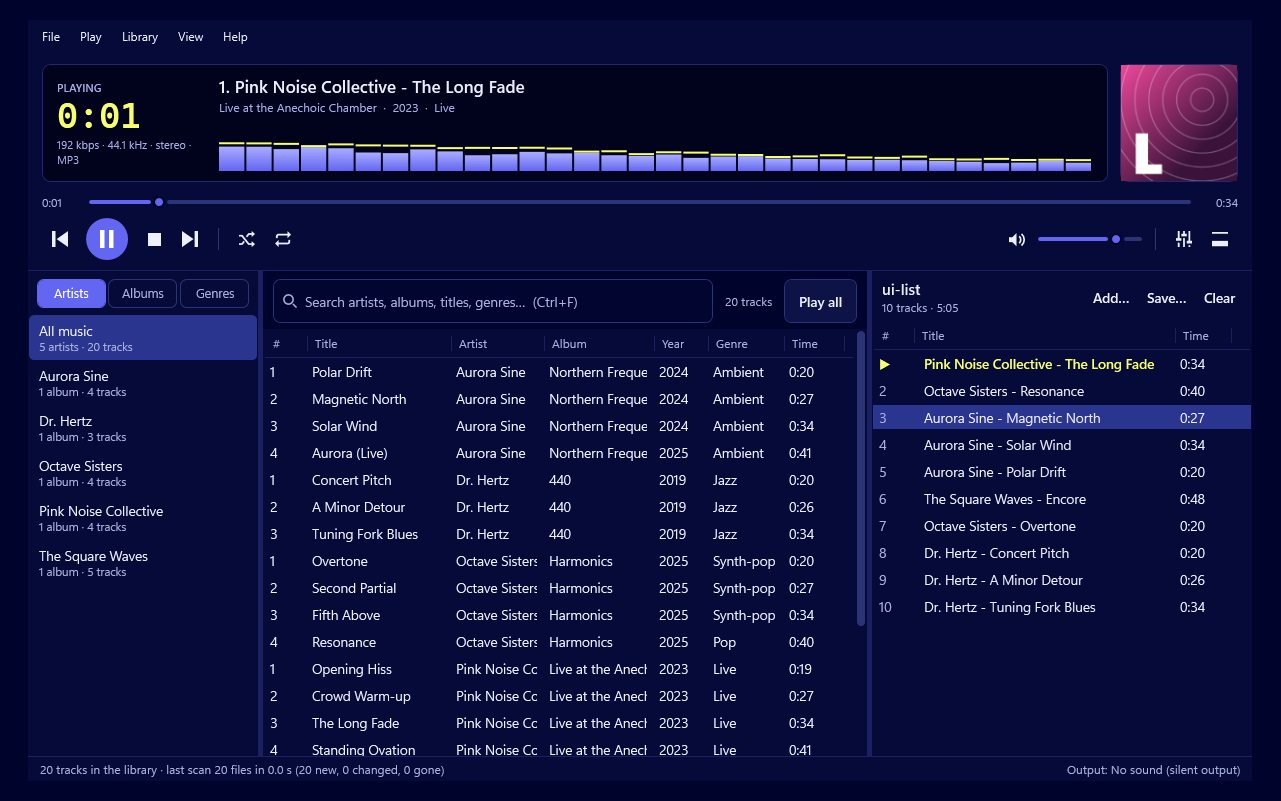
Turn on Match the tempo in the Visualiser menu. In Play by Zaweba this makes the motion of every scene follow the music's tempo and energy, so a slow ballad gives slow, flowing movement and a fast dance track speeds everything up. For the full effect, set scenes to change with the music's phrases as well.
What matching the tempo does
All of Play's scenes react to the music anyway, to its beat and its tone. Match the tempo goes a step further. It ties the speed of movement to how fast and how energetic the music is. Spirals turn faster, tunnels rush by, dancers move quicker as the music picks up, and everything relaxes when it calms down.
Without it, a scene keeps its own pace and reacts on top of that. With it, the pace itself comes from the music.
Setting tempo matching up
Start some music, and press V to open the big visualiser, or F11 for full screen.
Open the Visualiser menu and turn on Match the tempo.
Set scene changes to follow the music's phrases. Play can also change scenes every 15 seconds, 30 seconds, 1, 2 or 5 minutes, but phrases make the changes land at musical moments, which is what makes a visualiser feel in step.
Pick a switching mode. Auto picks scenes to suit the music, which pairs naturally with tempo matching. The Endless mix layers scenes and changes one thing at a time.
Reading the caption
When the scene changes, a caption fades in showing the scene, the tempo and the track. It's a handy way to see what Play has detected, and it quickly shows how a faster song changes the picture. Try a playlist that moves from a slow song to a fast one and watch the caption and the motion change together. That simple test is the easiest way to get a feel for what tempo matching adds, and whether you want it on for the kind of music you play most.
Choosing the intensity
Intensity is a separate setting with three levels: calm, normal and wild. Tempo matching sets the speed; intensity sets how strong the reaction is. A fast track at Calm still moves quickly, but gently and without strobing. Wild suits a party. Reduce flashing is on by default and keeps flashes within photosensitivity limits whatever you choose.
Scenes that show it off
Scenes with plenty of motion show tempo matching best. Tunnels and spirals, sound bars and waves, and the stage, disco and dancing group, with lasers, stage lights and neon dancers, all make the link between music and movement easy to see. Calm and trance scenes such as plasma and mandala show it more subtly, as a gentle quickening.
When it doesn't feel right
Music with no steady beat, such as some ambient pieces, gives the tempo less to hold on to. If you'd prefer each scene's own steady pace for that kind of music, turn Match the tempo off.
With Match the tempo on and changes on the phrases, Play by Zaweba turns the screen into something that moves with your music rather than just alongside it.

