
How to stop songs playing at different volumes
Songs jumping between loud and quiet? Turn on ReplayGain in Play by Zaweba, in track or album mode, and your music plays at one steady level.
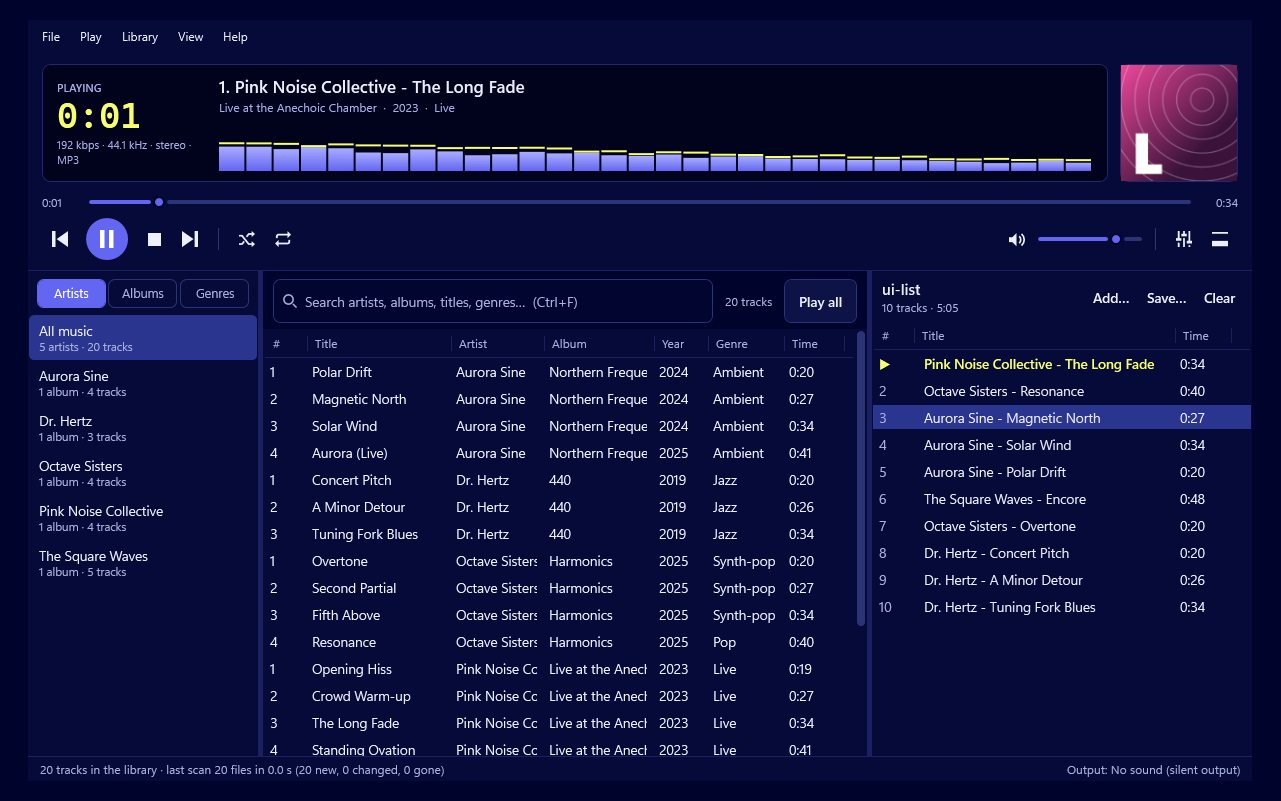
Turn on ReplayGain. In Play by Zaweba it's in Preferences, and it evens out the volume between tracks using the ReplayGain tags in your music files. Choose track mode if you shuffle or play mixes, and album mode if you listen to whole albums. Your files aren't changed; the adjustment happens only as each song plays.
The reason songs differ so much is that music has been mastered at very different loudness over the decades, and files come from many different sources. ReplayGain was designed to fix exactly that.
What you need
You need Play by Zaweba with your music folders added, and music files that carry ReplayGain tags. Many ripping and tagging programs write these tags, and Play reads them when it builds the library. If only some of your files have them, Play can still help, as explained below.
Turning ReplayGain on
Open Preferences and find the ReplayGain settings. Turn ReplayGain on.
Pick the mode. Track mode makes every song roughly the same loudness, which is what you want when songs from different albums play one after another. Album mode keeps the natural rise and fall inside an album, so a quiet ballad stays quieter than the loud song before it, while each album as a whole is matched to the others.
Set the preamp. Matched music can come out a little quieter than you're used to, so the preamp lifts or lowers everything by a fixed amount after the matching. Raise it until the level is comfortable.
Set the gain for untagged files. Files without ReplayGain tags would otherwise play at full level and stand out. Bring this gain down so they sit roughly level with the rest.
Leave clipping prevention on. It uses the peak values in the tags to stop loud moments distorting when a track is turned up.
Checking it works
Make a playlist from a few very different albums, an old recording and a recent one, and turn shuffle on. Listen for a few tracks without touching the volume. If an untagged file still jumps out, adjust the untagged gain. If everything is a little quiet, raise the preamp.
When some files still stand out
If certain tracks remain too loud or too quiet, they probably lack ReplayGain tags. Running a tagging tool that writes ReplayGain over your music folder fixes this for good, and Play notices the changed files and reads the new values without you doing anything.
Also check you haven't left an equaliser preset with a strong boost on. The equaliser's preamp changes the overall level too. ReplayGain sets the balance between songs; the equaliser shapes the sound of each one.
Why not just turn the volume up and down?
You can, but it means watching the player instead of listening. Matching the loudness once, with tags, means a long evening of shuffled music plays at one level. It also helps with headphones, where a sudden loud track is more than just annoying.
Crossfade, also in Preferences, can make the change from one song to the next smoother still, though it's a separate setting and not needed for even volume.
Set up once, ReplayGain in Play by Zaweba quietly does its job on every song from then on, and you can leave the volume where you put it.

