
What are the keyboard shortcuts for a music player?
Every player has its own, but in Play by Zaweba F1 lists them all. Space, Ctrl+Left and Right, S, R, E, Ctrl+F, Ctrl+M and more, with what each does.
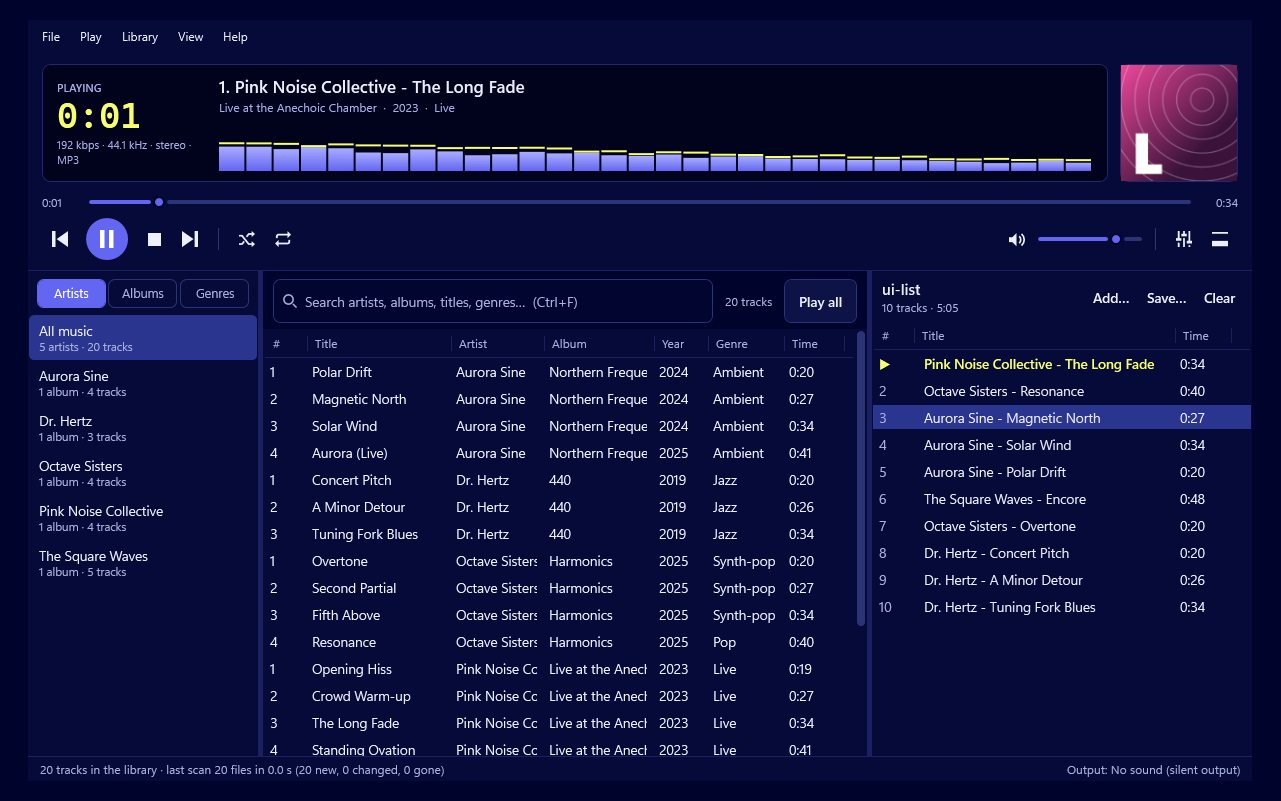
Each music player has its own set, but most share a few, and Space for play and pause is almost universal. In Play by Zaweba, press F1 at any time and it lists every shortcut. The ones you'll use most are Space to play or pause, Ctrl+Left and Ctrl+Right for previous and next, S for shuffle, R for repeat, E for the equaliser, Ctrl+F to search and Ctrl+M for the compact bar.
Playing and moving about
Space plays and pauses. Ctrl+Left goes to the previous track and Ctrl+Right to the next.
Within a track, Left and Right go back or forward 5 seconds. Ctrl+Up and Ctrl+Down raise and lower the volume, and Ctrl+0 mutes.
Shuffle, repeat and the queue
S turns shuffle on and off, and R moves through repeat: off, all and one. Q puts the selected playlist entries in the queue to play next, and Alt+Up and Alt+Down move entries up and down the playlist.
Finding and organising music
Ctrl+F jumps to the search box, so you can type a word straight away. Every word you type must match somewhere in the title, artist, album, genre, year or file name, so two short words are often enough to find one track among thousands. Ctrl+O adds files. Ctrl+L opens a playlist file. Ctrl+I opens the tag editor for the selected tracks, and F5 rescans your music folders.
Views, extras and media keys
E opens the equaliser. Ctrl+M switches to compact mode, the small always-on-top bar. Ctrl+T switches between the dark and light themes. Ctrl+D opens the audio CD tab.
V shows the big visualiser in place of the library, and F11 goes full screen. G moves the visualiser to new colours, N moves to the next scene and Shift+N goes back.
Keyboards with media keys work too. Play/Pause, Next, Previous and Stop control Play system-wide, even when it's minimised or in compact mode. You don't need Play to be the active window.
Which ones to learn first
You don't need the whole list. Start with four: Space, Ctrl+Left, Ctrl+Right and Ctrl+F. With those you can find something, play it and skip about without the mouse. Add S and R when you start shuffling, E when you want to tune the sound, and V and F11 when you discover the visualisers.
Why shortcuts matter in a music player
A music player usually sits behind other work. Reaching for the mouse, finding the window and clicking a small button is a real interruption. A key press isn't. Over a day of listening, shortcuts save more fuss than any other feature.
It also suits full-screen visuals. With the big visualiser on a TV, the keys let you pause, skip and change colours or scenes from the sofa with a wireless keyboard, without bringing the main window back.
If you forget one, F1 in Play by Zaweba brings back the whole list.

