
Building a playlist and using the queue in Play by Zaweba
Adding tracks, reordering by drag or keyboard, sorting and queueing: a practical guide to the playlist and queue in Play by Zaweba, kept between runs.
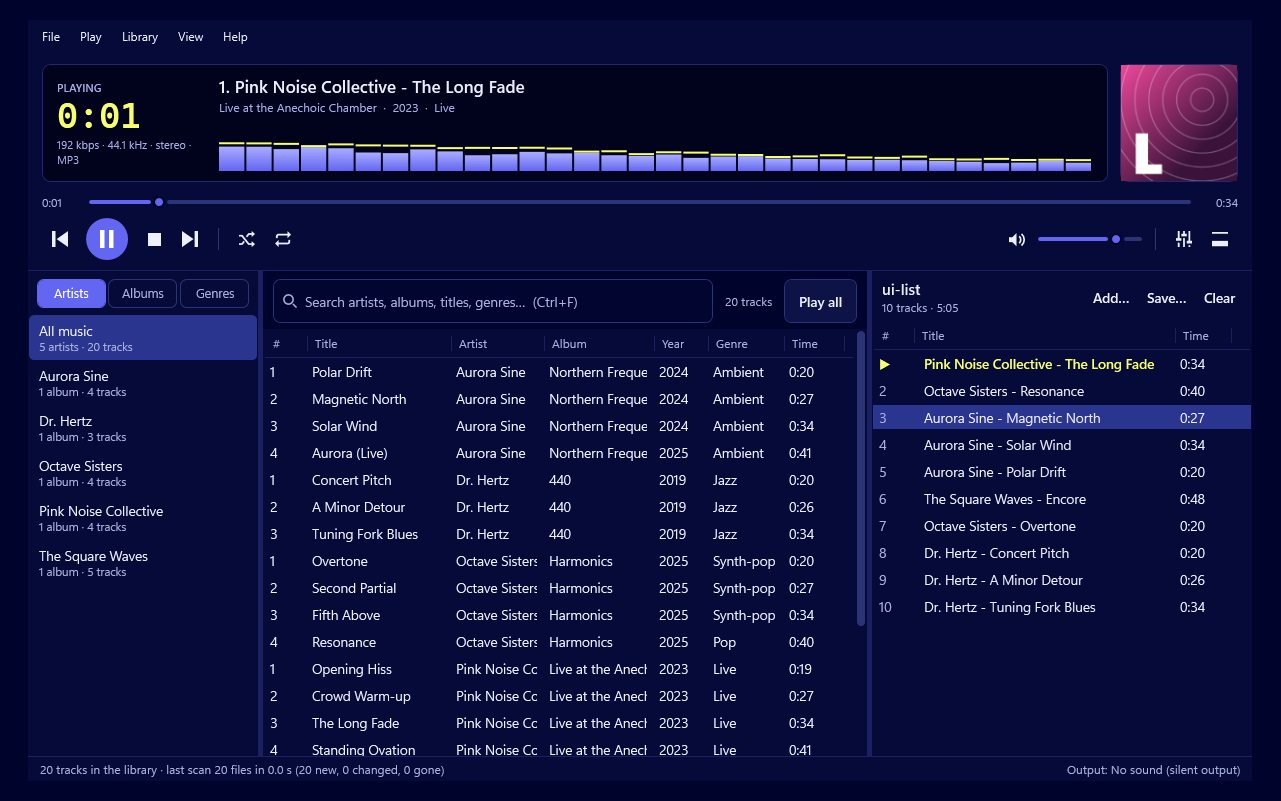
A playlist is where listening actually happens in Play by Zaweba. The library shows you what you own, but the playlist is what plays, and the queue lets you slip a track in ahead of the rest without rebuilding anything. Once you know how the two fit together, you'll spend very little time managing either.
Filling the playlist
There are two ways in. From the library, add tracks, albums, artists or genres. Double-clicking an item plays it straight away, which is the quickest way to start.
From Windows itself, drag files and folders in from Explorer. This is useful for music that isn't in your watched library folders, such as a few tracks in your Downloads folder or something on a memory stick. Drop a whole folder and its tracks come in together.
You can mix the two freely. A playlist can hold an album from your library, a couple of loose files dragged from the desktop and tracks from an audio CD, and Play plays them one after another in the same mixer.
Putting things in order
Reordering is done by dragging. Pick up an entry and move it; a line shows exactly where it will land before you let go, which saves a lot of trial and error. You can drag several entries at once, so moving a run of tracks is as easy as moving one.
From the keyboard, Alt+Up and Alt+Down move the selected entries one place at a time. This is the tidier choice for small adjustments, especially in a long playlist where dragging means scrolling.
There's also a sort, for when you want order without arranging by hand, and remove for anything that shouldn't be there.
The queue
The queue is for "play this next" moments. Rather than dragging a track up to just below the one that's playing, you put it in the queue. In the library, Play next does this for a track, album, artist or genre. In the playlist, Q adds the selection to the queue.
Queued entries are marked [1], [2] and so on, so the order is plain to see. When the current track ends, Play goes to [1], then [2], and then carries on with the playlist as before. It's ideal for requests at a party, or for when you're listening to an album and remember something you want to hear straight after.
Kept between runs
The playlist is saved between runs. Close Play in the evening and open it the next day and the playlist is still there, ready to carry on. You don't need to save it to keep it.
When you do want a clean slate, File > New playlist starts again. If you'd like to keep the current one for later, save it as an M3U file first using File > Save the playlist as, so you can open it again whenever you like.
How it fits with everything else
The playlist is where Play's other features meet. Gapless playback and crossfade work between playlist entries. Shuffle and repeat work on it. The equaliser and ReplayGain apply to whatever it plays. Even audio CD tracks go into the ordinary playlist, so they get all the same treatment.
That also means the playlist is what you hand on when you want to burn a disc. File or CD > Burn the playlist to an audio CD passes it to Burn by Zaweba, if you have it.
Mistakes worth avoiding
Don't reach for File > New playlist when you only want to add something next. The queue does that without losing what you had.
If you rely on a particular playlist, save it as M3U rather than trusting it to be the open one forever. The open playlist is kept between runs, but it's still only one playlist, and the next time you start again it's gone.
And if you drag in files from a removable drive, remember they'll only play while that drive is plugged in. For music you want to keep, copy it into one of your library folders first.
Used together, the playlist and queue in Play by Zaweba cover nearly every way people listen: a long album session, a mood mix that grows as the evening goes on, or a quick request slotted in without fuss.

