
Preferences, light theme and keyboard shortcuts in Play
A tour of Preferences in Play by Zaweba, switching dark and light with Ctrl+T, and the keyboard shortcuts behind F1 that make daily listening quicker.
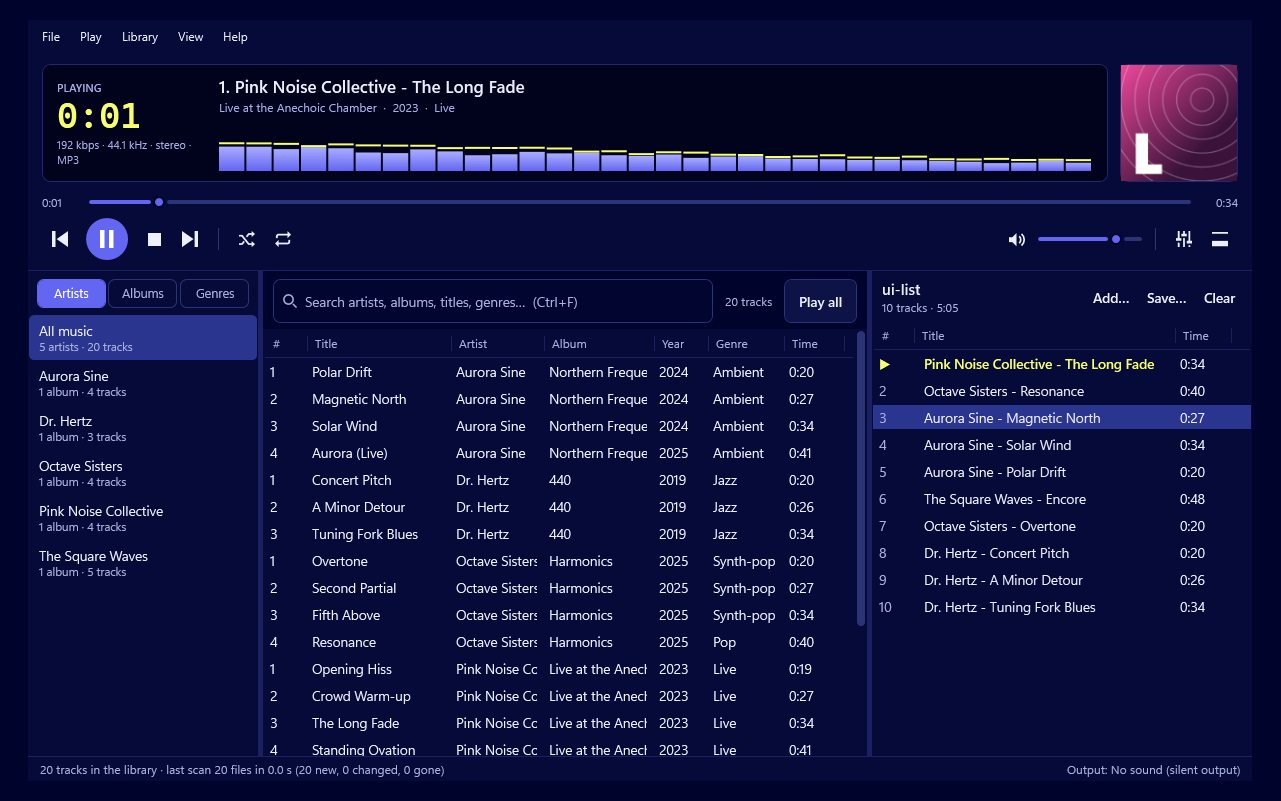
Settings pages are rarely exciting, but they decide whether an app feels like yours. Play by Zaweba keeps its settings in one Preferences window, has a quick switch between dark and light, and puts nearly everything you do daily on a key. This article walks through all three.
What Preferences covers
Preferences is arranged around the parts of Play that you might want to adjust.
Sound sets the mixer rate. It's 44.1 kHz unless you choose 48 kHz. Play resamples any file at a different rate to match, so this is more about matching your sound card than about your files.
Crossfade sets whether tracks blend into each other, from 0 to 12 seconds. By default it isn't applied between tracks of the same album, so albums stay gapless.
ReplayGain evens out loudness between tracks using their tags, in track or album mode, with a preamp, a level for untagged files and clipping prevention.
Visualiser holds the settings for the display and scenes, such as the spectrum palette and number of bars, plus classic skins for the compact bar.
Audio CDs covers looking up track names online and saving your own CDs to your library.
You don't need to visit all of these on day one. Play works sensibly out of the box. Come back when you notice something you'd like different.
Dark or light
Play has a dark theme and a light one. The dark one suits music and the visualisers. If you prefer a light window, especially in a bright room or during the day, press Ctrl+T or choose View > Light theme. Press it again to go back. It's a quick switch, so you can change it with the time of day.
Shortcuts for every day
Press F1 and Play lists all its shortcuts. Here are the ones most people use.
Space plays and pauses. Ctrl+Left and Ctrl+Right go to the previous and next track. S turns shuffle on and off, and R moves through the repeat settings.
E opens the equaliser. Ctrl+F jumps to search, so you can type straight away. Ctrl+M switches to compact mode, the small always-on-top bar.
Ctrl+O adds files, and Ctrl+L opens a playlist. Ctrl+I edits the tags of what you've selected. Ctrl+D opens the audio CD tab.
V shows the big visualiser, and F11 goes full screen. F5 rescans your music folders.
Learning them gradually
Nobody needs all of these at once. Start with Space, Ctrl+Left and Ctrl+Right, and Ctrl+F. Those four alone mean you can run Play for an evening without touching the mouse. Add S and R when you start shuffling, E when you start tuning the sound and V when you discover the visualisers.
If you forget one, F1 is always there.
When to use F5
Play's library keeps itself current as files are added, renamed or deleted, and it does a full rescan at start-up. So you rarely need F5. It's there for when you want to be sure, for example after copying a large batch of music from another drive.
Settings that work together
Several settings affect each other, so it helps to think of them as a set. ReplayGain and the equaliser preamp both change overall level; set ReplayGain first, then use the preamp only if needed. Crossfade and gapless both affect transitions, and the album rule keeps them from fighting. The visualiser's own options sit alongside the Visualiser menu, where you'll find colours and switching.
Spend ten minutes with Preferences and F1 in Play by Zaweba and the player will fit the way you listen.

