
Using ReplayGain in Play by Zaweba to keep volume even
ReplayGain in Play by Zaweba evens out loudness between tracks using their tags, with track and album modes, a preamp, untagged gain and clip prevention.
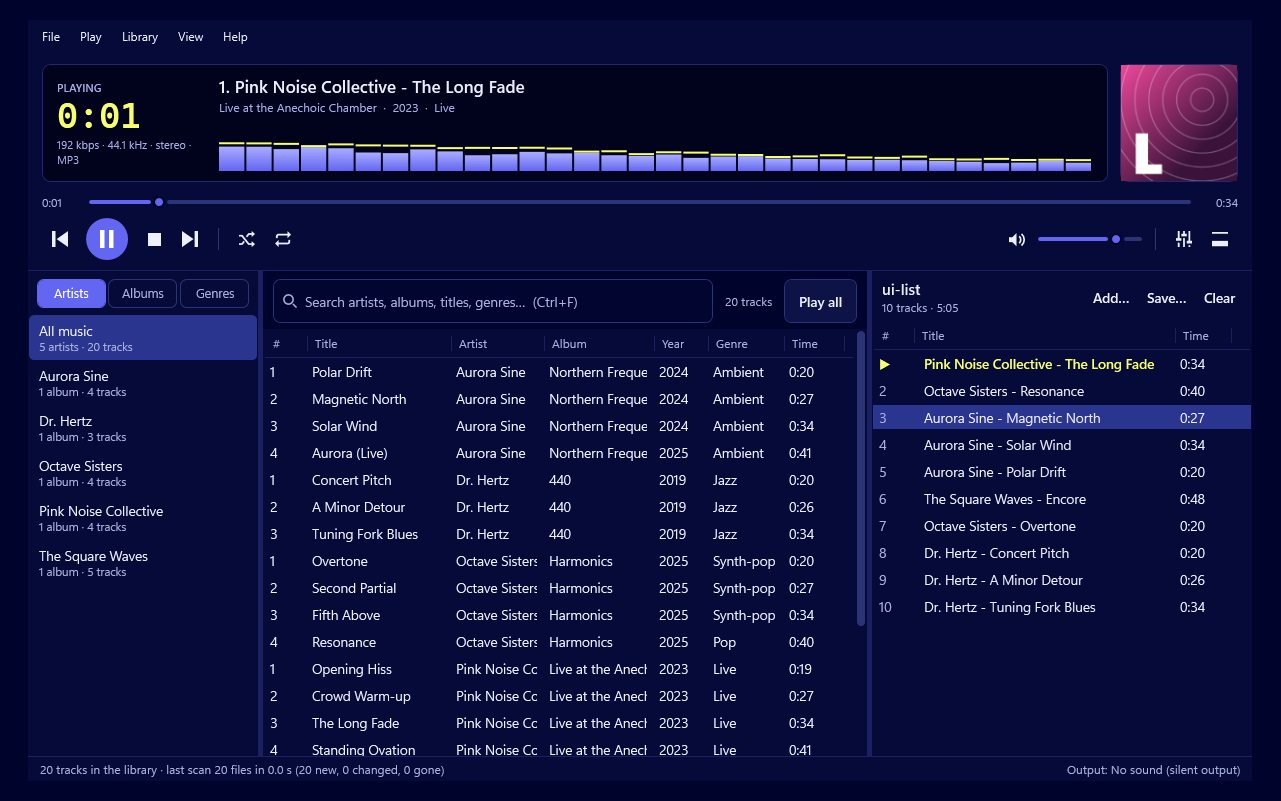
A collection put together over many years is never the same loudness from one track to the next. Recordings from the 1970s tend to be quieter than recent ones, mastered for a different kind of playback. Put them side by side in a playlist and you find yourself turning the volume down, then up, then down again. ReplayGain is the standard answer, and Play by Zaweba supports it fully.
How ReplayGain works
ReplayGain doesn't change your files. Instead, a program analyses each track once and writes the result into its tags: how much louder or quieter the track should be played to match a common reference, plus the track's loudest peak. Many rippers and tag tools write these tags. Play reads them when it builds the library and uses them as it plays.
Because the adjustment happens at playback, nothing is lost. Turn ReplayGain off and every track plays exactly as it was recorded.
Track mode or album mode
ReplayGain tags usually come in two kinds, and Play lets you choose between them.
Track mode brings every track to the same loudness. It's right for shuffled playlists and mixes, where songs from different albums sit next to each other and should all sound about as loud.
Album mode keeps the differences within an album. A quiet ballad stays quieter than the loud track before it, just as the artist intended, while the album as a whole is matched to others. It's right when you listen to whole albums.
If you mostly shuffle, use track mode. If you mostly play albums from start to finish, use album mode.
The preamp
ReplayGain's reference level is fairly modest, so matched music can sound quieter overall than you're used to. The preamp raises or lowers everything by a set amount after ReplayGain has done its matching. Use it to bring the overall level back to a comfortable place without losing the evenness between tracks.
Untagged files
Some of your files won't have ReplayGain tags at all. Rather than playing them at full level next to tagged tracks that have been turned down, Play applies a separate gain to untagged files. Set it so that untagged tracks sit roughly level with the rest. A little lower than full is usually about right.
Clipping prevention
Turning a track up can push its loudest moments past what the sound system can reproduce, which causes a harsh distortion called clipping. Play uses the peak values stored in the ReplayGain tags to stop that happening, holding a track back just enough that its peaks stay clean. It's especially useful if you've set a positive preamp.
ReplayGain lives in Preferences, alongside sound, crossfade, the visualiser and audio CD settings. Turn it on, choose track or album mode, then adjust the preamp and the untagged gain to taste.
Making it work well
The more of your library carries ReplayGain tags, the better the result. Play's library reads the tags already in your files, so if a tagging tool you trust can add them, run it over your music folder. Play notices the changed files and picks up the new values.
ReplayGain also sits comfortably alongside the equaliser. ReplayGain handles how loud each track is, the equaliser handles the shape of the sound. Use both and you get a collection that sounds consistent from one track to the next and the way you like it overall.
With Play by Zaweba set up this way, a long shuffled evening plays at one steady level, and you can leave the volume knob alone.

