
Seek, volume and mute in Play by Zaweba, from mouse or keys
Moving through a track and setting the level in Play by Zaweba: the seek bar, 5 second jumps with the arrow keys, perceptual volume and Ctrl+0 to mute.
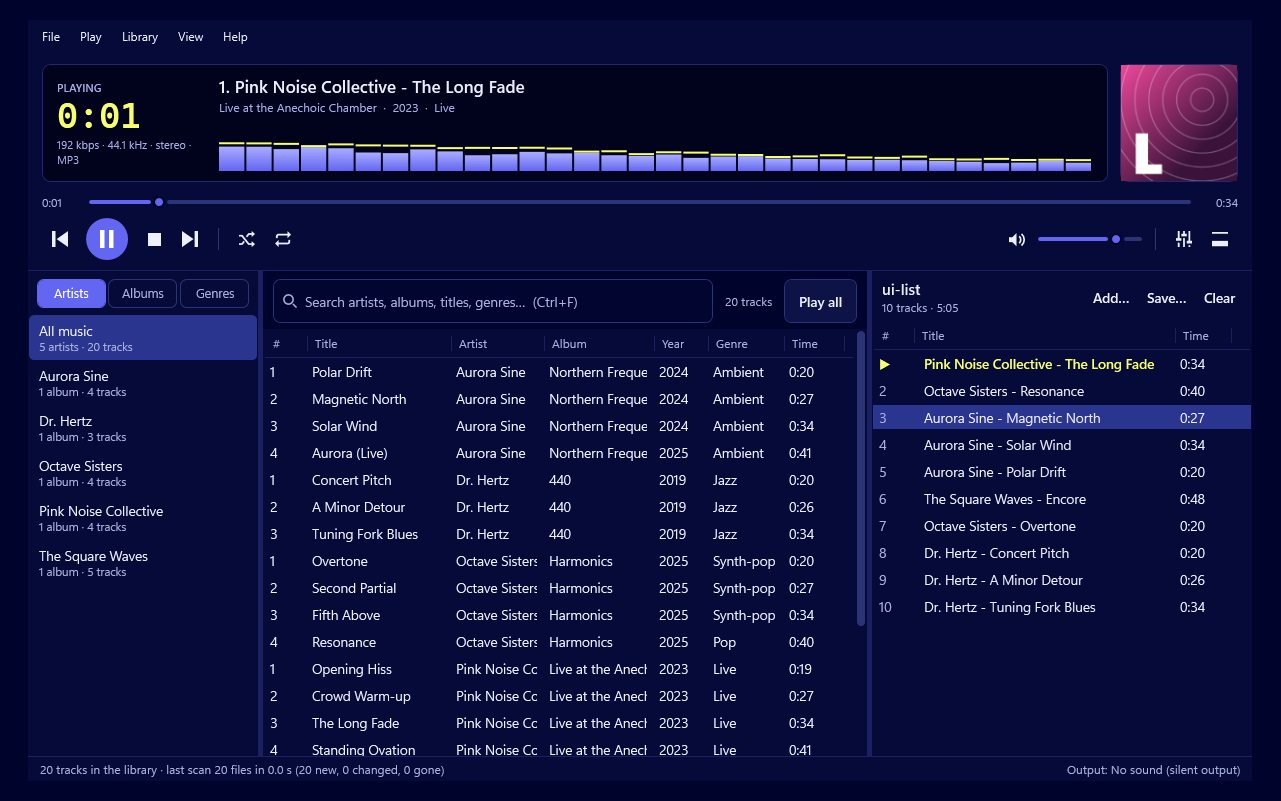
Small controls get used more than anything else in a music player. You might open the equaliser once a month, but you'll nudge the volume or skip back a few seconds many times a day. Play by Zaweba keeps these controls on the mouse and the keyboard so they're always quick.
The seek bar
The seek bar shows how far through the track you are. Click anywhere on it to jump there, or drag to scrub through. It's the quickest way to find a particular part of a long piece, such as the solo in a live track or the second movement of something classical saved as one file.
In compact mode the small always-on-top bar has a seek bar too, so you can move through a track without opening the full window. And when Play is shown in Windows' media flyout and lock screen, the seek bar there controls Play as well.
Five seconds at a time
For finer movement, the Left and Right arrow keys go back or forward by 5 seconds. This is the control for "what did they just say" moments. Tap Left once or twice to hear a line again, without hunting along the bar with the mouse.
It's also useful for learning a song. Hold the playback on a tricky passage by tapping back a few times as you go, rather than starting the track again.
Volume that follows your ears
Play's volume control is perceptual. Our ears don't hear loudness in a straight line, so on a plain volume slider most of the change seems to happen in a small part of its range, and the rest feels either nearly silent or nearly full. A perceptual control spreads the steps so each one sounds like a similar change in loudness.
From the keyboard, Ctrl+Up raises the volume and Ctrl+Down lowers it. It's handy when Play is in the background and you'd rather not reach for the mouse.
Mute
Ctrl+0 mutes Play. Press it again to bring the sound back where it was. This is the key for a phone call or someone at the door, when you want silence immediately but don't want to lose your place.
Mute is different from pause. Pause stops the track; mute keeps it playing silently. If you'll be away for a while, pause with Space instead so you don't miss anything.
How these fit with other controls
Play's volume controls the player's own level. ReplayGain, set in Preferences, evens out loudness between tracks, and the equaliser's preamp sets the overall level of the equalised sound. Together they mean you rarely need to touch the main volume once you've set it, except to suit the room.
If your keyboard has media keys, Play/Pause, Next, Previous and Stop work system-wide, even when Play is minimised. Your keyboard's own volume keys change the Windows level, while Ctrl+Up and Ctrl+Down change Play's. It helps to know which you're using.
Small habits that help
Set Play's volume fairly high and use Windows or your speakers for the overall level. That way the player's control acts as a fine adjustment.
If a track suddenly seems much louder or quieter than the rest, don't fix it with the volume every time. Turn on ReplayGain and let it even things out.
And remember F1 lists every shortcut, including these, if you forget one. The handful in this article are the ones you'll use most often in Play by Zaweba, and they quickly become second nature.

