
How shuffle and repeat work in Play by Zaweba
Shuffle in Play by Zaweba plays every track once before any repeat, and repeat can be off, all or one. How each works, with the S and R keys.
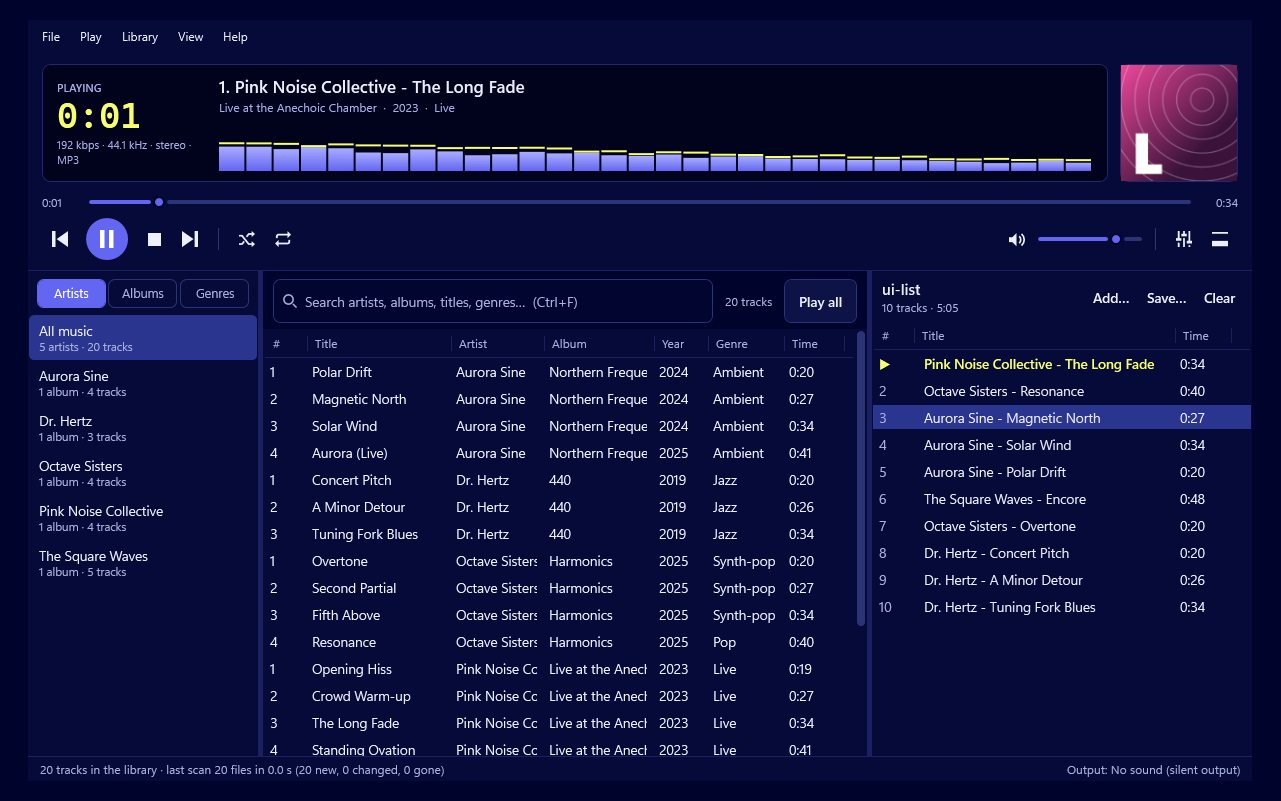
Shuffle is one of the oldest buttons on any music player and also one of the most argued about. People who use it a lot tend to have the same complaint: they hear the same handful of songs again and again while large parts of the playlist never come up. Play by Zaweba avoids that with a simple rule, and pairs it with a repeat that does exactly what you'd expect.
Every track once
When shuffle is on, Play plays every track in the playlist once before any of them repeats. It's the difference between drawing cards from a shuffled deck and drawing a card, putting it back and drawing again. With the deck, you get through all of it before you see a card twice.
In practice that means a shuffled playlist of 200 tracks gives you 200 different songs before the first one comes round again. Nothing is played twice in an evening while another track sits ignored.
Repeat in three settings
Repeat has three settings. Off plays the playlist through and stops at the end. All goes back to the beginning and carries on. One plays the current track over and over until you change it.
Repeat one is for learning a song, practising along to it, or the occasional track you simply can't stop playing. Repeat all is for background music that should keep going all day. Off suits an album you want to hear once.
Keys and menus
Both are in the Play menu. From the keyboard, S turns shuffle on and off and R moves through the repeat settings. Those two letters are easy to remember and quick to reach, so you'll probably stop using the menu after a day or two.
F1 shows the full list of Play's shortcuts if you forget one.
Shuffle with repeat all
The two work well together. Shuffle on with repeat all gives you a playlist that never stops and never repeats a track until every one has had a turn. It's the setting for parties, shops and long working days, where music should simply keep coming without you looking after it.
Add crossfade from Preferences and the transitions blend from one track to the next. By default crossfade isn't applied between tracks of the same album, which keeps live albums and classical movements joined gaplessly even if your playlist mixes them with other music.
Using the queue with shuffle
Shuffle doesn't stop you choosing what comes next. Add a track to the queue (Q, or Play next from the library) and it plays after the current one, marked [1] in the playlist. When the queue is empty, shuffle carries on as before. This is the easiest way to take a request without switching shuffle off.
A few things to know
Shuffle works on the playlist, not the whole library. If you want to shuffle everything you own, add it to the playlist first. Double-clicking a genre or an artist in the library is a quick way to fill the playlist with a large, related set to shuffle through.
If the volume jumps between shuffled tracks from different albums, that's a separate matter. Turn on ReplayGain in Preferences, and use track mode when you're shuffling, since tracks from many albums are being mixed together.
And if shuffle seems to have stopped working, check that repeat isn't set to one. Repeat one keeps playing the same track, which can look as if shuffle has given up.
Small as they are, shuffle and repeat in Play by Zaweba follow the rules people expect, which is exactly what makes them easy to leave running.

