
The spectrum and oscilloscope display in Play by Zaweba
The small display in Play by Zaweba shows spectrum bars with falling peaks, an oscilloscope or a scene. How to switch, go full screen and set colours and bars.
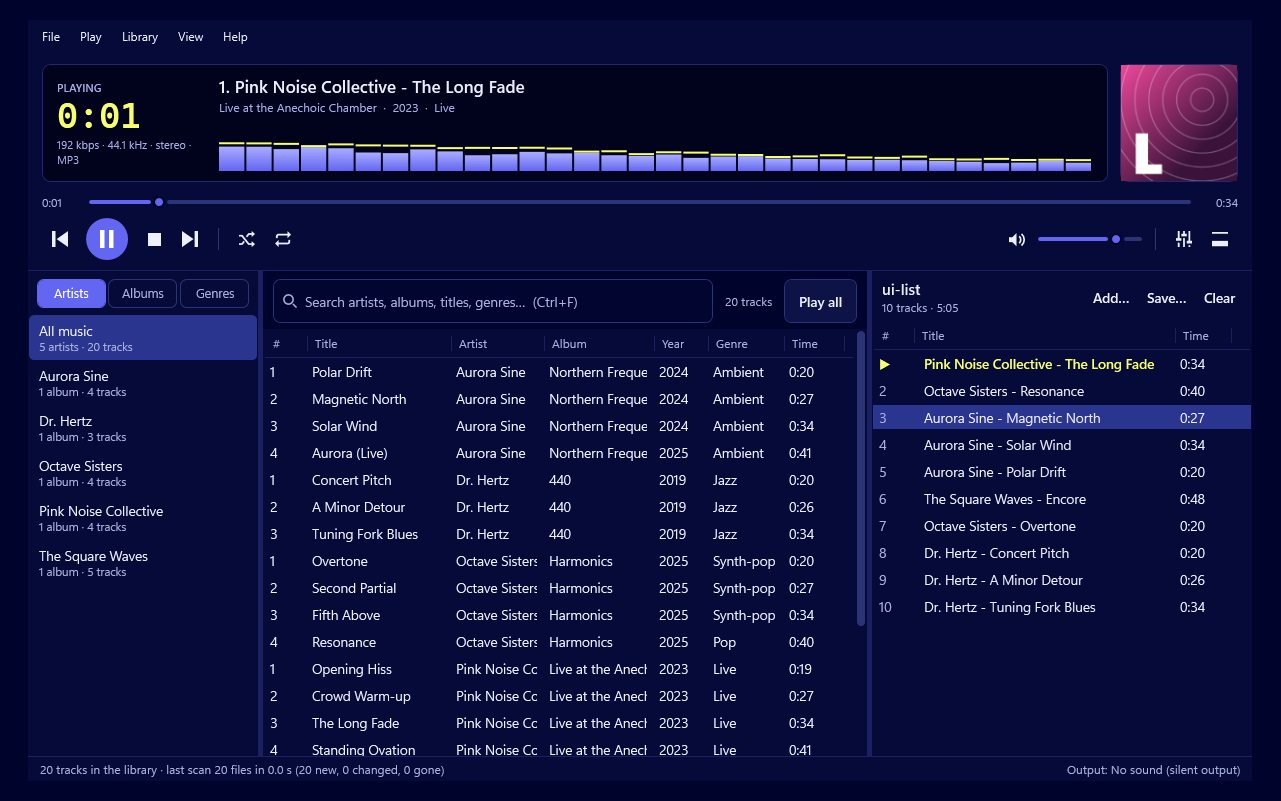
Before full-screen visualisers, music players had a small panel of dancing bars, and many people still find it the nicest thing to glance at while music plays. Play by Zaweba keeps that tradition in its main window. The display shows spectrum bars, an oscilloscope or a visualiser scene, and you can switch between them with a click.
Spectrum bars
The spectrum view splits the sound into frequency bands, from deep bass on the left to high treble on the right, and shows how much of each is in the music at that moment. Play uses a 2048-point FFT to do this, which is the mathematical step that turns the sound wave into separate frequencies. A larger FFT gives a finer, steadier picture of the music.
Each bar has a falling peak cap. When a bar jumps up, a small cap sits at the top and drifts slowly down. It gives the display that familiar bounce and makes it easier to see where the loud moments were.
The oscilloscope
The oscilloscope shows the sound wave itself: the actual shape of the signal as it moves. Calm acoustic music draws smooth, rounded curves, while distorted guitars and electronic music draw jagged, busy ones. It's a different way of seeing the same music, more about texture than tone.
Scenes, off and full screen
The display can also show a visualiser scene in miniature, one of the moving pictures that react to the music. Or you can switch it off if you'd rather have a quieter window.
To switch, click the display. Each click moves on: spectrum, oscilloscope, scene, off, and round again.
Double-click the display to go full screen. This is the quick route from a glance at the bars to a whole screen of visuals, handy when you want to put something on a TV or second monitor. Double-click again, or press Esc or F11, to come back.
If you'd like the visualiser bigger without going full screen, V shows the big visualiser in place of the library.
Colours and the number of bars
By default the display uses Play's brand colours. In Preferences you can choose one of four other palettes, so the bars suit your taste or the light or dark theme you're using.
You can also choose how many bars the spectrum shows, anywhere from 16 to 64. Fewer bars look bold and chunky and are easy to read from across a room. More bars show finer detail, which suits a large window or anyone who likes to watch how the frequencies move.
Reading the display with the equaliser
The spectrum is a useful partner for the 10-band equaliser. If the bass bars on the left look dominant and the sound feels boomy, that's a hint to bring the low bands down a little. If the right-hand bars barely move and the music sounds dull, the treble bands may need a lift. Make a change with the equaliser open (E opens it) and watch how the bars respond.
Treat it as a guide, not a rule. Music is supposed to have more bass energy than treble, so the left side of the spectrum is naturally taller. Trust your ears first.
A small thing that adds character
The display is not the most important part of Play by Zaweba, and you can turn it off. But it's one of the touches that gives the player its character. Spectrum bars with peak caps, a scope that draws the wave and a click to swap between them feel like part of listening, not just a decoration on top of it.

