
Adding .pub files and folders to Pub Converter by Zaweba
Drag and drop, File > Add files, Add a folder, recent files or the command line: every way to get .pub files into Pub Converter by Zaweba, read as you add.
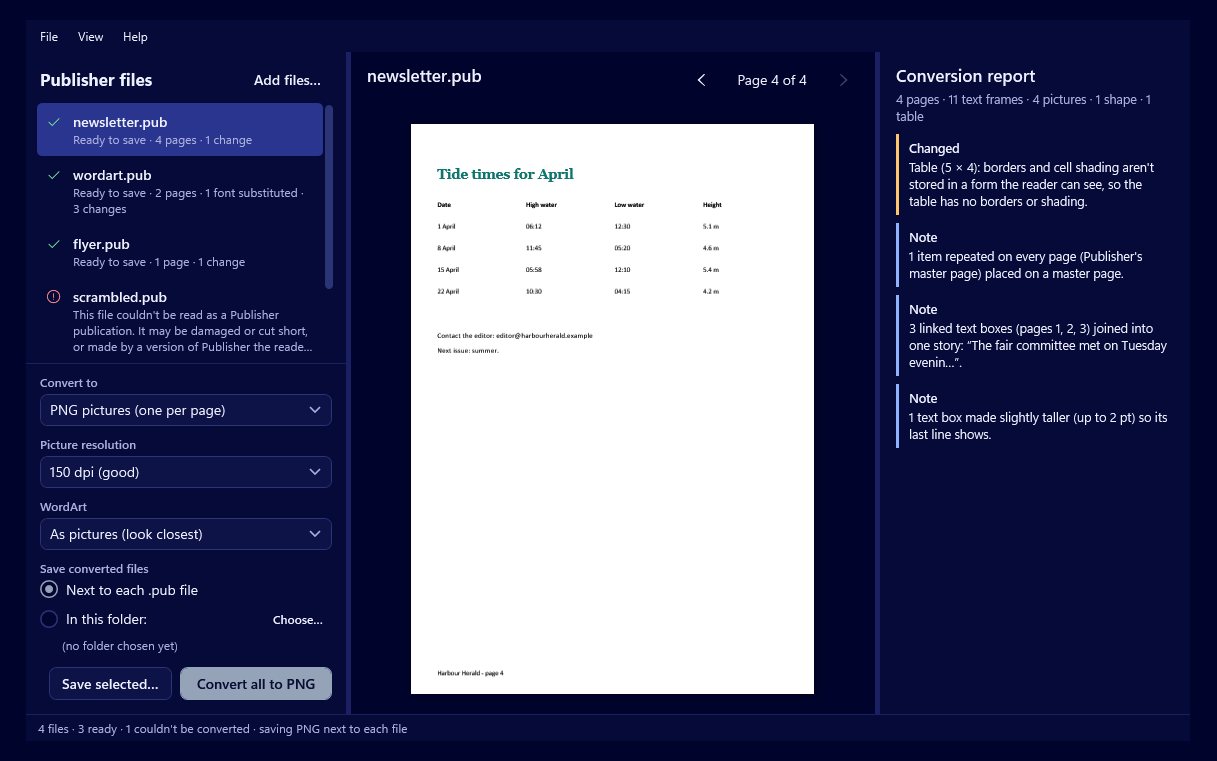
Getting files in is the first step of every conversion, and it's worth doing well when the job is an old archive rather than one file. Pub Converter by Zaweba gives you several ways in: drag and drop, the File menu, a list of recent files and the command line. Whichever you use, each file starts being read in the background as soon as it's added, so by the time you click on it, it's usually ready to preview.
Drag and drop
The quickest route is to drag .pub files from Explorer straight onto the window. You can drop a single file, a handful selected together, or whole folders. A folder brings in the .pub files inside it, which is ideal for the shared drive of newsletters or the folder of school templates that nobody has opened in years.
Drag and drop also suits a sorting session. Open the archive in Explorer beside Pub Converter, look through the folders, and drop in the ones worth keeping as you go.
The File menu
If you prefer menus, File > Add files opens the usual Windows picker, where you can select one file or many. File > Add a folder lets you pick a whole folder in one go.
There's also a list of recent files. That's handy when you converted a file yesterday and want to try it again with a different output, such as a PNG of each page instead of a PDF, or an editable Publish by Zaweba file this time.
The command line
For scripts, batch files and the occasional big tidy-up of a network share, files can be passed on the command line instead. That suits anyone looking after many PCs or converting an archive on a schedule. The command line has options of its own for output type, folder and report, so it's a whole way of working rather than just another way to add files.
Read as soon as they're added
Each file is read in the background the moment it's added. You don't wait for a whole folder to load before doing anything. While later files are still being read, you can click the first one, look at its preview page by page and check its conversion report.
That makes a practical rhythm for a big folder. Drop it in, then start looking through the list from the top. Files that read cleanly show their preview straight away. A damaged file, or something that only shares the .pub extension, such as an SSH public key, gets a clear message instead, and the rest of the list carries on.
Choosing what to add
A few habits save time. If an archive has a mix of current and abandoned files, add folder by folder rather than the whole drive at once, so the list stays manageable and you can convert each set into its own place.
Keep copies of the originals. Pub Converter doesn't change the .pub files it reads, but it's good practice to work from a copy of an important archive anyway, especially one stored on a shared drive.
If you're converting for a particular purpose, such as reprinting this year's concert poster, add just that file. Batches are best for archiving, where you want everything in a readable form.
After adding
Once the files are in, the next steps are the preview, the report and the conversion itself. Choose PDF, PNG pages or an editable Publish file, then convert the one you're looking at or use Convert all for the lot.
Getting files into Pub Converter by Zaweba is meant to be the easy part. Drop them in, and the work of reading them has already started.

