
How Pub Converter rebuilds master pages and linked stories
Pub Converter by Zaweba turns items repeated on every page into a master page with page numbers, joins linked boxes into one story and restores blank pages.
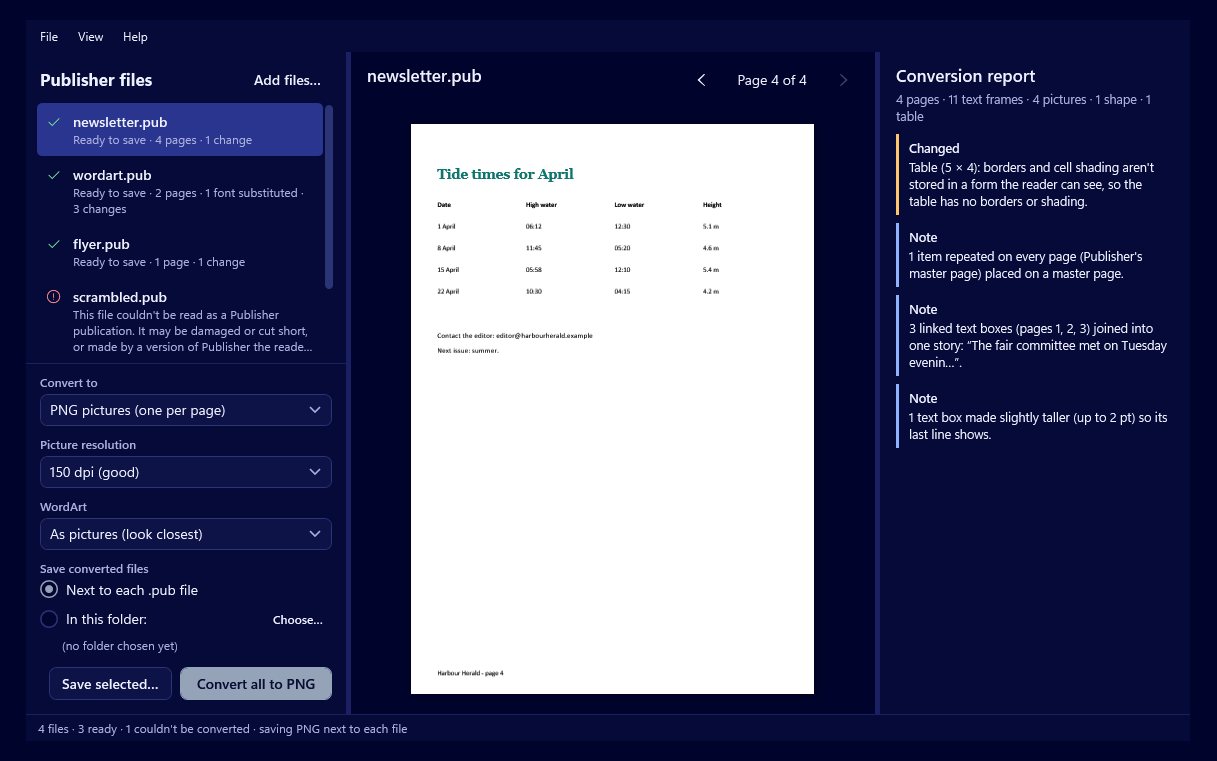
Converting a publication isn't only about copying what each page looks like. A newsletter is built from parts that relate to each other: an article that starts on page one and carries on to page three, a header and page number that appear on every page. If a converter only copies the surface, you end up with a file that looks right and is miserable to edit. Pub Converter by Zaweba rebuilds that structure when it makes an editable Publish by Zaweba file.
Items repeated on every page
Many publications have the same things on each page: a masthead, a footer with the club's name, a line along the bottom, a page number. A careless conversion places a separate copy on every page, so changing the footer means changing it ten times.
Pub Converter spots items repeated on every page and turns them into a master page. In Publish by Zaweba, a master page holds the things that appear on every page that uses it, so you edit them once and the change shows everywhere.
Page numbers become real fields
Page numbers are a special case. In the original they're often marked with a # character, standing for the number. Pub Converter turns that # into a proper page-number field on the master page. Each page then shows its own number, and if you add or remove pages in Publish, the numbers follow.
Linked text boxes become one story
When an article flows from one text box into another, the boxes are linked. Pub Converter joins linked text boxes into one story. In Publish, text flows through linked frames, so the article continues to run from box to box just as it did.
That matters as soon as you edit. Add a paragraph near the start and the rest of the article moves along into the next box, instead of the first box overflowing while the second sits unchanged. It's the difference between a file you can update and one you have to rebuild by hand.
Blank pages restored
Some publications have pages that are meant to be empty, the inside of a greeting card being the classic example. Blank pages like these are restored, so a folded card comes across with the right number of pages in the right order and folds correctly when printed.
Where this applies
All of this is about the editable route: saving as a Publish by Zaweba (.ozp) file. It's also what Publish's own File > Import .pub uses. A PDF or PNG pages are pictures of the finished pages, so there's no structure to edit, though the page order and blank pages still matter for them.
Older formats are a different case. Publisher 2000 and 98 files bring text, pictures and positions, but some things can't be recovered, and the report says so, including that blank pages can't be restored.
Checking the result
Look at the preview first. It's drawn by Publish's own renderer, so it shows exactly what you'll get. Then read the conversion report beside it for anything that was changed.
After opening the .ozp in Publish, a quick test is to type a few words into the first box of a long article and watch it flow on, and to look at the master page to see the header, footer and page number that were found. If something that should repeat was left on individual pages, perhaps because it differed slightly from page to page in the original, you can move it to the master page yourself.
Rebuilding master pages and linked stories is quiet work, but it's what makes an old .pub file from Pub Converter by Zaweba something you can carry on editing for years.

