
Light or dark theme and the Help menu in Pub Converter
A short tour of Pub Converter by Zaweba's light and dark theme and its Help menu: feedback, reporting a problem, update checks, other apps and the licences.
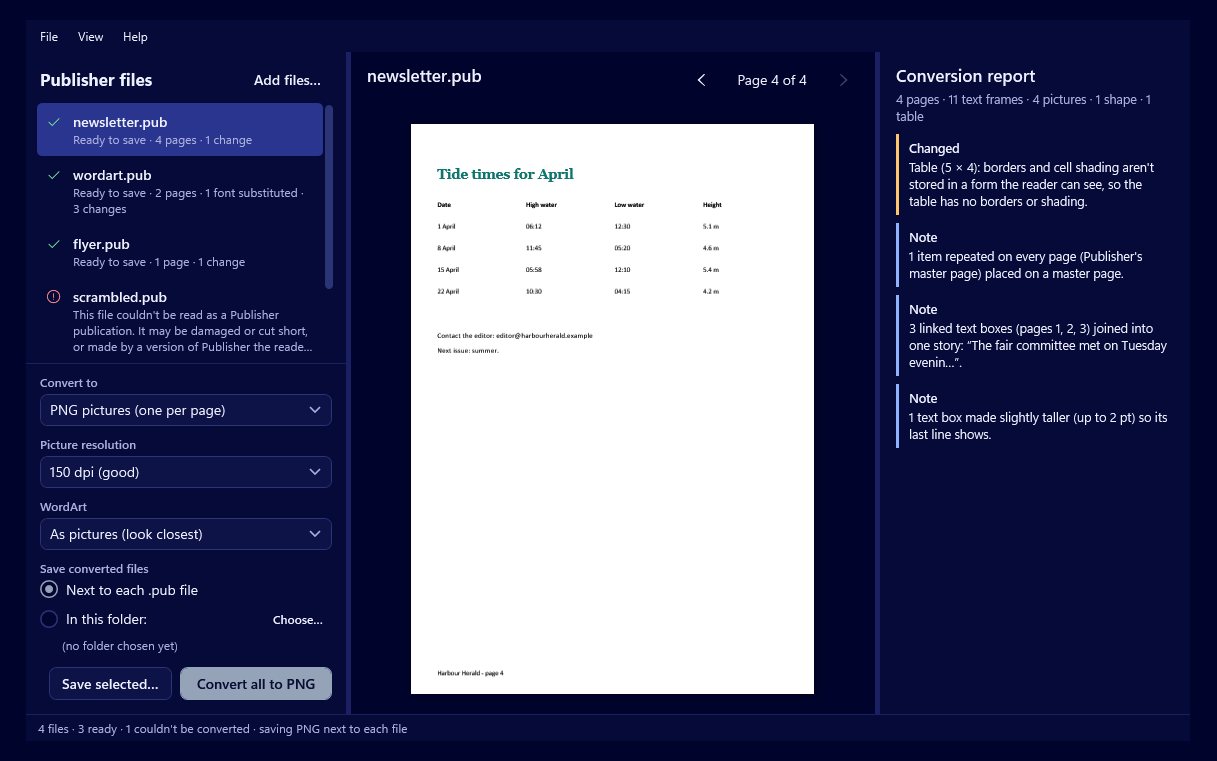
A converter is the kind of app you might use intensely for an afternoon and then not open for months. When you come back, it helps if it's comfortable to look at and easy to get help from. Pub Converter by Zaweba keeps both simple: a light or dark theme, and a Help menu that holds everything about the app itself in one place.
Light or dark
Pub Converter has a light theme and a dark theme. Choose whichever suits your screen and your room. Light is easy to read in a bright office. Dark is gentler on the eyes in the evening, and some people simply prefer it all day.
The theme changes the window around your files, not the files. The preview of each page is drawn by Publish by Zaweba's own renderer and shows the publication as it really is, white paper included. So switching to dark won't make a newsletter look any different in the preview, the PDF, the PNGs or the editable Publish file. That's deliberate: what you check should be what you get.
The Help menu
Help gathers the things you need now and then.
Send feedback is for telling the makers what you think: something that worked well, something that could be better, or a kind of file you wish it handled differently.
Report a problem is for when something went wrong. If a file didn't convert as you expected, say which part of the conversion and what the report said. The report is a good starting point, because it already lists the fonts substituted and anything lost or changed for that file.
Check for updates looks for a newer version, so you can keep the converter current.
Other Zaweba apps shows the rest of the family. The most relevant for Pub Converter users are Publish by Zaweba, for editing the converted files, and PDF by Zaweba, for reading and printing PDFs.
About shows which version you have, and the open-source licences list the open-source parts the app is built with.
Reporting a problem well
A good report saves everyone time. Before sending one, look at the conversion report for the file. Many differences are already explained there: a font swapped for a near equivalent, WordArt turned into a picture, table borders not kept, or a text box made slightly taller so nothing is hidden. If the report covers it, it's a known limit rather than a fault.
If it doesn't, describe what you expected and what you got, and which output you chose: PDF, PNG pages or an editable Publish file. Mention whether the file came from an older version of Publisher, since Publisher 2000 and 98 files have their own limits, and Publisher 95 and earlier aren't supported.
Staying private while you do it
Pub Converter does its work offline on your PC and needs no other software installed. Feedback and problem reports are things you choose to send. Think about what's in a publication before describing it, especially if it holds names, addresses or other personal details.
Small things that make a difference
None of this is the main event. The main event is turning old .pub files into something you can open again. But a theme you're comfortable with and a clear route to help make Pub Converter by Zaweba a pleasant tool to come back to, whether that's next week or next year.

