
How to make a QR code that calls a phone number
Choose Phone call in QR by Zaweba and type the number. Scanning the code offers to dial it, so nobody has to copy digits off a sign or a van.
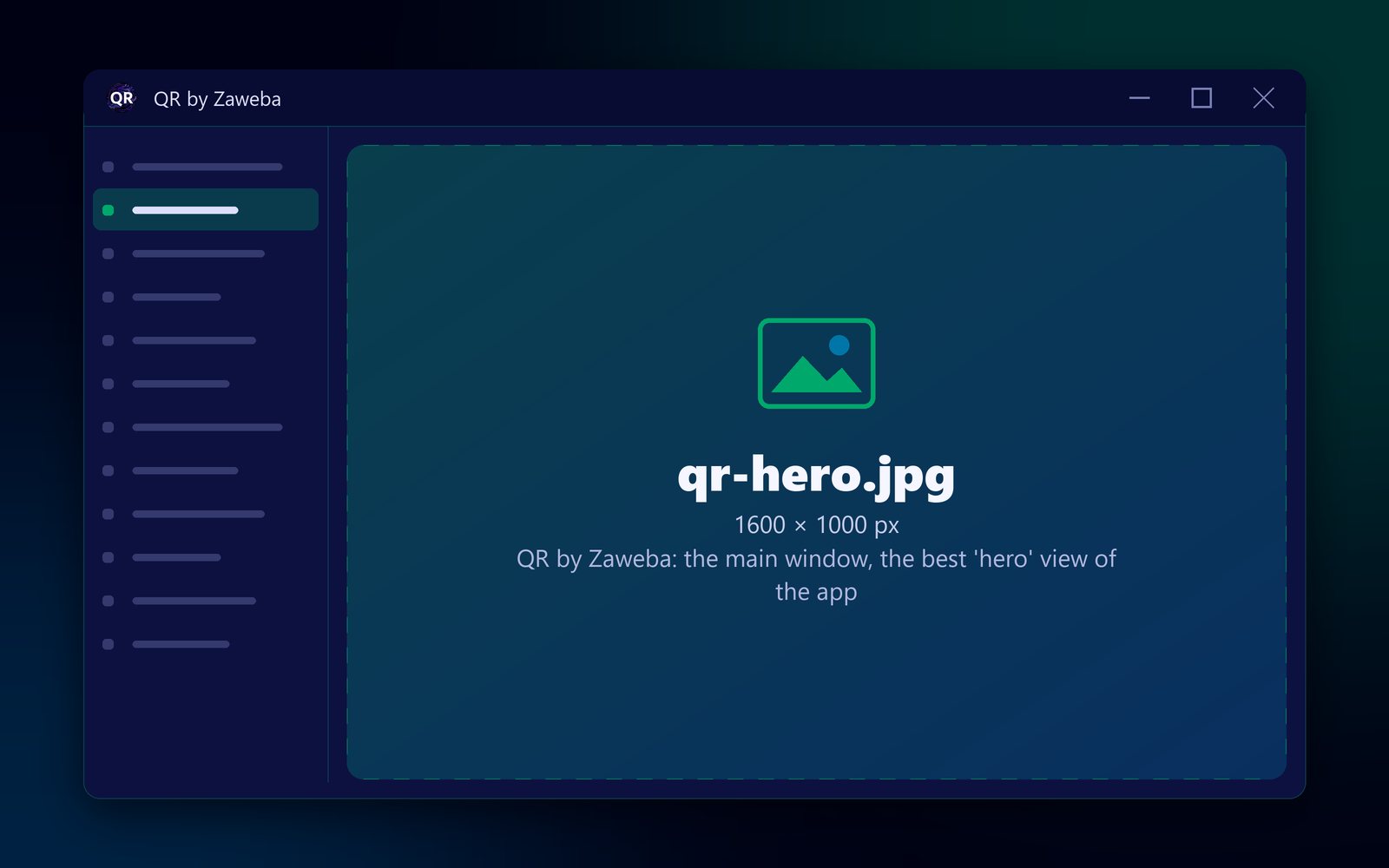
Choose Phone call in QR by Zaweba and type the number, and you have a QR code that calls it. When someone scans the code with their phone camera, the phone offers to dial the number; they tap once to ring. Save the code as a PNG, SVG or PDF and put it wherever people need to call you.
QR by Zaweba is free, works on your own PC and needs no account.
Before you start
Have the number ready, written the way you want people to dial it. If there is any chance someone will scan from abroad, or with a phone from another country, use the international form: a plus sign, the country code, then the number without its leading zero. For a UK number that means +44 and then the rest.
Pick a number that will last. The code holds the number itself, so if you change numbers later, you'll need new codes.
Creating the call code
Open QR by Zaweba and pick Phone call from the kinds of code. Type the number into the box. The app writes it into the code as a tel: link, the standard form phones recognise as a number to call.
Watch the preview. It reads the code back as you type and says Checked: it reads back exactly. If it warns you instead, it says why, such as colours that are too close or a margin that is too small.
Set the size. For a business card, a small code is fine; for a window, a van or a sign, make it larger, since people may scan from a few steps away. Keep a clear margin of empty space round the code, and keep it dark on a light background.
Then save. SVG suits sign makers and vinyl cutting, since it scales cleanly and is measured in millimetres. PDF gives a one-page vector file the exact size of the code. PNG at 300, 600 or 1200 dpi is fine for printed posters. Copy picture pastes it straight into a document.
Testing the call
Scan the finished code with your own phone. It should show the number and offer to call it. Check every digit, then cancel. It is also worth asking someone with a different make of phone to try it.
If you're printing something durable, print one copy first and scan it at the size and distance it will really be used.
For a code that will live outdoors, on a gate or the side of a van, think about wear. A higher error correction level such as Q or H lets a code still scan when part of it is scratched, dirty or covered, at the price of a denser pattern. Try it, look at the preview, and make the code a little larger if the squares start to look small.
Helping people who won't scan
Not everyone scans codes. Print the number in plain digits near the code, along with a few words such as "Scan to call". That way the code is a shortcut, not the only way in.
If you'd like to give people a choice, QR by Zaweba has a Text message kind that opens a ready-written text to your number, and an Email kind that opens a new email with the subject already filled in. Two small codes side by side, one to call and one to text, each with a word underneath, cover most people.

