
How to make a QR code that sends a text message
Choose Text message in QR by Zaweba, enter the number and the message, and phones that scan the code open a text that's ready to send.
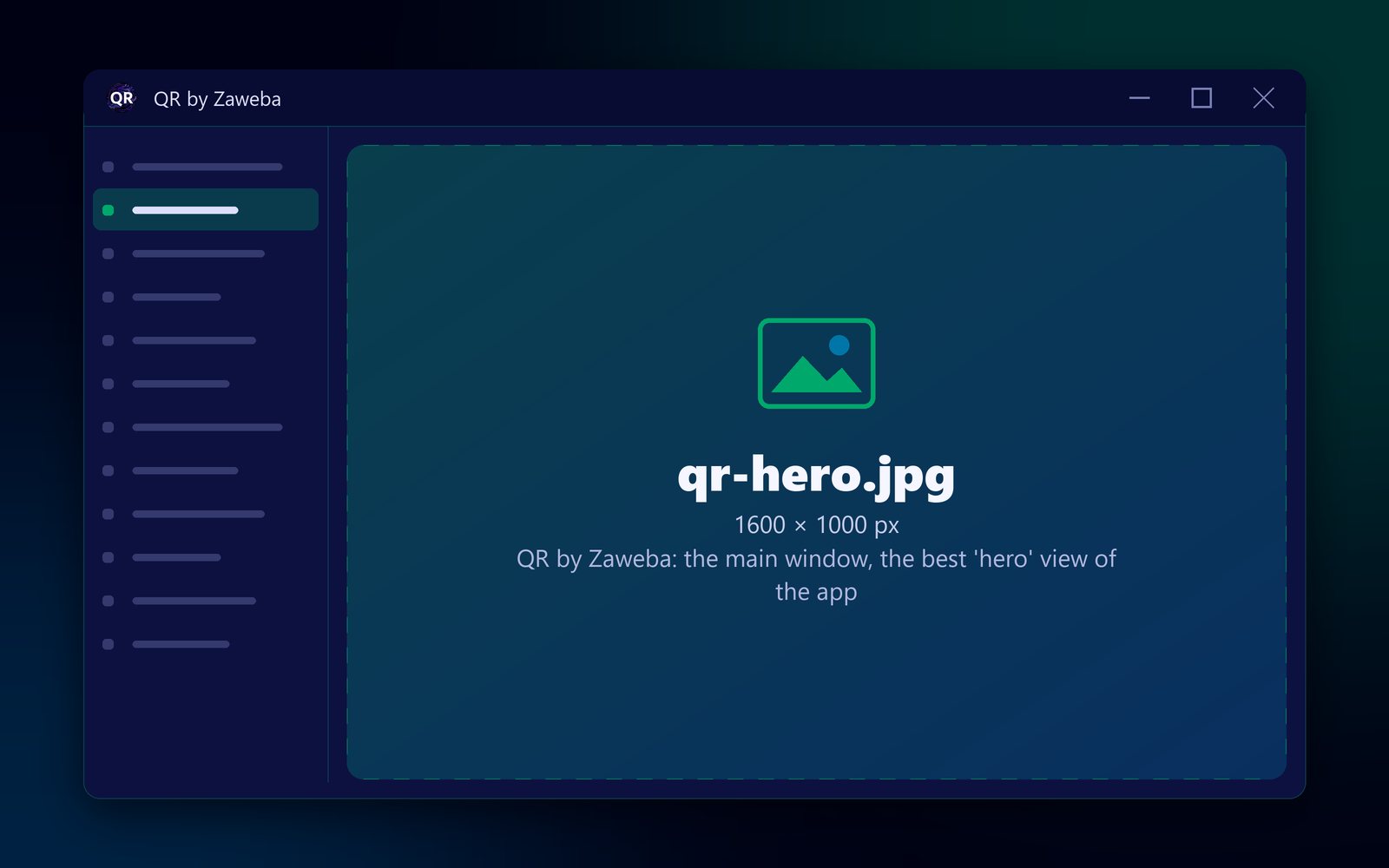
A text message code takes a minute to make in QR by Zaweba. Choose Text message as the kind of code, enter the phone number and the message, and save the code. When someone scans it, their phone opens a text addressed to your number with your message already written, and all they do is press send.
It is free to make, on your own PC, with no account.
Things to decide first
You need a number that can receive texts, which usually means a mobile rather than a landline. Since the number is inside the code and anyone can read it, use one you're happy to share.
Decide what the message should say. Think of it as the start of the conversation: "Booking request", "Please call me back about", or a keyword if you run something that replies to one. Short is best.
From number to finished code
Open QR by Zaweba and pick Text message from the kinds of code. Type the number, with its country code if people might scan from abroad (for a UK mobile, +44 and then the number without its leading zero). Type the message in the message box.
The app builds an SMSTO: link from the two boxes, the form phones recognise as a text to send. You don't have to know the format.
The preview redraws and reads the code back as you type. When it says Checked: it reads back exactly, the code is sound. If it warns you about colours or the margin, it says what is wrong so you can fix it.
Choose a size in millimetres to suit where it is going, keep a clear margin round it, and save as PNG, SVG or PDF. Copy picture puts it on the clipboard to paste into a poster or a leaflet.
Testing it properly
Scan the code with your own phone before printing. It should open your messaging app with the right number and the right words. You don't need to send it; check and cancel. A second phone of a different make is a good extra test.
Getting a good response
Tell people what happens when they scan. A few words such as "Scan to text us your booking" beside the code make a big difference. Print the number in digits too, for anyone whose phone doesn't scan.
Use the message to sort replies. If the same code is on every poster, every text arrives with the same opening, so you can spot them at once. If you want to know which poster works, give each one a slightly different message.
Keep the code dark on a light background, and big enough to scan from where people will stand. A code on a counter card can be small; one in a window or on a noticeboard across a room needs to be much larger. If in doubt, print a test at the size you have in mind and try it from a realistic distance.
If a text isn't right
Texts suit quick requests. For enquiries that need detail, the Email kind opens a new email with your subject already filled in. For people who'd rather talk, the Phone call kind offers to dial your number. And if you have an online booking page, the Web address kind sends people straight there. All of them come from the same window in QR by Zaweba.

