
How to make a QR code that sends an email
In QR by Zaweba choose Email, enter the address, subject and message, and scanning the code opens a ready-written email on the person's phone.
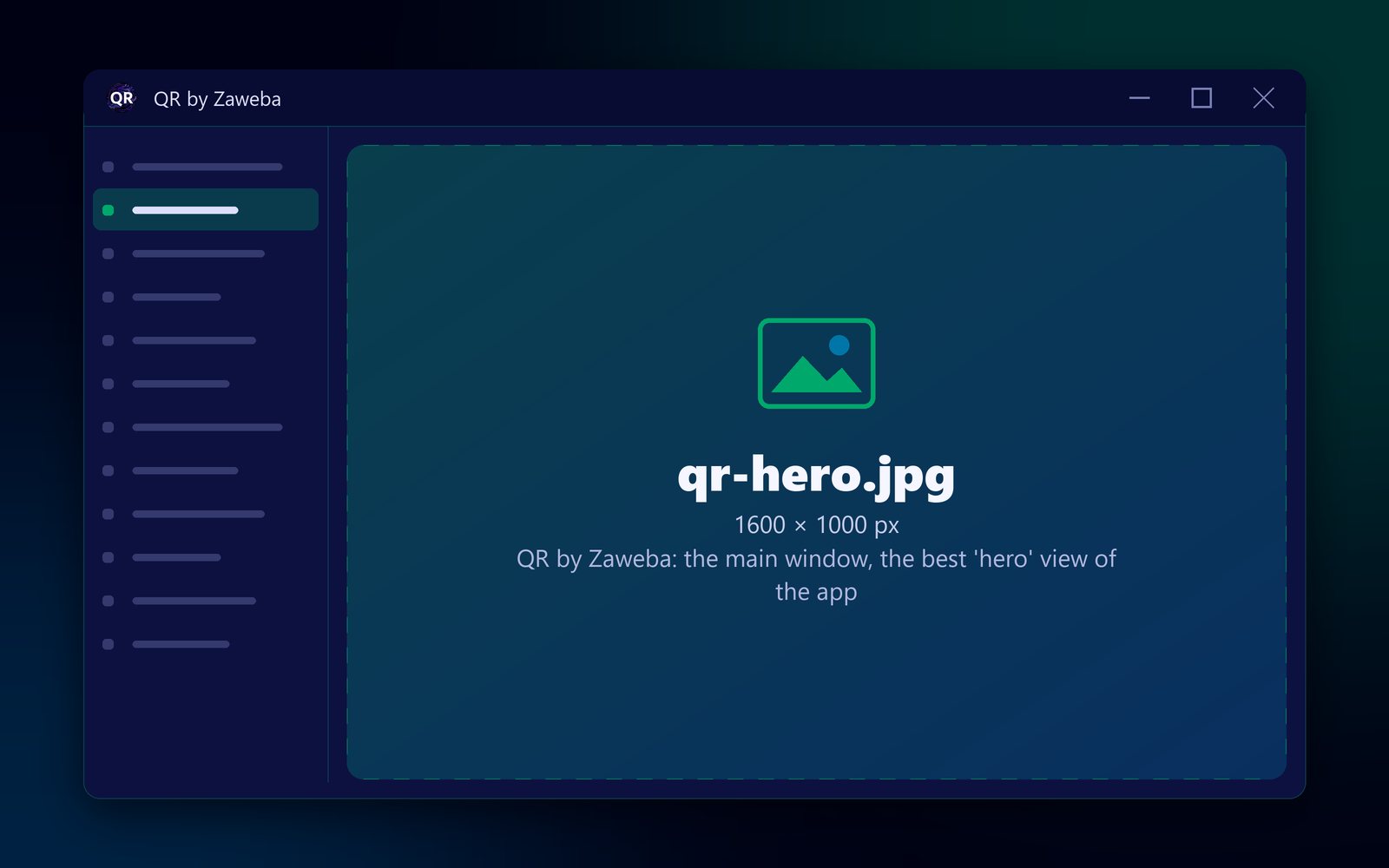
To make a QR code that sends an email, open QR by Zaweba, choose Email as the kind of code, and fill in the address, the subject and the message. The code appears in the preview straight away. When someone scans it, their phone opens a new email with all three already filled in, and they only need to press send.
Save it as a PNG, SVG or PDF, or copy the picture into the flyer or poster you are making.
What you need
You need QR by Zaweba, which is free and runs on your PC with no account, and the email address you want messages sent to. It also helps to decide the subject line in advance, because that is how you will recognise these emails when they arrive.
Use an address you are happy to make public. Anyone who scans the code, or reads it with a scanning app, can see the address.
Building the email code
Open QR by Zaweba and choose Email from the kinds of code. Three boxes matter: the address, the subject and the message.
Type the address carefully. Then type a short subject, such as "Table booking" or "Question about the course". In the message box, write a short opening the person can finish, or leave it short and simple. You can use ordinary words, spaces and punctuation; the app builds the mailto: link that phones expect and encodes everything so it doesn't break.
As you type, the preview redraws the code and reads it back. When it says Checked: it reads back exactly, the code is sound. If it warns about something, such as colours that are too close or a margin that is too small, fix that before saving. If you try to save a code that doesn't read back, the app asks you first.
Set the size in millimetres to suit where it will be printed, then save. PNG suits documents and home printing; SVG and PDF suit print shops and signs, because they print at exactly the size you set. Copy picture puts it straight onto the clipboard.
Getting a good result
Keep the subject and message short. Everything goes into the code, and more text means a denser pattern that is harder to scan from far away. A few words in each box is plenty; people can add more before they send.
Print a line of words next to the code, such as "Scan to email us", so people know what will happen. Print the address in words too, for anyone who can't scan or doesn't have a mail app set up on their phone, since the code opens the phone's own mail app.
Most importantly, test it. Scan the code with your own phone, check the address, subject and message are right, and cancel without sending if you like.
Alternatives to an email code
If people are more likely to text than email, the Text message kind opens a ready-written text to your number instead. If they'd rather ring, the Phone call kind offers to dial. If you want them to use a contact form on your website, use the Web address kind and link to that page.
For a whole sheet of labels with the same email code, the creator is also inside Labels by Zaweba, under Insert, with a Put on the label button.

