
Text message QR codes in QR by Zaweba
The Text message kind in QR by Zaweba makes an SMSTO code: scanning opens a text to your number with your words written, ready to send.
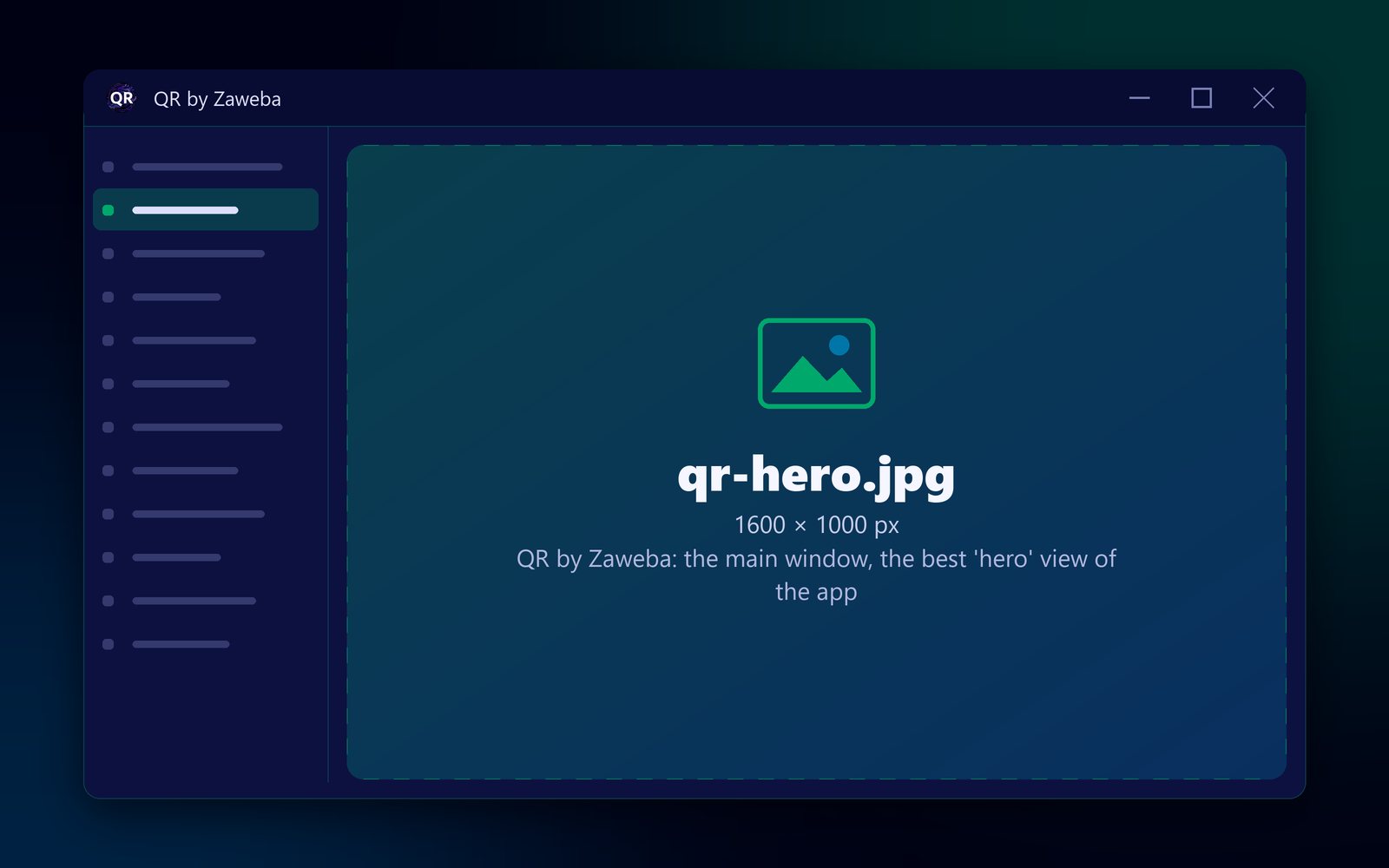
Some people will happily send a text but won't phone. The Text message kind in QR by Zaweba is for them. You enter a number and a message, the app builds an SMSTO: link inside the code, and scanning it opens a text on the person's phone, addressed to your number with your words already written. They press send.
Used well, it turns a printed sign into a simple booking or enquiry line.
How the code works
An SMSTO: link describes a text message: who it goes to and what it says. When a phone camera reads the code, it recognises the link and opens the messaging app with both filled in. The person can change the message before sending, but most won't need to.
QR by Zaweba writes the link for you from the two boxes, so you don't need to know the format. The number and message are stored in the code itself, so the code keeps working for as long as the number does.
Workflows that suit a text
The message you pre-write is what makes this kind useful. It can act as a label for incoming texts. A hairdresser's window could carry a code that opens "Appointment request:" so every booking text starts the same way. A plant stall could print "Please reserve" next to each code with the plant's name. A parish hall poster could have "Count me in for the quiz" so replies are easy to tally.
Using a fixed opening means you can spot these texts at a glance among everything else, and keep a rough count of how many came from each poster.
Keyword offers work the same way. If you run something that replies to a particular word, put that word in the message box, and the person doesn't have to remember it or type it correctly.
The number you use
The number must be one that receives texts, which rules out most landlines. A mobile works, as does a business texting service. Enter it with its country code if people might scan from abroad. For a UK mobile that means +44 followed by the number without its first zero.
Remember that the number is printed in the code for anyone to read, so use one you are happy to share publicly.
Keeping the code easy to scan
Every character of the message goes into the code, so a long message makes it denser. Keep the message to a few words; the person can always add more before sending. The live preview reads the code back as you type and tells you if anything, such as colours that are too close or too small a margin, would stop it reading.
Set the size in millimetres to suit the place it will be seen, keep a clear margin, and save as PNG, SVG or PDF. Copy picture pastes it straight into the poster or leaflet you are making.
Testing before you print
Scan the code with your own phone. It should open a text to the right number with the right words. Don't send it unless you want to; just check and cancel.
Then decide what to print alongside it. A line such as "Scan to text us" tells people what will happen, and printing the number in words helps anyone whose phone doesn't scan. If a call or an email would suit some of your audience better, the Phone call and Email kinds sit right next to this one.

