
Can you play ambient sounds like rain on your desktop?
Yes. Scene by Zaweba can play rain, birdsong, hum, space or room sounds with a scene, all synthesised by Scene and off until you turn them on.
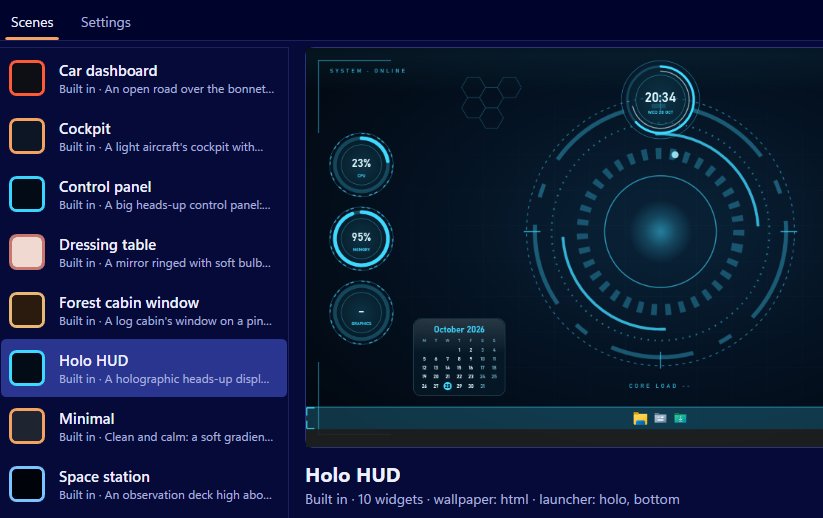
Rain, birdsong and three other ambient loops can play along with your desktop in Scene by Zaweba, one sound for each scene: hum, birdsong, rain, space or room. Scene synthesises them itself, so there are no recordings to download. They're off by default, and you turn them on with Play the scene's ambient sound in Settings.
Low background sound helps a lot of people concentrate, and it suits a themed desktop. Rain on the forest cabin window, a gentle hum in the space station, the quiet of a room behind the wooden desk.
Turning sound on
Open Settings from the View menu or press Ctrl+,. Tick Play the scene's ambient sound. Each scene chooses which sound goes with it, so switching scenes changes the sound too.
Sound is off by default for good reason: nobody wants a desktop that starts making noise without asking. Once you've ticked it, you'll hear it whenever a scene with a sound is on.
The five sounds
Hum is a soft, steady tone, the kind of background you'd hear in a cockpit or a station. Birdsong suits a daytime outdoor scene. Rain is the classic for focus. Space is a deep, open sound. Room is the quiet background of an indoor space, which is more noticeable when it stops than while it plays.
Because Scene makes them as loops, they run on without an obvious join. And because they're generated by Scene rather than played from a file, they take up no space in a scene and need nothing from the internet. Like the rest of Scene, they work entirely offline.
Choosing a sound for your own scene
In the editor, a scene's settings include its sound, along with the wallpaper, colours, font and launcher texture. Pick one of the five, or use the scene's own audio file instead if you have a recording you like. There's a volume for the scene's sound too.
Built-in scenes are read-only, so to change the sound of one, use Scene > Duplicate first and edit the copy. Press Preview on desktop to try it before you save.
Setting a sensible volume
Ambient sound works best when you almost don't notice it. Start low, lower than you think, and let it settle under your music, calls and system sounds. If you find yourself listening to it, it's probably too loud. Sound and wallpaper are separate, too: the wallpaper can pause for a game or on battery while you decide for yourself whether the sound carries on, and a quiet loop under a long piece of writing is often exactly what helps.
Sharing a scene with sound
When you export a scene with File > Export (Ctrl+E), its own audio file goes with it in the .zscene, so a friend who imports it hears what you chose. They'll still need to tick the ambient sound option in their own Settings, which keeps the decision with the person at the computer.
When to turn it off
If you join a call or watch something, untick the setting, or simply switch the scene off with Ctrl+Space, which removes all of Scene's windows and stops everything. Scene's wallpaper pauses automatically while a full-screen app or game runs, which covers most films and games without you lifting a finger.

