
How to add an API key to a desktop widget safely
Put the key in the feed's headers field in Scene by Zaweba. It stays on your PC and is stripped out when you export the scene to share.
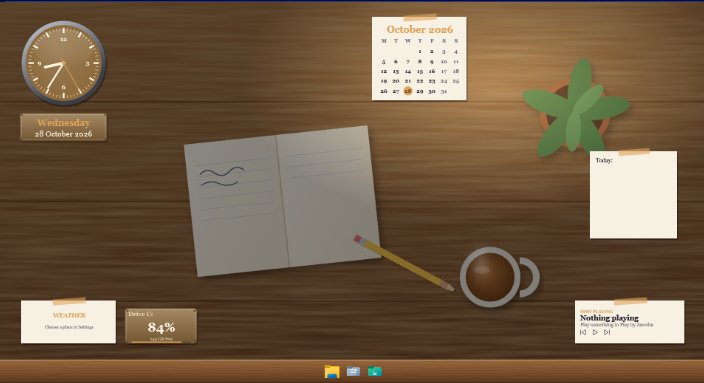
In Scene by Zaweba, put the API key in the data feed's headers field rather than anywhere else. The key stays on your own PC, it's sent only to the address you typed, and when you export the scene as a .zscene file to share, headers and key-like parts of the address are stripped out. Your friend gets the layout, not your key.
Data feeds are how Scene puts your own numbers on the desktop: orders today, stock levels, anything a web address can answer with JSON or plain text. Many of those addresses want a key, and a key is a password in all but name, so it's worth handling it properly.
Where the key goes
Open your scene in the editor and select the feed widget. Alongside the address, the feed has options for headers, refresh, prefix and units, number format, a range for rings, dials and bars, and an optional sparkline. Headers is the one for keys. Most services tell you the header name they expect in their own documentation, and you put the name and your key there.
Some services accept a key in the address itself. That works too, and Scene strips key-like parts of the address on export, but the headers field is the tidier place and keeps the address readable.
What Scene sends, and what it doesn't
A feed sends only the address and headers you typed. It sends no cookies. Each request has a 20 second timeout, a 1 MB cap on the reply and follows up to three redirects. Feeds only run while a scene with a feed widget is switched on, so a key isn't being used in the background when you're not showing it.
If a feed has no address yet, it shows "Set the address in Edit" and asks nothing at all. That's how the example feeds in the Control panel scene arrive: Orders today, Low stock and Revenue today, all with empty addresses waiting for yours.
Checking it works before you rely on it
Press Test the feed now in the editor. It lists every value in the reply with its path, so you can see at once whether the key was accepted. If the service refuses, the widget shows a short error such as "Not allowed (401)", and it keeps the last good value rather than going blank. If replies stop arriving, the widget marks itself Stale in amber and shows when the last good reply came in.
A 401 or 403 almost always means the header name is wrong or the key has a typo. Copy it again from the service rather than retyping it.
Sharing a scene that uses a key
When you're proud of a dashboard, File > Export (Ctrl+E) writes a .zscene file, which is the scene folder zipped. Headers and key-like address parts are removed in the export. The person who imports it sees your widgets and skins, adds their own key in the headers field, and their copy works for them.
That also means if you move to a new PC, you'll need to type your key in again after importing your own scene. That's by design.
Good habits with keys
Use a key with the least access the service allows, ideally read-only, because a desktop widget only ever needs to read. Set the refresh to something sensible. The minimum is 30 seconds and the default is five minutes, which is plenty for most business figures and kinder to services that count requests.
And if a key ever does leak, change it at the service. Scene will simply show the new error until you paste the new key in.

