
Can you auto-hide the taskbar for a cleaner desktop?
Yes. Turn on Auto-hide the Windows taskbar in Scene by Zaweba's Settings, and Scene puts the taskbar back when the scene stops.
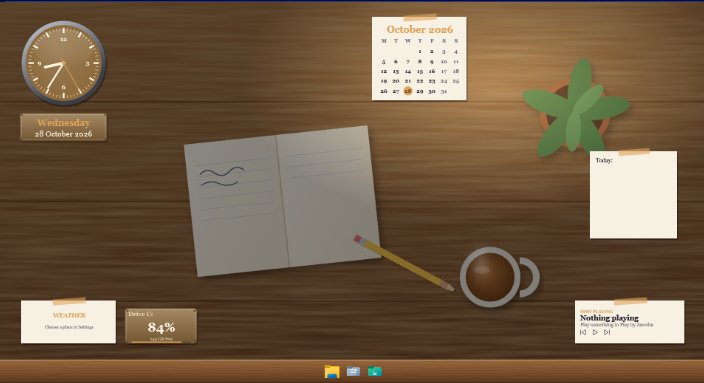
Taskbar auto-hide is an option in the Settings of Scene by Zaweba, called Auto-hide the Windows taskbar. While a scene is on, the taskbar slides out of the way until you move the mouse to the edge of the screen, and when the scene stops Scene restores it. The option is off by default, and it uses only the supported Windows setting.
A hidden taskbar lets a scene fill the whole screen. The cockpit reaches the bottom edge, the forest runs right down past the trees, and the launcher bar becomes the main row of shortcuts.
Turning it on
Settings is on the View menu, or press Ctrl+,. Tick the taskbar auto-hide option and close Settings. Next time a scene is on, the taskbar hides. Move the pointer to the edge where it lives and it slides back out, exactly as auto-hide in Windows always works.
What Scene changes, and how it puts it back
This is the only Windows setting Scene touches, and only if you ask. It's the same auto-hide setting you could change yourself in Windows. Scene doesn't patch the taskbar, Explorer or anything else.
While a scene is on, Scene keeps a small session.json noting what it changed. When you switch the scene off, the taskbar is restored. If Scene were ever to crash, a watchdog restores the taskbar, and the next time Scene starts it repairs anything still left behind. You won't be stuck with a hidden taskbar.
Using the launcher bar instead
With the taskbar tucked away, Scene's launcher bar does the job of quick launching. Drag your apps, folders, files and web addresses onto it. It can sit at the bottom, top, left or right, or float, and its texture matches the scene. If you want it reachable even when a window is maximised, tick Keep the launcher bar on top of other windows in Settings.
The taskbar is still there for switching between open windows. Push the pointer to the edge, or use Alt+Tab as usual.
When it isn't a good idea
Auto-hide suits people who use a few windows at a time and like a clean view. If you rely on taskbar notifications or keep a dozen windows open, you may find yourself reaching for the edge too often. Try it for a day. If it doesn't suit you, untick it and the taskbar stays put. Nothing else about your scene depends on it, so it's an easy experiment to undo. Your widgets, wallpaper and launcher bar look and behave the same either way.
On a touch screen, an always-visible taskbar is usually easier. On a large monitor, auto-hide makes more sense, because the extra space shows off more of the scene.
A cleaner desktop in other ways
Hiding the taskbar is one part of a tidy desktop. The Minimal scene is another, with a soft gradient, a big clock, the date and the weather and nothing else. Fewer widgets, placed carefully with Arrange mode, also make a desktop calmer than any single setting. And remember that switching the scene off with Ctrl+Space puts Windows back exactly as it was, taskbar included.

