
Auto-hiding the taskbar with Scene by Zaweba
Scene by Zaweba can auto-hide the Windows taskbar while a scene is on, using Windows' own supported setting, and restores it when the scene stops.
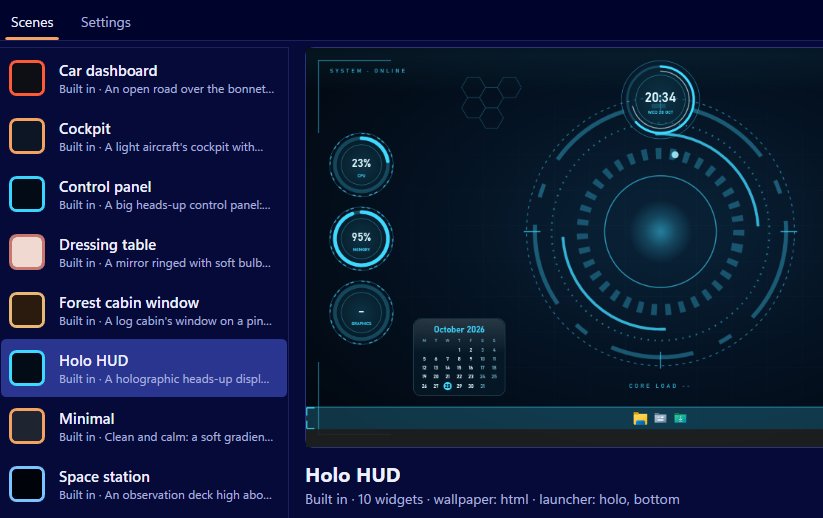
A themed desktop looks its best with nothing in the way, and the taskbar is the biggest thing in the way. Scene by Zaweba has an option to auto-hide the Windows taskbar while a scene is on. It's off by default, and when the scene stops, Scene puts the taskbar back as it was.
The interesting part is how it does this, because it's the kind of change that has a bad reputation. Desktop customisers have a history of hiding or reskinning the taskbar by patching Explorer, and leaving people with a broken desktop when something goes wrong.
Using the supported setting
Scene uses only Windows' own supported auto-hide setting, the same one you can turn on yourself in Windows' taskbar settings. It doesn't patch Explorer, doesn't edit system files and doesn't touch window frames. It just switches on auto-hide while a scene runs, and switches it back when the scene stops.
To use it, open Settings (Ctrl+, or from the View menu) and tick Auto-hide the Windows taskbar. The next time a scene is on, the taskbar slides away until you move the mouse to the edge of the screen.
What happens if something goes wrong
Restoring a setting is easy when everything shuts down normally. The harder case is a crash. Scene covers it in three ways.
While a scene is on, a small file called session.json records what Scene changed, including the taskbar. A watchdog restores the taskbar if Scene crashes. And the next time Scene starts, it checks session.json and repairs anything that was left. So even a power cut halfway through the day won't leave you with a taskbar that's hidden forever.
Switching a scene off removes all of Scene's windows and leaves Windows as it was, taskbar included.
Pairing it with the launcher bar
With the taskbar hidden, the launcher bar becomes your main way to open things. Put it on the bottom edge and tick Keep the launcher bar on top of other windows, and you have a dock of your own choosing with the taskbar a mouse movement away. Fill it with the apps, folders and websites you use most; your items stay across scenes.
Some people prefer the opposite: leave the taskbar visible for running apps and keep the launcher on the desktop under windows, for when you show the desktop. Try both.
When not to use it
If you rely on the taskbar's notification area or glance at the clock in it all day, auto-hide can be more irritating than tidy. Scene's own clock widget can stand in for the taskbar clock, but notifications are another matter. And if your scene's wallpaper pauses for full-screen apps anyway, the taskbar is already out of the way when you're gaming.
The thinking behind it
The auto-hide option is a small example of how Scene by Zaweba works in general: overlay, never hack. Everything you see is Scene's own windows, and the one Windows setting it does touch is a supported one, recorded so it can always be put back. It's a cleaner desktop without the risk.

