
How to change a built-in scene without losing the original
Built-in scenes in Scene by Zaweba are read-only. Edit or Duplicate makes your own copy, and arranging one saves a '(my layout)' version.
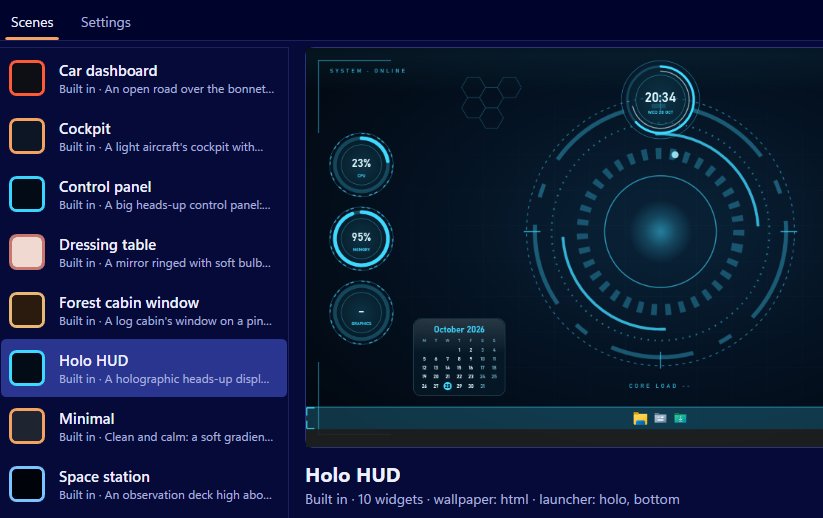
You don't have to do anything special: the nine built-in scenes in Scene by Zaweba are read-only, so you can't spoil them. Choose Edit or Scene > Duplicate and Scene makes your own copy to change. If you arrange a built-in scene's widgets on the desktop, Scene saves the result as a new scene with "(my layout)" on the end of its name. The original is always there to go back to.
That's a relief if you like to experiment. Move everything, change every colour, and if it goes wrong, the scene you started with is untouched.
Duplicate, then edit
In the Scenes tab, select the built-in scene you like, such as Cockpit or Wooden desk, and choose Scene > Duplicate. You now have a copy with its own name. Open it in the editor and change whatever you want: widgets and their skins, captions, anchors, offsets, sizes and monitors, the wallpaper, colours, font, launcher texture and its position and size, the time of day and the sound.
Choosing Edit on a built-in scene gets you to the same place, because Scene makes a copy rather than touching the original.
Arranging on the desktop
Arrange mode, from the tray menu, the Arrange on desktop button or the Scene menu, lets you drag and resize widgets on the real desktop. Press Done and Scene saves the positions. With a built-in scene, it saves them to a user copy named something like "Cockpit (my layout)". Your arrangement is safe and so is the original.
Where your copies live
Your own scenes are kept in %APPDATA%\Zaweba\Scene\scenes. Scene > Open my scenes folder opens it, which is handy if you want to look at the files or back them up. Notes typed into a notes widget come with a scene when it's copied, so duplicating doesn't lose what you'd written.
Going back to the original
Simply select the built-in scene in the Scenes tab and switch it on. It's exactly as it shipped. If you no longer want a copy, select it and choose Delete. Delete only works on your own scenes, so a built-in one can't be removed by mistake. That makes it safe to clear out old experiments now and then. Keep the copies you actually use, delete the rest, and the Scenes tab stays short enough to find things in. If you ever want a built-in scene's layout back after rearranging it, just switch the original on again, since your "(my layout)" copy is a separate scene and doesn't replace it.
Keeping track of versions
If you try several ideas, give each copy a clear name. Duplicate your copy before a big change, so you can compare the two. Use Preview on desktop in the editor to see a scene live before saving, and Stop preview to go back to what was on.
Sharing your version
When you're happy, File > Export (Ctrl+E) writes your copy as a .zscene file. Someone else can import it and get your version, while their own built-in scenes stay as they were too.

