
Clock, date and calendar widgets in Scene by Zaweba
Put a clock, the date or a calendar on your desktop with Scene by Zaweba, in any skin from analogue to digital, with a 24-hour option in Settings.
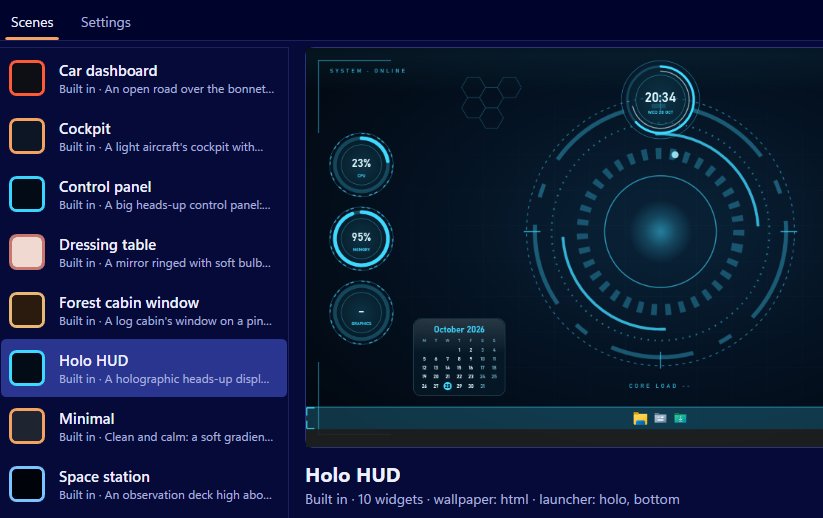
Most people glance at the time far more than at anything else on their desktop. Scene by Zaweba's clock, date and calendar widgets put it there in a style that suits the scene, from a brass-looking analogue face in the Cockpit to a big digital readout on the Minimal scene.
They're three separate widgets, so you can use one, two or all three, and place each where you like. All of them show local time.
Skins make the difference
Every widget kind works in every skin, and these three are where that shows most. The skins are dial, analogue, ring, bar, digital, plaque, paper, hud (cut corners, brackets, tick marks and segmented bars) and image. An analogue clock and a digital one are just the same widget wearing different skins.
A few pairings that work well: an analogue clock with a plaque date on the Wooden desk; a hud clock with brackets and tick marks on Holo HUD or Space station; a paper calendar on the Dressing table. The widget takes the scene's palette and an optional highlight colour, so it never looks pasted on.
If none of the skins is right, a widget face can be your own SVG or PNG picture. SVG faces are rendered with SharpVectors, so a clock face drawn in Vectornation by Zaweba or any other vector tool can be used.
Setting them up
In the editor, add a clock, date or calendar widget and set its skin, caption, anchor, offsets, size and monitor. On the real desktop, Arrange mode lets you drag and resize them directly, with a 10 pixel grid and snapping to other widgets' edges (hold Alt to place freely). Press Done to save. If you arrange a built-in scene, Scene saves it as your own copy named with "(my layout)" so the original stays as it was.
The 24-hour clock is a setting rather than a per-widget option. Open Settings (Ctrl+, or from the View menu) and tick 24-hour clock.
Where they fit in a scene
A clock is often the anchor of a layout. The Minimal scene is built around one: a time-of-day gradient, a big clock, the date and the weather, and no animation at all. Copy the idea into your own scene by putting a large clock where your eye naturally falls and keeping everything else small.
On a busier scene, a smaller clock tucked into a corner beside the launcher bar works better than a big one competing with gauges. Pair the date with the weather widget and you have the two things most people check first thing in the morning.
The calendar widget is handy on a second monitor, where it can stay in view without taking space from your work. Scene places widgets per monitor, with positions calculated so different scaling on each screen works.
Small mistakes to avoid
Don't place a clock where windows usually cover it. Widgets sit on the desktop under your windows, so a clock in the middle of the screen is hidden whenever you're working. The edges and corners are better.
Don't set a tiny analogue face on a high resolution screen; the hands become hard to read. The editor shows how the scene will look on this PC and at a few common resolutions, which helps judge size.
These widgets are cheap to run. They're native windows, not web pages, so even a scene full of clocks costs very little. Turn Scene by Zaweba off and they disappear along with everything else Scene drew.

